
Preventing Run-On PDFs: Cleaner Documents for E-Filing
Learn how to structure, split, and optimize court PDFs so your electronic filings stay compliant, readable, and easy for clerks to review.
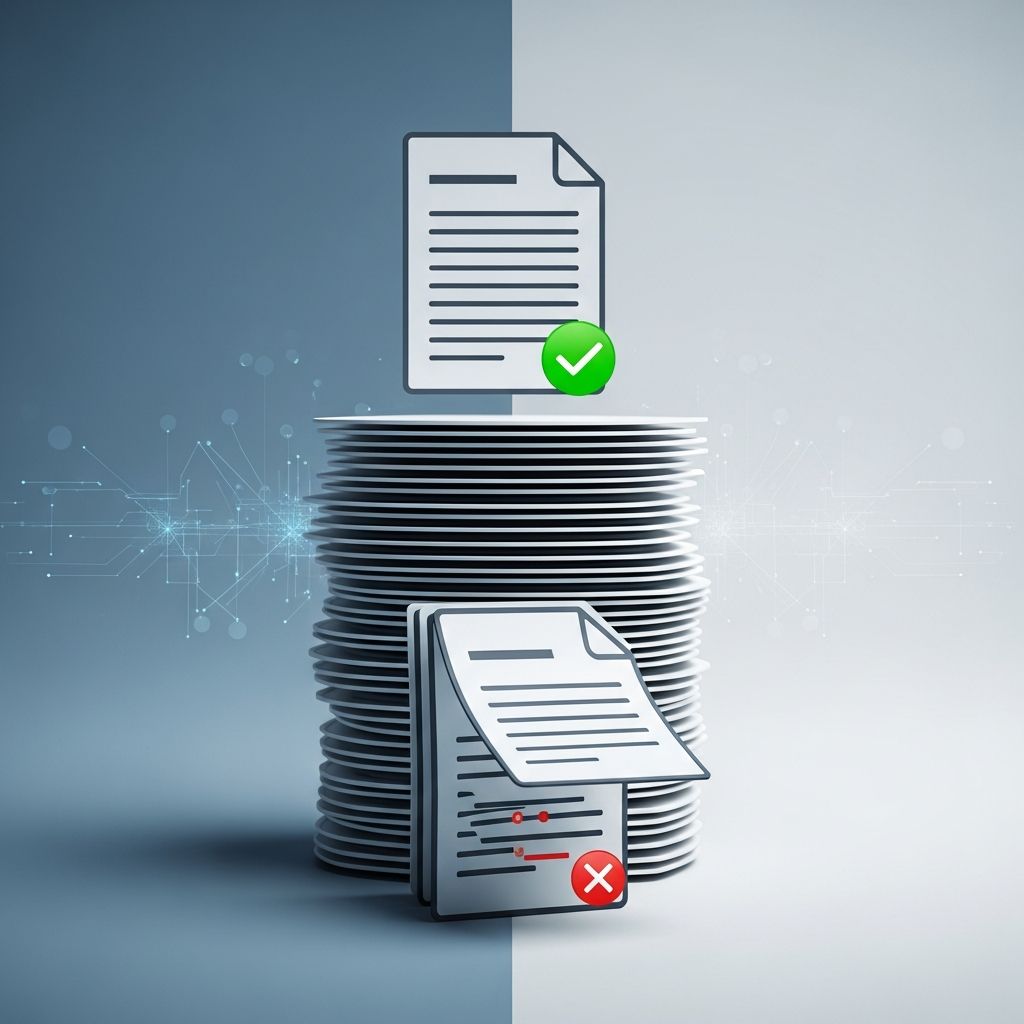
Electronic filing has streamlined how lawyers, legal professionals, and self-represented litigants submit documents to the court. Yet one persistent problem continues to cause rejections and delays: run-on PDFs — oversized, confusing documents that mash multiple filings and exhibits into a single, unwieldy file.
This guide explains what run-on documents are, why courts object to them, and how to structure, format, and submit your PDFs so your e-filings are compliant, readable, and easy for clerks and judges to work with.
What Is a Run-On Document in E-Filing?
A run-on document is a PDF that improperly combines multiple, distinct court documents or filings into one continuous file without clear separation, labeling, or organization. Instead of receiving a complaint, a motion, and supporting exhibits as separate, well-labeled PDFs, the court is handed a single, long document that may be hundreds of pages.
Common characteristics of run-on PDFs include:
- Multiple pleadings or motions combined into one file with no logical breaks
- Exhibits embedded in the middle of a pleading instead of attached and labeled
- Lack of bookmarks or electronic table of contents
- Recycled scans of prior court filings appended with new material
- Inconsistent or missing page numbering across the combined document
Court e-filing systems and administrative procedures typically expect each document type to be submitted as its own PDF, with clear internal structure and text-searchable content. When a filer uploads a run-on document, clerks may reject it or request resubmission in the proper format.
Why Courts Dislike Run-On PDFs
Run-on documents are not just a stylistic issue; they actively interfere with court operations and case management. Courts emphasize formatting for e-filed documents because:
- Clerks must quickly identify each filing type. Combining multiple pleadings in one PDF makes docketing and routing more difficult.
- Judges and staff rely on searchable PDFs. When a long, scanned file is not text-searchable, it becomes harder to locate key language or citations.
- Technical requirements are enforced automatically. File size limits, bookmark rules, and PDF formats are often hard-coded in e-filing platforms.
- Appeals, records, and transcripts depend on clarity. Multi-volume records, appendices, and briefs must be clearly separated and navigable for appellate review.
Because of this, many courts publish detailed formatting specifications for electronic documents, including rules on file type, size, bookmarks, pagination, and text searchability.
Essential Principles for Structuring E-Filed PDFs
To avoid run-on filings, it helps to view every e-filed PDF as a standalone, coherent document with a specific purpose on the docket. The following principles apply across most jurisdictions, though you must always confirm your court’s local rules.
| Principle | What It Means in Practice |
|---|---|
| One primary document per PDF | Each complaint, motion, memorandum, order, or declaration is typically its own PDF, uploaded under the correct document type in the e-filing portal. |
| Exhibits are separate, but linked | Exhibits are usually separate PDFs or clearly labeled parts of an exhibit bundle, referenced in the main filing and labeled according to court rules. |
| Logical, consistent pagination | Pages are numbered with Arabic numerals, and numbering aligns with any tables of contents or references in the document. |
| Bookmarked navigation | Long PDFs and records include bookmarks that match the headings or table of contents, allowing fast navigation. |
| Text-searchable content | Documents are created from word processors or made searchable via OCR, rather than uploaded as passive image scans whenever possible. |
How to Decide When to Split a PDF
Knowing when to split a document—and when to keep it together—is key to avoiding run-on filings. Use the following checklist to determine whether a draft PDF should be divided before upload.
Split the PDF when:
- You are filing multiple document types at once (for example, a motion, a notice of motion, and a proposed order).
- Your proposed order or judgment is a separate document that the court may sign.
- The e-filing system provides distinct “document type” selections matching each part of your filing package.
- The total file size will exceed the court’s megabyte limit if everything is combined.
- You are submitting a multi-volume record or appendix and local rules require separate volumes.
Keep documents together when:
- Rules explicitly require a combined filing (for example, a brief and appendix filed together in certain appellate courts).
- You are submitting a single memorandum with an attached, short exhibit that is clearly integrated and permitted by rule.
- The court’s instructions state that a particular package (such as a specific form plus supporting pages) must be uploaded as a single PDF.
Whenever your judgment call conflicts with a clear local rule or a direct instruction from the clerk, the rule wins. Always confirm with court resources or published administrative guides where available.
File Naming and Labeling to Avoid Confusion
Even when documents are properly split, confusing file names and internal labels can make your e-filing look like a run-on mess. Good naming practices clarify what each PDF contains before anyone even opens it.
Best practices for e-filing file names
- Use clear, descriptive names (for example, Smith_Motion_for_Summary_Judgment.pdf).
- Avoid spaces, unusual symbols, or excessively long strings that may not display correctly.
- Include exhibit identifiers where needed (e.g., Smith_Exhibit_A_Email_Correspondence.pdf).
- Match the description in the e-filing portal’s document type or description field.
Internal document labeling
- Ensure the caption and title on the first page match how the document is described in the e-filing system.
- Label exhibits consistently (A, B, C or 1, 2, 3) and use the same labels in the main filing’s text.
- For multi-volume records, clearly label each volume on the cover page and in the PDF properties (Volume I, Volume II, etc.).
Courts often require that the electronic PDF and any hard copy match in both content and labeling, which further underscores the need for consistency.
Formatting Requirements that Intersect with Run-On Issues
Run-on PDFs are often accompanied by other formatting problems that independently justify rejection. While exact rules vary by jurisdiction, several requirements are widely adopted.
1. PDF format and resolution
- Courts generally require filings to be submitted in PDF or PDF/A format, not as word processor or image files.
- Scanned documents must typically be scanned at 300 dpi resolution and in black and white unless color is necessary to preserve evidentiary value.
- Whenever possible, create PDFs from word processing files instead of scans to keep file sizes smaller and text searchable.
2. Text searchability
- Many courts require PDFs to be text searchable, which is essential for judges and staff who rely on keyword searches.
- Handwritten or image-only content is typically exempt, but filers must still ensure legible scans.
- Use built-in PDF creation tools or optical character recognition (OCR) in software such as Adobe Acrobat Pro to convert scans into searchable text.
3. Bookmarks, page numbering, and file size
- Long or multi-part PDFs, especially appellate records, are often required to include bookmarks that mirror the table of contents.
- Pages must be numbered using Arabic numerals, and the PDF’s display counter should match the internal page numbers where feasible.
- Courts enforce maximum file sizes; documents over the limit (such as 25 MB or 100 MB, depending on jurisdiction) must be split or optimized before filing.
Step-by-Step Workflow to Eliminate Run-On Filings
The following workflow can help you integrate anti–run-on practices into your daily document preparation process.
Step 1: Plan the filing package
- List each document you intend to file (for example, Notice of Motion, Motion, Memorandum of Points and Authorities, Declarations, Exhibits, Proposed Order).
- Check local rules and e-filing instructions to see which items must be separate PDFs and how they must be labeled.
Step 2: Draft in word processing software
- Draft each document in Word or another word processor using proper margins, fonts, and captions as required by your jurisdiction.
- Keep exhibits in an organized file structure so they are easy to convert and label consistently.
Step 3: Convert to PDF correctly
- Create PDFs directly from the word processing software instead of printing and scanning, whenever possible.
- Apply OCR to any scanned exhibits so they are text searchable.
- Confirm that each PDF opens properly, shows the correct first page, and is not password-protected unless local rules require encryption.
Step 4: Organize internal structure
- Add bookmarks for major headings, sections, and exhibits in longer documents.
- Verify page numbering and that any references in your brief (for example, “see Record, p. 127”) actually match the underlying PDF.
- Label the cover pages of multi-volume documents clearly and consistently.
Step 5: Check technical compliance
- Review the court’s latest e-filing technical guidelines or administrative procedures.
- Confirm file size limits and reduce PDF size if necessary using optimization tools.
- Ensure that exhibits are either combined into an exhibit bundle as required or kept as separate, clearly labeled files.
Step 6: Upload with accurate descriptions
- Select the correct document type in the e-filing system for each PDF (for example, “Motion,” “Memorandum,” “Affidavit,” “Exhibits”).
- Use descriptive document titles that match the internal caption and file name.
- Double-check that you have not attached multiple, unrelated documents in a single upload slot.
Step 7: Review post-submission
- After filing, open the docketed PDFs to confirm that they uploaded correctly and appear as intended.
- If the court flags issues or rejects a filing for formatting reasons, correct the problem promptly and document the steps you took for future reference.
Common Mistakes that Create Run-On Documents
Many run-on PDFs arise from the same avoidable errors. Watch for these patterns in your own workflow.
- Scanning an entire paper file into one PDF and uploading it as a single pleading.
- Appending prior court orders or filings directly onto the end of a new motion instead of referencing them or attaching them as properly labeled exhibits.
- Recycling an old filing by adding new material to the back of a previously filed PDF.
- Ignoring file size limits and then trying to compress a massive all-in-one document, which often reduces legibility.
- Failing to read e-filing FAQs and administrative guides that spell out exactly how documents should be broken up.
Tools and Techniques to Manage Complex Filings
Modern PDF tools make it easier to avoid run-on filings while still managing large records and exhibit sets.
- PDF editors (such as Adobe Acrobat Pro) allow you to split PDFs, merge related exhibits, reorder pages, and apply bookmarks and OCR.
- File compression utilities help reduce size without significantly harming quality, which is critical where courts impose strict megabyte limits.
- Document assembly and automation software can generate separate, properly labeled documents based on templates, reducing the chance of mis-grouping content.
- Checklists and internal guidelines in your firm or office can standardize naming, splitting, and labeling practices across all cases.
Frequently Asked Questions (FAQs)
Q: Is it ever acceptable to file multiple documents in a single PDF?
A: Sometimes. Certain courts allow or require specific combinations, such as a brief and appendix, or a motion and proposed order in one PDF. Always follow the court’s explicit instructions and technical guidelines; if in doubt, keep distinct filings in distinct, clearly labeled PDFs and confirm with local rules or clerk guidance.
Q: How can I tell if my PDF is text-searchable?
A: Open the PDF and try using the search function to find a word or phrase. If the search tool cannot locate any text, the document is likely image-only. In that case, run optical character recognition (OCR) in your PDF editor to make it searchable before e-filing.
Q: What should I do if my properly structured filing still exceeds the file size limit?
A: First, optimize and compress the PDFs using high-quality compression tools. If the file is still too large, split the document into multiple volumes according to court rules (for instance, Record Volume I and Volume II) and label each volume clearly when uploading.
Q: Where can I find my court’s e-filing formatting rules?
A: Most courts publish e-filing specifications on their official websites, sometimes as technical guides or administrative procedure manuals. Look under sections labeled e-filing, electronic filing, local rules, or FAQs. Rely on these official resources over unofficial summaries.
Q: Do I need to replicate the exact formatting of the paper version in the electronic version?
A: Generally yes. Courts expect the electronic PDF and any required hard copies to be identical in content and substantially consistent in formatting and pagination. Check local guidance to see if any accommodations or differences are permitted.
References
- What is the required formatting for eFiled documents? — One Legal Support. 2023-08-01. https://support.onelegal.com/en_US/court-filing/what-is-the-required-formatting-for-efiled-documents
- Formatting Specifications and Guidelines for Electronically Filed Documents — Appellate Division, First Department, New York State Courts. 2021-05-10. https://www.nycourts.gov/courts/ad1/E-Filing/TechnicalRequirementsEfiling.pdf
- Avoiding Court Rejections: 5 Common E-Filing Mistakes And How To Fix Them — Bay Area File. 2022-09-15. https://bayareafile.com/e-filing-services/avoiding-court-rejections-5-common-efiling-mistakes-and-how-to-fix-them/
- Guidelines for the Submission of Documents to the Supreme Court’s Electronic Filing System — Supreme Court of the United States. 2020-11-20. https://www.supremecourt.gov/filingandrules/electronicfilingguidelines.pdf
- Administrative Procedures Guide for Electronic Filing — United States District Court for the Western District of New York. 2022-10-05. https://www.nywd.uscourts.gov/sites/nywd/files/administrative%20guide%2020221005.pdf
- Formatting E-filings with Adobe Acrobat Pro — San Diego Law Library. 2021-06-30. https://sdlawlibrary.libguides.com/Format_eFilings_Adobe
- FAQs — New York State Unified Court System (NYSCEF). 2023-04-12. https://iappscontent.courts.state.ny.us/nyscef/live/faq.htm
Similar Articles








Read full bio of medha deb


