
Practical Guide to PDF Bookmarks for Faster Navigation
Discover how to plan, create, and manage PDF bookmarks so your documents are easy to navigate, review, and file electronically.
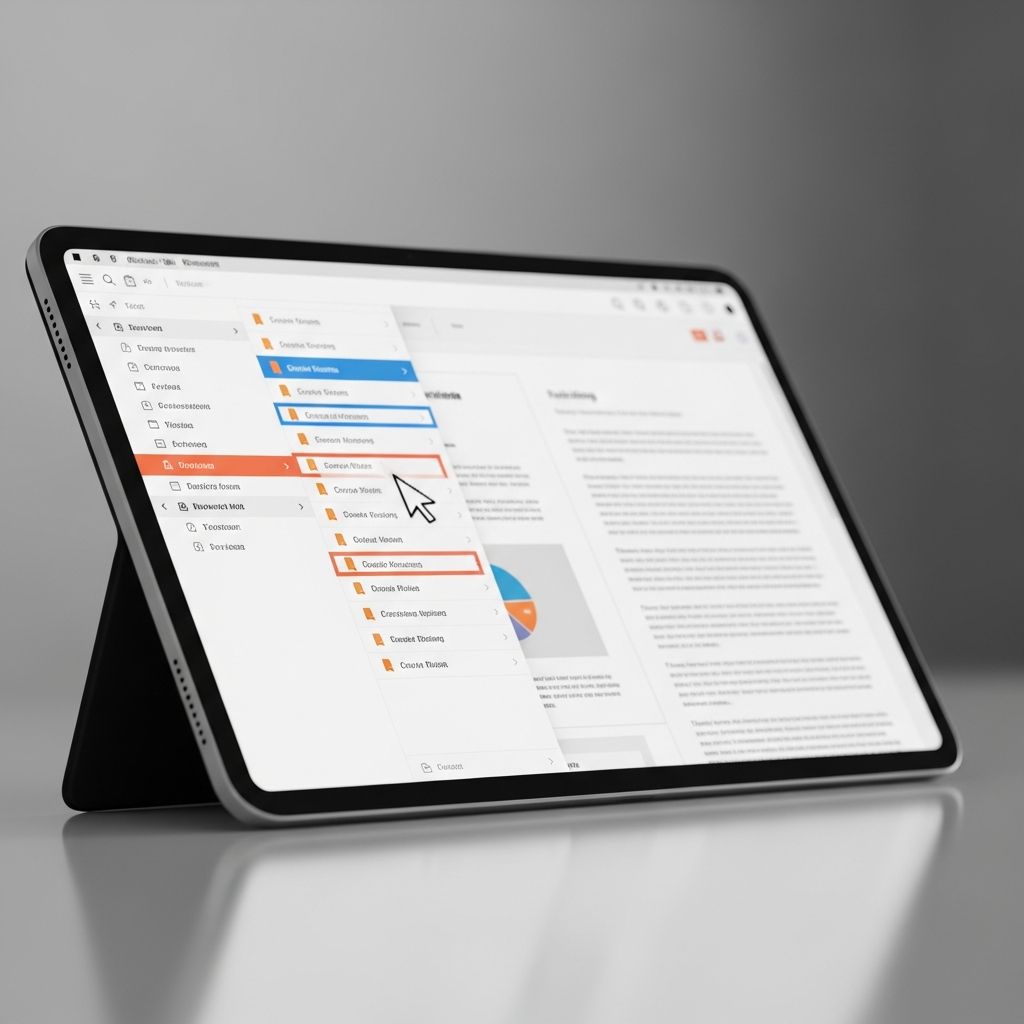
Well-organized PDF bookmarks turn a long, complex file into a document that is quick to skim, easy to cite, and ready for electronic filing. In legal, business, and academic settings, many courts and institutions recommend or require bookmarks so readers can jump directly to key sections.
This guide explains what bookmarks are, why they matter, and how to plan, build, and manage them efficiently in your everyday workflow.
What Are PDF Bookmarks and Why Do They Matter?
In a PDF, a bookmark is a clickable entry—usually displayed in a side panel—that takes the reader straight to a specific page view, heading, or section of the document. A collection of bookmarks forms a navigation outline, similar to a digital table of contents.
Key benefits of using bookmarks
- Faster navigation: Jump directly to motions, exhibits, chapters, or appendices without endless scrolling.
- Better user experience: Readers can quickly understand the structure and find what they need, which is especially important in legal and technical documents.
- Professional presentation: Courts, regulators, and clients expect clear, organized PDFs for electronic submissions.
- Reduced errors: Accurately labeled sections make it easier to confirm page references during drafting and review.
Bookmarks vs. Table of Contents
Both a table of contents and bookmarks help with navigation, but they work differently.
| Feature | Bookmarks | Table of Contents |
|---|---|---|
| Location | Side panel or navigation pane in the PDF viewer | Visible inside the pages of the document |
| Interactivity | Clickable entries jump to a specific page view | May be static text unless links are manually added |
| Best use | Electronic navigation and eFiling | Printed copies and general orientation |
| Flexibility | Easy to rename, reorganize, or nest into hierarchies | Requires editing the document content to change |
Planning a Bookmark Structure Before You Start
Thoughtful planning saves time and results in a cleaner, more intuitive bookmark outline. Before you add any bookmarks, sketch out the structure you need.
Decide which items should be bookmarked
In longer documents, bookmarking every page is usually unnecessary and can overwhelm the reader. Focus on entries that provide meaningful waypoints.
- Primary sections: Major headings (e.g., Introduction, Argument, Conclusion, Exhibits).
- Subsections: Key subheadings or numbered sections under each primary heading.
- Critical attachments: Exhibits, appendices, declarations, or schedules.
- Frequently cited pages: Orders, signature pages, or essential charts.
Use logical levels and naming conventions
Most PDF viewers present bookmarks in a tree-like hierarchy with expandable levels. A clear convention improves readability:
- Level 1 (top level): Entire document parts (e.g., “Brief”, “Exhibits”).
- Level 2: Individual sections within each part (e.g., “Statement of Facts”).
- Level 3: Specific subsections or numbered issues when needed.
For the names themselves:
- Keep them concise but descriptive (e.g., “Exhibit B – Email from Smith”).
- Follow the wording used in the document headings when possible.
- Use consistent numbering (e.g., “1.”, “1.1”, “1.1.1”) for complex structures.
Consider requirements for courts and institutions
Many courts and administrative agencies publish technical guidelines for electronic submissions, including bookmark expectations, page limits, and file naming rules. Always confirm:
- Whether bookmarks are required for filings above a certain page count.
- How attachments or exhibits should be labeled.
- Any restrictions on password protection or embedded media.
Core Techniques for Creating Bookmarks
Although each PDF tool has its own interface, the basic techniques for adding bookmarks are similar across programs.
Manual bookmarking workflow (conceptual)
Typical steps, regardless of software:
- Open the PDF in a viewer or editor that supports bookmarks.
- Display the Bookmarks or Outline panel.
- Navigate to the exact page and zoom level you want the bookmark to recall.
- Create a new bookmark and give it an informative name.
- Repeat for all major sections, then drag bookmarks up or down to reorder as needed.
Some tools also allow you to change what a bookmark points to by updating its “destination” after it is created.
Automatic bookmarks based on headings
When a PDF contains recognizable heading styles or a tagged structure, software can often generate bookmarks automatically.
- Headings or styles in the original word processor document can be converted into bookmarks when exported to PDF.
- Advanced tools can scan text formatting (font size, bold, etc.) to identify likely headings and create bookmarks for them automatically.
- Some applications offer AI-assisted suggestions that analyze document structure to propose bookmark sets.
Automatic creation is especially useful for long reports, manuals, or compiled records where manual bookmarking would be too time-consuming.
Organizing, Nesting, and Refining Bookmarks
Once you have a basic set of bookmarks, refine them so the outline mirrors the structure of your document and is pleasant to use.
Nesting bookmarks into a hierarchy
Nesting means turning a bookmark into a “child” of another bookmark to indicate that it belongs under a broader heading.
- Use drag-and-drop (where supported) to place related entries under a main heading.
- Keep the top level relatively short; push details into lower levels so users are not overwhelmed.
- Maintain consistent levels across the document (e.g., all exhibits at the same depth).
Controlling expansion and collapse
To avoid visual clutter, consider how the bookmarks panel should appear when the document first opens.
- Collapse lower-level bookmarks so users start with a clean overview.
- Expand only the sections that are immediately relevant (for example, the main brief but not all exhibits).
- In some tools, you can set document properties so bookmarks are visible automatically whenever the file is opened.
Editing bookmark destinations
If text is inserted or pages are reordered after bookmarks are created, some bookmarks might point to the wrong place. Most editors allow you to:
- Navigate to the correct page and zoom level.
- Update the bookmark so its destination matches the new location.
- Test all top-level bookmarks to confirm they still open the right sections, especially before eFiling or sending to clients.
Bookmarks in Different PDF Tools: Capability Snapshot
The exact features you see will vary from one program to another, but the table below summarizes typical bookmark-related capabilities in common categories of PDF tools.
| Capability | Full PDF Editors | AI-Assisted Tools | Basic Viewers / Free Tools |
|---|---|---|---|
| Create bookmarks manually | Yes, with full control over naming and destination | Yes | Often yes, but may be limited |
| Automatic bookmarks from headings | Common in professional editors | Often with AI-based suggestions | Rare; usually manual only |
| Nesting and reordering | Drag-and-drop hierarchy management | Drag-and-drop or automated grouping | May not support nesting |
| Cross-document links | Supported in advanced editors (linking to other PDFs) | Not always available | Typically not available |
| Accessibility support | Can integrate with tagged structure and assistive technologies | Varies by vendor | Depends on viewer |
Accessibility and Usability Considerations
Good bookmarks are not only convenient; they also support accessibility and user experience when they are designed with care.
Creating meaningful, accessible bookmarks
- Use real words: Avoid cryptic abbreviations; descriptive labels help all readers, including those using screen readers.
- Match reading order: The order of bookmarks should reflect the logical order of the content.
- Avoid visual-only cues: Do not rely solely on color or formatting to distinguish bookmarks; the text itself should explain the section.
- Integrate with document structure: When possible, export bookmarks from a well-structured source document so the outline matches headings and tagged content.
Bookmarks and assistive technologies
Accessible PDF guidance emphasizes that bookmarks can significantly improve usability for readers relying on assistive technologies, particularly in long documents. When a PDF is correctly tagged and includes a logical outline, it becomes easier to navigate with keyboard shortcuts and screen readers.
Quality Checks Before Sharing or eFiling
Before you submit or circulate a bookmarked PDF, run through a short checklist to ensure everything works as expected.
Technical checks
- Open the document in a standard viewer and verify that the bookmarks pane is visible or can be turned on easily.
- Click each top-level bookmark to confirm it jumps to the correct page and view.
- Confirm that the zoom level is appropriate—too close can be disorienting; too far makes text hard to read.
- If you reordered or deleted pages during editing, confirm that no bookmarks lead to blank or incorrect sections.
Substantive checks
- Compare bookmark names to the corresponding headings or exhibit labels in the document.
- Ensure numbering and lettering are consistent with how you reference sections in your brief, report, or table of contents.
- Verify that confidential or sealed attachments are clearly labeled if they appear in the same file, in accordance with court rules.
Time-Saving Tips for Frequent PDF Users
If you regularly work with long PDFs—such as case records, contracts, or technical manuals—these practices can dramatically reduce the time you spend on bookmarking.
- Start with structured source documents: Use heading styles in your word processor so exported PDFs can automatically generate bookmarks.
- Create reusable templates: For recurring document types, keep a sample file that illustrates your preferred bookmark hierarchy and naming conventions.
- Batch processing tools: When handling many similar documents, consider software that can scan text patterns and build bookmarks in bulk.
- Combine bookmarking with other PDF cleanup tasks: While checking pagination, redactions, or Bates numbering, test and refine bookmarks at the same time.
- Document your standards: In a law firm or organization, a short style guide explaining bookmark levels and required entries helps ensure consistency across files.
Frequently Asked Questions (FAQs)
Q: Do I need to bookmark every page of a long PDF?
No. Bookmarking every page can clutter the navigation pane and make the outline harder to use. Focus on major sections, key subsections, and important attachments or exhibits so the bookmark list remains concise and meaningful.
Q: Will my bookmarks work for someone using a different PDF viewer?
Yes. Bookmarks are part of the PDF file itself, not the viewing software. Any standards-compliant PDF viewer that supports bookmarks will display and honor them, although the appearance of the side panel may differ slightly between applications.
Q: Can I create bookmarks before combining multiple PDFs?
You can. Many workflows involve bookmarking each component file and then combining them into a single PDF. After merging, you may need to reorganize or rename some bookmarks so the overall outline is clear, particularly where section numbers restart or exhibit labels overlap.
Q: Are bookmarks required for electronic court filings?
Requirements vary by jurisdiction. Some courts expressly require bookmarks for large briefs and records, while others only recommend them as a best practice for usability. Always check the local rules or eFiling technical specifications before submitting.
Q: Do bookmarks affect the size or security of my PDF?
Bookmarks add very little to the file size because they store only text labels and navigation targets. They do not, by themselves, alter security settings. However, if a PDF is locked against changes, you may be unable to add or edit bookmarks without the appropriate permissions.
References
- Page thumbnails and bookmarks in PDFs — Adobe Inc. 2024-03-01. https://helpx.adobe.com/acrobat/using/page-thumbnails-bookmarks-pdfs.html
- PDF-UX: Bookmarks — PDF Association. 2020-09-09. https://pdfa.org/pdf-ux-bookmarks/
- Understanding PDF bookmarks and outlines — Nutrient. 2023-07-21. https://www.nutrient.io/blog/understanding-pdf-outline/
- Mastering Bookmarks in PDF for Better Navigation — PDF.ai. 2024-05-10. https://pdf.ai/resources/bookmarks-in-pdf
- Navigating PDFs: Bookmarks vs Table of Contents — Adlib Software. 2019-11-14. https://www.adlibsoftware.com/news/navigating-pdfs-bookmarks-vs-table-of-contents
Similar Articles








Read full bio of Sneha Tete


