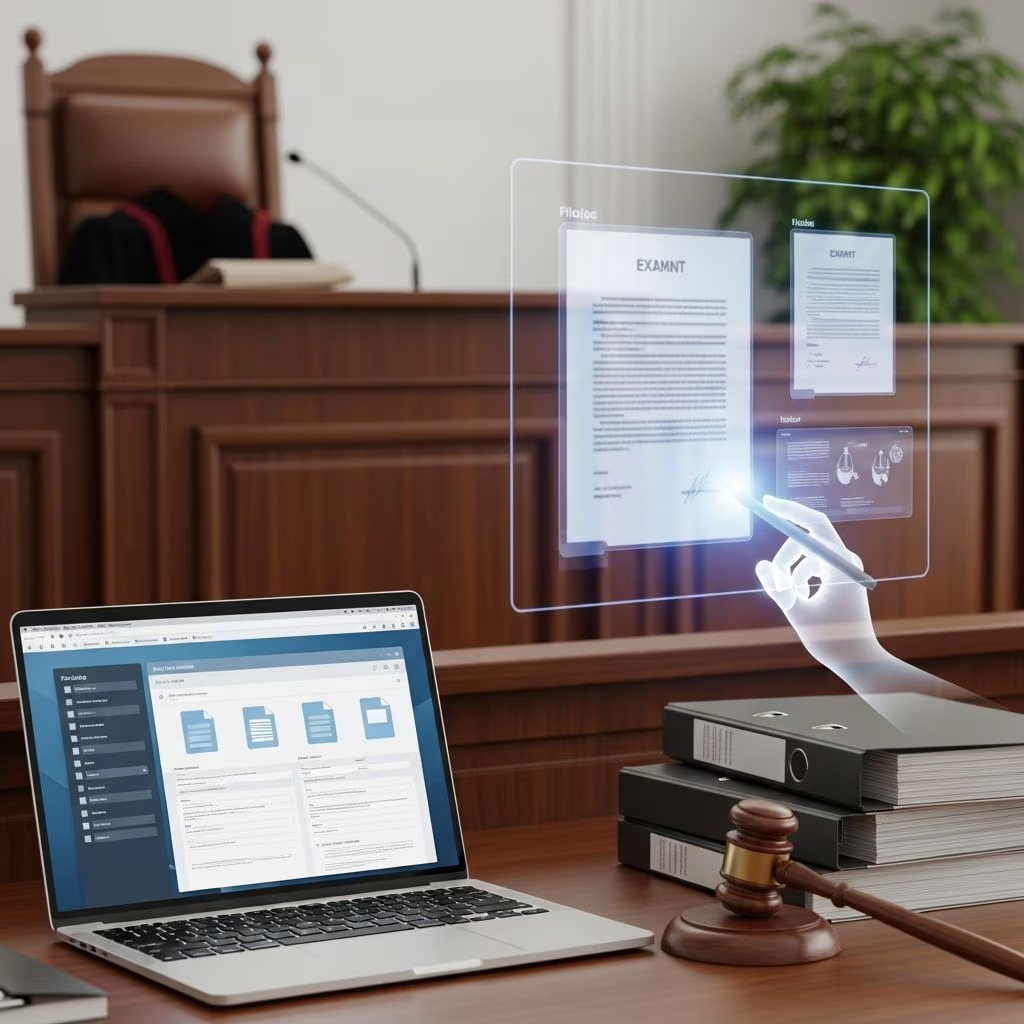
Electronic filing has become the default in many courts, and how you submit your exhibits can influence both admissibility and the court’s perception of your professionalism. This guide explains how to prepare, format, and eFile exhibits so they are clear, compliant, and easy for judges and clerks to use.
Why Exhibits Require Extra Care in an eFiling World
Exhibits often contain the most persuasive evidence in a case, but they are also the most technically complex documents to file electronically. Poor scanning, incorrect labeling, or failing to follow local rules can lead to:
- Rejection of your entire filing or specific exhibits
- Delays in hearings or motions
- Frustration for the court and opposing counsel
- Difficulty for judges trying to navigate large, disorganized PDFs
Court eFiling frameworks typically require submissions through electronic portals and specify formatting parameters, such as PDF format, document size limits, and service requirements.
Understanding the Rules: Start with Jurisdiction Requirements
Every court has its own mix of statewide rules, local rules, and eFiling technical standards. You should never assume that what works in one court will automatically work in another.
Key rule sets to review before filing
- State or national rules of court addressing electronic filing and service
- Local court rules or standing orders on electronic exhibits and attachments
- Technical specifications published by the court or its eFiling provider (e.g., PDF requirements, file size caps, bookmark expectations)
In many U.S. jurisdictions, courts publish electronic filing procedures specifying that filings must be made electronically unless otherwise authorized, and that documents must meet the technical parameters published by the court or administrative body.
Questions to answer before you prepare exhibits
- Does the court require exhibits to be filed as separate PDFs or as attachments to a main document?
- Are exhibit indexes and bookmarks mandatory for large submissions?
- What are the rules for sealed, confidential, or non-documentary exhibits?
- Does the court permit manual or conventional filing for physical items with a separate electronic notice?
Preparing Exhibits for Scanning and Conversion
Whether an exhibit begins as paper or a digital file, the output must meet the court’s standards and remain legible on-screen.
Scanning paper exhibits effectively
- Resolution: Use a scanner set at approximately 300 dpi; this is commonly recommended to balance quality and file size for legal documents.
- Black-and-white vs color: Use grayscale or color only when needed to interpret key information (e.g., color-coded charts or photographs).
- Clean originals: Remove staples, sticky notes, and folded corners before scanning to avoid shadows and misfeeds.
- Straight pages: Check for skewed pages or cropping that cuts off page numbers or signatures.
Creating and optimizing digital exhibits
- Use PDF as the standard format: Courts and federal systems typically require PDF for filed documents, including exhibits.
- Make documents text searchable: Run optical character recognition (OCR) so text can be searched and copied; many courts expect or require this for briefs and exhibit compilations.
- Compress intelligently: Reduce file size without destroying legibility, especially for image-heavy exhibits, while staying within portal limits.
- Remove unnecessary metadata: Before filing, clear hidden metadata when appropriate to avoid disclosing internal notes or confidential data.
Labeling, Naming, and Organizing Exhibits
Court staff and judges rely heavily on how exhibits are labeled and organized. Clear labeling improves navigation and reduces the risk of confusion during hearings.
Exhibit labels visible on the face of the document
Many courts require that each exhibit include a visible label with identifying information.
- Exhibit number or letter (e.g., Exhibit 1, Exhibit A)
- Case number
- Short description or party name when multiple parties are involved
This label can be applied as a digital stamp on the first page of the PDF or added to a paper copy and then scanned, depending on the court’s instructions.
File naming conventions
Use consistent and descriptive file names that reflect the exhibit label. Some courts and legal support organizations recommend including the exhibit identifier and a brief description.
- Good examples:
Exhibit-01-Contract-01-15-2022.pdfExhibit-B-Email-Correspondence-Jones.pdf
- Avoid:
scan001.pdfexhibit_final_final2.pdf
Using indexes and bookmarks
Court and professional guidance frequently encourage the use of indexes and bookmarks, especially where multiple exhibits or a compendium are filed together.
- Create a table of contents listing exhibit identifiers, titles, and page numbers.
- Add PDF bookmarks at least for:
- Each exhibit within a combined PDF
- Major sections of lengthy exhibits (e.g., sections of a long contract)
- Ensure bookmark names match the exhibit index and on-document labels.
Dealing with Large, Non-Text, and Sensitive Exhibits
Not all exhibits fit neatly into a single PDF. Courts often publish procedures for oversized, non-documentary, or confidential evidence.
| Exhibit Type | Common Handling Approach | Key Considerations |
|---|---|---|
| Oversized documents (maps, plans) | Filed as reduced-size scans or photographs; sometimes supplemented with physical originals. | Ensure measurements and details remain legible; follow any rule requiring photographs instead of the original. |
| Physical objects | Often lodged or filed conventionally with an electronic notice describing the exhibit. | Use clear descriptions; confirm whether a manual filing notice is required. |
| Audio/video (A/V) | May require mailing or delivering a physical copy with an affidavit, while filing an electronic notice in the case docket. | Follow any special forms or affidavits mandated by local rules; pay attention to accepted media formats. |
| Sealed or confidential | Filed through separate sealed exhibit events or via conventional filing, consistent with confidentiality rules. | Redact public versions, confirm sealing procedures, and comply with privacy statutes and court orders. |
Workflow for Submitting Exhibits via eFiling Systems
Although each eFiling portal looks different, the basic workflow for filing exhibits tends to be similar across jurisdictions and court systems.
Typical sequence when eFiling exhibits
- Step 1 – Select the correct filing type: Choose the event code that matches your purpose (e.g., Motion, Declaration, Exhibits). Filing under the wrong type is a common cause of rejections.
- Step 2 – Identify the main document: Many systems require you to designate one primary document (brief, motion, declaration), with exhibits attached as separate PDFs.
- Step 3 – Attach and describe exhibits: Upload each exhibit and enter a description that matches your labels and index.
- Step 4 – Indicate sealed or restricted status, if applicable: Some portals have specific sealed-exhibit events that must be used for confidential materials.
- Step 5 – Review and submit: Carefully verify that all exhibits are correctly attached and legible before finalizing the filing.
Timing requirements
Some courts set explicit deadlines for uploading admitted exhibits after hearings or remote proceedings, sometimes within a single business day, and may also impose short deadlines to challenge the validity of uploaded exhibits. Always check whether post-hearing exhibit uploads are required and what deadlines apply.
Avoiding Common eFiling Exhibit Mistakes
Practitioners and court staff consistently report a few recurring errors when exhibits are filed electronically.
- Incorrect filing type: Choosing the wrong event code or bundling exhibits with unrelated documents, leading to rejections.
- Unreadable scans: Low-resolution images, skewed pages, or heavy shadows making signatures and text difficult to read.
- Missing or inconsistent labeling: Exhibit labels in the PDF that do not match the index, file name, or references in the brief.
- Lack of bookmarks or index: Submitting large multi-exhibit PDFs without navigation aids, making review difficult.
- Ignoring size limits: Uploads that exceed portal size caps or time out, resulting in incomplete filings.
- Failing to follow sealed exhibit rules: Filing sensitive materials in the public docket, or using the wrong event for sealed submissions.
Leveraging Technology and Office Practices
Effective eFiling of exhibits is not just about the rules; it also depends on how your office uses technology and trains staff.
Tools and features that improve your exhibit workflow
- Modern PDF software: Enables OCR, bookmarking, digital stamping for exhibit labels, and redaction.
- Document management systems: Help maintain version control and standardized naming conventions.
- eFiling platforms with rule libraries: Some service providers offer updated rule libraries, automatic checks, and reminders to reduce rejections.
- Secure storage: Use encrypted storage and role-based permissions to protect sensitive exhibits.
Recommended internal practices
- Create a standard operating procedure (SOP) for exhibit preparation, including naming patterns and quality checks.
- Train staff on specific court rules for your main jurisdictions and update training as rules change.
- Use checklists before filing to confirm labeling, bookmarks, and legibility.
- Maintain a repository of templates for exhibit lists, indices, and manual filing notices.
eFiling Exhibits in Remote and Hybrid Proceedings
The growth of remote hearings and virtual depositions has changed how exhibits are introduced and then eFiled.
- Pre-organize exhibits: For remote events, courts and legal support providers recommend organizing and labeling all digital exhibits ahead of time to streamline presentation.
- Follow post-hearing upload rules: Some courts require parties to upload documentary exhibits admitted during remote hearings within a strict time frame and include detailed descriptions in the docket entry.
- Plan for pro se or A/V exhibits: When non-attorney parties or audio/video evidence are involved, courts may require mailing physical media plus an affidavit or manual filing form, along with an electronic notice in the case docket.
Frequently Asked Questions (FAQs)
Q: Do I need to make every exhibit text searchable?
A: Many courts expect briefs and related submissions, including compendiums of exhibits, to be text searchable to facilitate review, but the requirement may not apply to inherently non-textual items such as photographs or some scanned images. Check your court’s technical standards and apply OCR whenever feasible.
Q: Can I combine multiple exhibits into one PDF?
A: Some courts allow combined exhibit PDFs, provided you include an index and bookmarks, while others require each exhibit to be a separate attachment to the main document. Always follow your jurisdiction’s directions on whether bundling is appropriate.
Q: How should I handle confidential or sealed exhibits?
A: Use the court’s designated sealed-filing event or conventional filing method, and comply with privacy rules and any protective orders. Public versions should be properly redacted, with unredacted versions filed under seal following the court’s procedure.
Q: What if my exhibit is too large or not suited to electronic filing?
A: For oversized or non-documentary items, some rules allow physical lodging of the exhibit with an electronic notice filed in the docket, and may require photographs or appropriate reproductions instead of the original object. Review local guidance on when manual filing or lodging is permitted.
Q: How do I avoid having my exhibit filing rejected?
A: Confirm you are using the correct event, that your documents meet format and size rules, and that exhibits are clearly labeled and legible. Many rejections stem from choosing an incorrect filing type, omitting required information, or submitting poorly prepared PDFs.
References
- 37 CFR § 42.6 – Filing of documents, including exhibits; service. — U.S. Patent and Trademark Office / Legal Information Institute. 2012-09-16. https://www.law.cornell.edu/cfr/text/37/42.6
- Temporary Procedures for Electronically Filing Documentary Exhibits Admitted During Video/Telephone Proceedings — U.S. District Court, Northern District of Georgia. 2020-05-26. https://www.gand.uscourts.gov/temporary-procedures-electronically-filing-documentary-exhibits-admitted-during-videotelephone
- A Guidebook for Electronic Court Filing — National Center for State Courts. 2002-01-01. https://www.srln.org/system/files/attachments/A_Guidebook_for_Electronic_Court_Filing.pdf
- Best Legal Practices – Part 4: E-Filing — Legal Professionals, Inc. 2018-06-01. https://www.legalprofessionalsinc.org/best-legal-practices-part-4-e-filing/
- Avoiding Court Rejections: 5 Common E-Filing Mistakes and How to Fix Them — Bay Area File. 2023-04-10. https://bayareafile.com/e-filing-services/avoiding-court-rejections-5-common-efiling-mistakes-and-how-to-fix-them/
- How to Introduce and Present Exhibits at Trial — U.S. Legal Support. 2021-09-30. https://www.uslegalsupport.com/blog/how-to-prepare-exhibits-for-court/
- Best Practices for Managing Remote Exhibits — First Legal. 2020-07-15. https://www.firstlegal.com/best-practices-for-managing-remote-exhibits/