
Practical Guide to Converting PDFs into Editable Formats
Learn how to reliably convert PDFs into Word, Excel, images, and other formats without breaking layouts or losing key information.
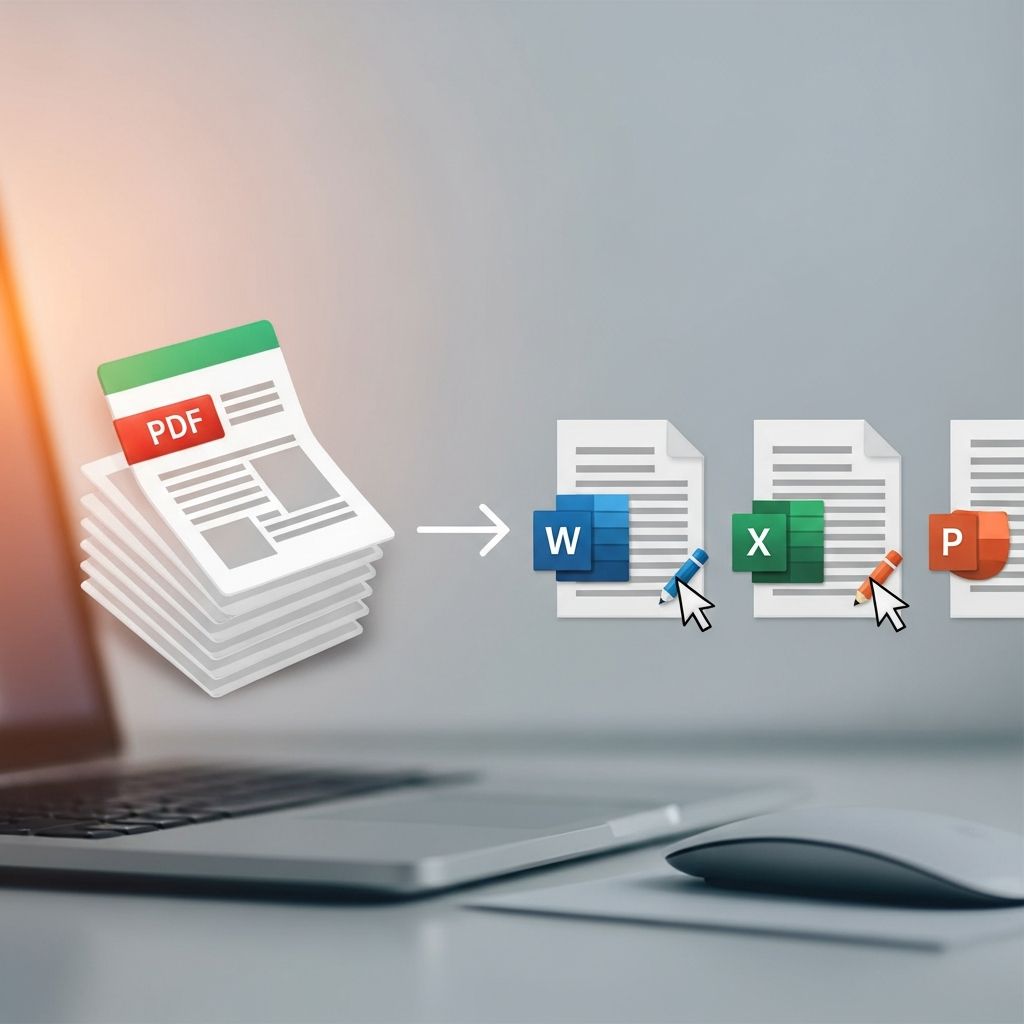
Portable Document Format (PDF) is trusted for sharing documents that look the same on any device, but that reliability can make editing difficult. Converting a PDF into another document type — such as Word, Excel, an image, or an archival format — allows you to revise text, extract data, or repurpose content more easily.
This guide explains how PDF conversion works, which formats to choose for different goals, and how to avoid common problems like broken layouts or missing text. It is written in a tool-agnostic way so you can apply the advice whether you use desktop software, browser-based services, or integrated tools in office suites.
1. Understanding What Kind of PDF You Have
The success of any conversion begins with recognizing which type of PDF you are dealing with. Different PDF structures convert very differently, even when they look identical on screen.
1.1 Main PDF content types
- True (digital-native) PDFs – Created directly from applications like word processors, page layout tools, or spreadsheets. Text is stored as characters, not as images, so it can be searched, selected, and converted with high fidelity.
- Image-only PDFs – Produced by scanning paper or printing to an image driver. Each page is essentially a picture; text is not inherently searchable or selectable until processed with Optical Character Recognition (OCR).
- Searchable (OCR) PDFs – Image-based PDFs that have an invisible text layer added by OCR software. You see the scanned page, but you can search and copy text; conversion quality depends on OCR accuracy.
1.2 Special-purpose PDF standards
Some PDFs comply with specialized standards that influence how safely they can be altered or repurposed:
- PDF/A – Designed for long-term preservation. Fonts must be embedded and certain interactive or external elements are not allowed. It is common in legal, government, and archival workflows.
- PDF/X – Tailored for printing and prepress workflows, focusing on color management and print reliability.
- PDF/UA – Ensures accessibility for assistive technologies through structured tags and alternate text.
While you can usually convert specialized PDFs into other formats, some constraints (such as embedded fonts or restricted content) may affect how easily text and structure carry over.
| PDF Type | What It Looks Like | Conversion Characteristics |
|---|---|---|
| True PDF | Digital text, selectable and searchable | Usually converts cleanly to Word, Excel, or HTML with good layout retention |
| Image-only PDF | Scanned pages; text cannot be selected | Requires OCR first; results depend heavily on scan quality and language |
| Searchable OCR PDF | Scanned pages with hidden text layer | Better than raw images but may contain OCR errors or incorrect reading order |
| PDF/A | Looks like a standard PDF, optimized for archiving | Stable for long-term storage; still convertible, though some interactive features are absent |
2. Choosing the Right Target Format
Before converting, decide what you want to do with the content. Different output formats are better suited to editing, analysis, design, or long-term storage.
2.1 Text and document editing formats
- DOCX (Word) – Excellent for general text editing, legal documents, contracts, and reports. It supports headings, styles, footnotes, track changes, and comments.
- RTF – Provides wide compatibility across word processors with basic formatting, but lacks advanced layout features.
- Plain text (TXT) – Strips most formatting and images, leaving only raw text. Useful where structure and styling are irrelevant.
2.2 Data and number-crunching formats
- XLSX (Excel) – Ideal for tables, financial documents, invoices, and structured lists that need sorting or analysis.
- CSV – Simplified table format for databases, analytics tools, and scripts. Best when you care about data values more than visual layout.
2.3 Visual and design-oriented formats
- Image formats (PNG, JPEG, TIFF) – Good for graphics-heavy pages, forms, or documents used as static visual assets. PNG and TIFF preserve more detail; JPEG is better for smaller file sizes.
- PPTX (PowerPoint) – Suitable when you want to repurpose a PDF as a presentation or slide deck outline.
2.4 Web and archival formats
- HTML – Converts PDF content into web pages for publishing online or integrating into content management systems.
- PDF/A – When starting from a regular PDF and converting to PDF/A, you are not changing the file extension but conforming to a strict archival standard for long-term retention.
3. Core Methods for Converting PDFs
Most conversion workflows fall into three broad categories: built-in export options, dedicated desktop applications, and online converters. The right choice depends on sensitivity of the content, file size, and how often you convert.
3.1 Built-in export features
Many PDF viewers and office suites include export or Save As options for common formats such as DOCX or XLSX. These are convenient when you are already working inside a document editor or PDF viewer.
- Look for menu items like Export, Save As, or Convert in the file menu.
- Choose the desired format (for example, Word, Excel, or HTML).
- Check the resulting file and adjust formatting in the target application.
For office documents originally created in word processors or spreadsheets, built-in conversion features generally produce better results because the software can interpret structure such as headings, tables, and paragraphs more intelligently.
3.2 Dedicated desktop conversion software
Specialized PDF editors and converters offer greater control over how content is interpreted and mapped to other formats.
- They often support batch processing, allowing you to convert multiple PDFs at once.
- Advanced options may include selective conversion (for example, only tables), OCR tuning, or export of annotations.
- Some tools are certified to create standards-compliant formats like PDF/A or PDF/X for regulated environments.
Because conversion happens locally, desktop software is typically preferable for confidential or large files.
3.3 Browser-based and online conversion services
Online converters are accessible from any device and require no installation. They can be helpful for occasional conversions or when you are using a computer without PDF software.
- Upload the PDF from local storage or a cloud drive.
- Select the desired output format (such as DOCX, XLSX, or PNG).
- Download the converted file once processing is complete.
Always review the service provider’s privacy policy if the document contains sensitive or regulated information, since files are processed on remote servers.
4. Converting PDFs into Editable Documents
Editing is the most common reason people convert PDFs. The strategies differ slightly depending on whether the source PDF is text-based or derived from scanned images.
4.1 From PDF to Word (DOCX) or RTF
Converting to an editable document format allows you to revise wording, update clauses, or change layout more freely.
- For text-based PDFs:
- Most conversion tools can map paragraphs, headings, and simple tables into Word or RTF with high accuracy.
- Complex layouts with multiple columns, sidebars, or footnotes may require manual cleanup.
- For scanned PDFs:
- Run OCR first to recognize text and create a selectable layer.
- Proofread carefully to correct misrecognized characters, especially in legal names, numbers, or non-standard fonts.
RTF is useful when you need interoperability across many word processors, while DOCX is generally better when you want advanced formatting and track-changes support.
4.2 From PDF to Excel (XLSX) or CSV
Extracting tables and numerical data can save substantial manual retyping time.
- Choose Excel or CSV when your PDF clearly contains tabular structures like invoices, reports, or price lists.
- After conversion, verify that columns are aligned and numeric values are recognized as numbers rather than text.
- Be cautious with merged cells and multi-line headers; they may need redesigning for proper analysis in spreadsheets.
For scanned tables, use OCR tools that are optimized for table recognition to avoid misaligned rows or missing fields.
4.3 From PDF to HTML for the web
Publishing PDF content on a website typically involves conversion to HTML so the content can be indexed, styled, and made responsive.
- Look for converters that preserve structural elements such as headings, lists, and links.
- Optimize images after conversion to balance quality and loading speed.
- Review the output for accessibility, especially if the original PDF was not properly tagged.
In some cases, manually rebuilding pages in a content management system may produce cleaner, more maintainable HTML than fully automated conversion.
5. Converting PDFs into Images and Archival Formats
Sometimes you do not need to edit content at all; instead, you may want a non-editable snapshot or a format optimized for long-term storage.
5.1 From PDF to image formats
Exporting pages as images is helpful when embedding content into design software, presentations, or forms that must not be modified easily.
- PNG – Good for diagrams, forms, and content with sharp edges or text.
- JPEG – Appropriate for photographs and large visual documents where moderate compression is acceptable.
- TIFF – Frequently used in archival and scanning workflows for high-quality images; often supports lossless compression.
Higher resolution improves readability but increases file size. Choose a resolution that fits how the image will be displayed or printed.
5.2 From PDF to PDF/A for long-term preservation
For documents that must remain readable and self-contained for many years, converting regular PDFs to PDF/A can be beneficial. PDF/A restricts certain dynamic features (like audio, video, and external content) and requires fonts and other resources needed for rendering to be embedded.
- Use software that explicitly supports PDF/A validation and creation.
- Choose the appropriate PDF/A version (for example, PDF/A-1, PDF/A-2, or PDF/A-3) depending on your institution’s policy and need to embed additional files.
- Verify compliance using a validator if you work in regulated or archival environments.
6. Avoiding Common PDF Conversion Pitfalls
Even the best tools cannot perfectly reconstruct every layout. Being aware of typical issues helps you choose better settings and plan for manual adjustments.
6.1 Layout and formatting problems
- Disappearing or shifted fonts: Occurs when fonts are not embedded or not available on the destination system. Converting to PDF/A first can help embed necessary fonts for more predictable rendering.
- Broken multi-column layouts: Some converters misinterpret columns as continuous text. If preserving exact layout is critical, consider using a layout-oriented editor instead of converting.
- Headers and footers merging with body text: After conversion, you may need to re-apply consistent styles in Word or your chosen editor.
6.2 OCR and text recognition challenges
- Poor scan quality, skewed pages, or low contrast can result in misrecognized characters, especially for numbers, accented characters, or small fonts.
- Complex backgrounds or watermarks can confuse OCR engines, so pre-processing (deskewing, cleaning) may improve results.
- Always proofread critical sections such as legal clauses, totals, and names after conversion.
6.3 Security, privacy, and compliance
- PDMs containing personally identifiable information, health records, or legal documents may be subject to regulatory constraints, so consider using local or enterprise-approved tools instead of public web services.
- Converting may strip digital signatures, certification, or encryption. If authenticity must be preserved, archive the original signed PDF separately and clearly label converted copies.
7. Best Practices for Reliable PDF Conversion
With a few simple habits, you can prevent frustration and reduce the amount of manual fixing required after conversion.
- Start from the source when possible: If you have the original Word, Excel, or design file, export directly from that source instead of reverse-engineering from the PDF.
- Plan for the primary use case: Choose formats and tools based on whether you prioritize editing, data extraction, or long-term preservation.
- Convert in stages: For example, image-only PDF → OCR → Word; or PDF → PDF/A → archive server.
- Validate critical outputs: Compare page counts, headings, tables, and totals between the original PDF and the converted file.
- Keep an untouched copy: Store an original PDF or PDF/A version for legal or compliance reference even after editing other formats.
Frequently Asked Questions (FAQs)
Q1: Why does my converted Word file look different from the original PDF?
PDFs are page-oriented while Word documents are flow-oriented. Complex layouts, unusual fonts, or multi-column designs often require manual fine-tuning after conversion even when the text itself has transferred correctly.
Q2: How can I tell if my PDF needs OCR before conversion?
Try selecting or searching for text in your PDF. If you can highlight words or use the search feature to find phrases, the document likely contains a text layer. If not, it is probably image-only and needs OCR before reliable conversion.
Q3: Is PDF/A better than a regular PDF for everyday use?
PDF/A is optimized for long-term preservation, not for interactive features. It is excellent for archiving important records but offers no special advantages for routine collaborative editing or forms that rely on multimedia or scripting.
Q4: What is the safest way to convert confidential PDFs?
For documents containing confidential or regulated information, use trusted desktop software or an internal enterprise solution so files never leave your environment. Avoid uploading such documents to public online converters unless they are explicitly approved by your organization.
Q5: Can I fully restore a PDF back to its original Word or design file?
Conversion can approximate the structure of the original document but usually cannot perfectly reproduce complex styles, templates, or layout rules. If you need exact fidelity, retaining or requesting the original source file is always preferable.
References
- PDF vs PDF/A: differences and ways to convert — ONLYOFFICE. 2024-03-11. https://www.onlyoffice.com/blog/2024/03/pdf-vs-pdfa
- Understanding the Different Types of PDF Files — Smallpdf. 2023-08-22. https://smallpdf.com/blog/understanding-different-types-pdf-files-comprehensive-guide
- Different PDF File Types Explained — Adobe. 2023-06-01. https://www.adobe.com/acrobat/resources/document-files/pdf-types.html
- Types of PDFs: Searchable PDF, Image-Only, True PDF — ABBYY FineReader PDF Learning Center. 2022-11-10. https://pdf.abbyy.com/learning-center/pdf-types/
- Beginner’s Ultimate Guide to PDF Conversion — MobiSystems. 2023-05-15. https://mobisystems.com/en-eu/blog/tutorials/the-ultimate-pdf-conversion-guide
- Understand the different types of PDF forms and documents — Adobe Experience League. 2022-04-05. https://experienceleague.adobe.com/en/docs/experience-manager-learn/forms/document-services/pdf-forms-and-documents
Similar Articles








Read full bio of Sneha Tete


