
Mastering Track Changes in Word Without Losing Your Mind
Practical strategies, etiquette, and settings to make Microsoft Word’s Track Changes a calm, efficient part of your editing workflow.
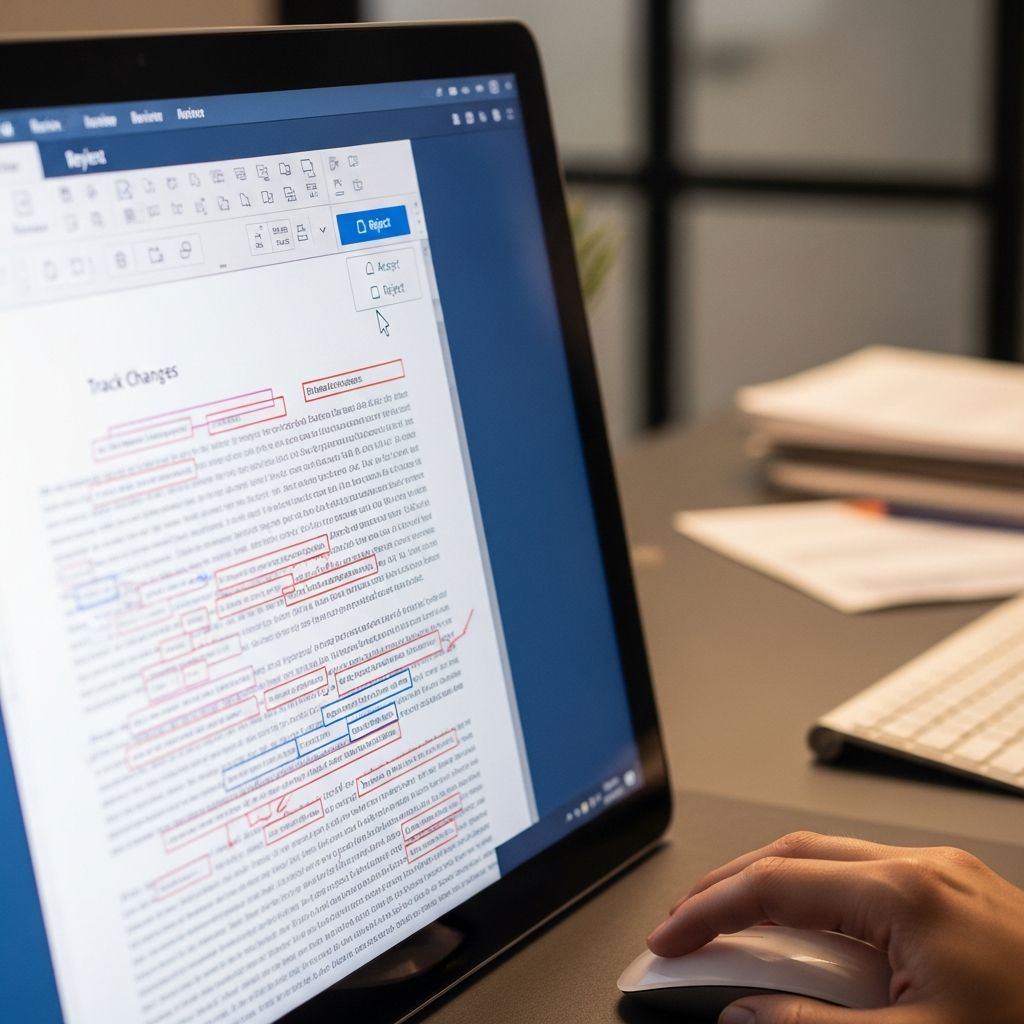
Track Changes in Microsoft Word is a powerful feature for reviewing and editing documents, but without a thoughtful approach, it can quickly become overwhelming. Long legal agreements, briefs, reports, or contracts can devolve into a tangle of colored text, balloons, and comments that slow everyone down instead of making collaboration easier.
This guide explains how to use Track Changes calmly and efficiently: which settings matter, how to keep markup readable, how to communicate clearly through comments, and how to finalize a clean document when the editing is done.
Why Track Changes Feels Chaotic (And How To Fix It)
Track Changes records insertions, deletions, formatting changes, and comments made to a document, showing who made each edit and when. It is widely used in legal, academic, and business environments because it creates a transparent trail of revisions, especially when multiple people contribute to the same file.
However, several factors can turn a helpful tool into a source of frustration:
- Too many reviewers editing at once, each with different styles or preferences.
- All markup visible at the same time, making the text nearly impossible to read.
- Unclear or emotional comments that confuse, rather than clarify, what needs to change.
- No clear decision-maker to accept or reject edits and move the document forward.
- Forgetting to turn tracking off before finalizing and circulating a document.
With a few basic habits and smart use of Word’s review features, you can reduce clutter, maintain professionalism, and keep the document under control.
Core Settings You Should Master First
Before you worry about etiquette or workflows, make sure you know how to turn Track Changes on, control what you see, and manage revisions safely.
Enabling and disabling Track Changes
To start or stop tracking edits, use the Review tab:
- Open the document in Microsoft Word.
- Go to the Review tab on the Ribbon.
- Click Track Changes to toggle tracking on or off.
When Track Changes is active, Word marks insertions and deletions visually and may use different colors for different reviewers. You can also choose to track only your own edits or everyone’s edits in modern versions of Word.
Choosing how changes appear on screen
Word offers several markup views, each designed for a different stage of editing. Understanding these will help you keep the screen readable.
| View | What you see | When to use it |
|---|---|---|
| All Markup | Every insertion, deletion, and comment, usually in different colors with margin lines. | Detailed legal or technical review when you need to see all proposed edits at once. |
| Simple Markup | A mostly clean document with minimal indicators (such as a red line in the margin) showing where changes exist. | Reading for content and flow without distraction while still knowing where edits were made. |
| No Markup | The document as if all changes were accepted; no visible edits. | Final read-through before filing or publishing, to check tone, formatting, and pagination. |
| Original | Text as it was before any tracked changes were made. | Comparing the initial draft with the edited version when disputes arise about what changed. |
Accepting and rejecting changes methodically
When it is time to decide which edits stay and which go, use Word’s navigation tools instead of clicking around randomly.
- Place the cursor at the start of the document.
- On the Review tab, use Next or Previous to move through each tracked change.
- Click Accept or Reject for each revision.
For cleanup at the very end, you can accept or reject all remaining changes at once, such as Accept All Changes and Stop Tracking in the Changes menu. Use bulk actions carefully; they are best reserved for minor formatting or when you fully trust a particular reviewer’s edits.
Setting Expectations Before Anyone Starts Editing
Many of the worst Track Changes problems are social, not technical. A brief conversation or email before the editing starts can prevent confusion later.
Clarify roles and objectives
Before circulating a draft, specify:
- Who owns the document: The person responsible for reconciling edits and producing the final version.
- What type of feedback you want:
- Substantive changes (arguments, facts, structure).
- Line edits (word choice, clarity, grammar).
- Proofreading only (typos, minor formatting).
- Deadlines: When comments and edits are due, and when a clean final will be circulated.
Defining scope helps reviewers focus their efforts, which in turn keeps the markup manageable and more meaningful.
Standardize identity and settings
To make the revision trail legible, ask each reviewer to:
- Use their real name or initials in Word’s user information, so authorship is clearly attributed.
- Use Comment for questions or explanations instead of embedding notes in the body text.
- Avoid turning off tracking for any changes that should be visible to others.
Consistent settings and clear attribution are especially important in legal or regulated environments where you may later need to show who approved a particular change.
Practical Strategies to Keep Markup Readable
Once real editing starts, visual clutter is inevitable—but you can minimize it with thoughtful techniques.
Use comments for intent, edits for text
Word’s comments feature lets you pose questions, highlight issues, or explain why you made a change without altering the main text directly. Use comments when you:
- Are unsure whether certain language can be removed for legal or policy reasons.
- Need to flag a potential inconsistency or missing information.
- Want to suggest alternate wordings without cluttering the paragraph with multiple insertions and deletions.
Keep comments short, specific, and neutral in tone. For example:
- Instead of: “This section is confusing and badly written.”
- Use: “Consider splitting into two sentences for clarity; suggestion in tracked changes below.”
Control balloons and the Reviewing Pane
In longer documents, comments and some types of changes can be shown in balloons in the margin. To keep that side of the page readable:
- On the Review tab, adjust Show Markup options to display only what you need at that moment (for example, turning off formatting changes).
- Set balloons to show only comments and formatting, leaving text changes inline to reduce width and crowding.
- Open the Reviewing Pane when you want an overview of all comments and changes, then close it to regain space for reading.
Review in passes instead of all at once
A powerful way to stay calm with heavily redlined documents is to review in multiple focused passes rather than trying to decide everything in one go.
- First pass: substance. Focus on big-picture structure, arguments, and issues. Ignore small grammar fixes for now.
- Second pass: language. Evaluate sentence-level edits, transitions, and word choice.
- Third pass: formatting and cross-references. Resolve remaining formatting changes, page breaks, and citations.
This staged approach is commonly recommended in professional writing and editing because it reduces cognitive load and helps ensure no category of issues is overlooked.
Professional Etiquette for Editors and Reviewers
Good Track Changes etiquette makes collaboration smoother and maintains good working relationships.
Guidelines for editors
- Edit, don’t lecture. Where possible, directly fix grammar or clarity issues instead of leaving vague instructions like “Rewrite this.”
- Respect the author’s voice. Make sure your edits improve clarity and accuracy without unnecessarily imposing your personal style.
- Avoid over-editing. If the author asked for a limited review (e.g., only legal accuracy), do not rewrite every sentence.
- Signal major changes. Use comments to flag sections where you made substantial reorganization or deletions so the author understands the reasoning.
Guidelines for authors
- Assume good faith. Treat edits as attempts to strengthen the document, even if you disagree with the specific suggestion.
- Respond constructively. Use replies to comments to clarify your intent or explain why you prefer the original language.
- Consolidate decisions. The document owner should perform the final accept/reject pass to maintain a coherent style.
Handling conflicting edits from multiple reviewers
It is common for two reviewers to suggest opposite changes to the same sentence. In those situations:
- Read both comments fully before making any decision.
- Ask follow-up questions in the comment thread if needed, rather than by email alone, so the reasoning remains attached to the text.
- As the document owner, choose the version that best serves the purpose of the document and explain your decision briefly if necessary.
Reducing Risk in Sensitive or Legal Documents
In legal and compliance contexts, mismanaging Track Changes can have real consequences. For example, sharing a file that still contains visible redlines or comments may inadvertently reveal negotiation strategies or internal views. Many law and compliance resources therefore emphasize careful review of markup before sharing outside the organization.
Lock tracking when necessary
In some cases you may want to force tracking to remain on so that no one can edit without leaving a history. Word allows a document owner to lock Track Changes with a password, preventing others from disabling tracking. This can be useful when:
- You must demonstrate a complete audit trail of edits.
- You are working with external counsel or vendors on sensitive language.
- Your organization has strict version-control policies.
Always clean up before external distribution
Before sending a document to a client, court, regulator, or counterparties, perform a final check:
- Switch to All Markup to ensure there are no remaining tracked changes or unresolved comments.
- If everything is approved, Accept All Changes and delete or resolve all comments.
- Switch to No Markup and scroll through the document to verify it appears exactly as intended.
- Consider creating a PDF copy for distribution so the recipient cannot accidentally reveal tracked changes.
Building a Repeatable Workflow for Long Documents
Complex matters—like contracts, briefs, or policy manuals—often go through multiple rounds of revisions. A repeatable workflow reduces confusion and saves time.
Suggested workflow for teams
- Create the base draft. Document owner writes the initial version with Track Changes off, then turns it on before sending for review.
- Circulate to first-round reviewers. Provide clear instructions on the type of feedback requested and the deadline.
- Owner consolidates edits. Owner reviews all tracked changes, accepts or rejects as appropriate, and responds to key comments.
- Second-round review (if needed). Send a new clean version (with earlier changes accepted) to a smaller group for focused review.
- Final proofread. One person reviews the nearly final document in No Markup view for small errors and consistency.
- Lock in the final. Accept all remaining edits, remove comments, and save a final version—ideally as both a Word file and a PDF.
Version naming to avoid confusion
Even with Track Changes, maintaining clear file names is crucial. Consider including:
- Project or matter name.
- Short description of the content (e.g., “MSA-draft”).
- Version number and date (e.g., “v3-2025-06-01”).
- Optional: initials of the person who owns that version.
Consistent naming makes it easier to identify which document is truly final and which was still under negotiation.
Frequently Asked Questions (FAQs)
Q: How do I see the document without any redlines while still keeping changes?
A: Use the markup dropdown on the Review tab and choose No Markup. This shows the document as if all changes were accepted, but the underlying tracked edits remain, so you can still accept or reject them later.
Q: What is the difference between comments and tracked changes?
A: Tracked changes alter the text or formatting and can be accepted or rejected. Comments are annotations that do not change the text itself; they are used for questions, explanations, or instructions and can be replied to or deleted independently.
Q: Can I track only my edits and ignore others?
A: Yes. Recent versions of Word let you choose to track changes made by everyone or just your own edits via the Track Changes dropdown on the Review tab.
Q: How can I quickly accept minor edits but still review major changes?
A: Use the Show Markup options to temporarily hide certain categories, such as formatting changes, and accept them in bulk. Then review insertions and deletions individually using the Next and Previous buttons to move sequentially through more substantive edits.
Q: Is it safer to send a tracked document as a PDF?
A: Often, yes. Saving as PDF helps ensure the recipient sees the document as you intend and cannot unintentionally reveal hidden markup or alter the text. This is a common best practice for finalized documents, especially in legal and business contexts.
References
- How to track changes in Word documents — Adobe Inc. 2024-03-01. https://www.adobe.com/acrobat/hub/learn-how-to-track-changes-in-word.html
- Track changes in Word — Microsoft Support. 2024-02-15. https://support.microsoft.com/en-us/office/track-changes-in-word-197ba630-0f5f-4a8e-9a77-3712475e806a
- Legal Writing: Tools and Tips for Formatting – Track Changes — University of Illinois College of Law Library. 2023-09-12. https://libguides.law.illinois.edu/c.php?g=1272613&p=9336248
- Word 2016 – Best practices for tracked changes and comments — Microsoft Learn Q&A. 2022-11-07. https://learn.microsoft.com/en-us/answers/questions/5236752/word-2016-best-practices-for-tracked-changes-and-c
- Pivot: We Need Better Etiquette for Track Changes — The Learning Guild. 2020-08-14. https://www.learningguild.com/articles/pivot-we-need-better-etiquette-for-track-changes
Similar Articles








Read full bio of medha deb


