
Mastering Fillable Forms for Modern Legal Workflows
Learn how fillable digital forms improve legal workflows, boost accuracy, and simplify client and court submissions.
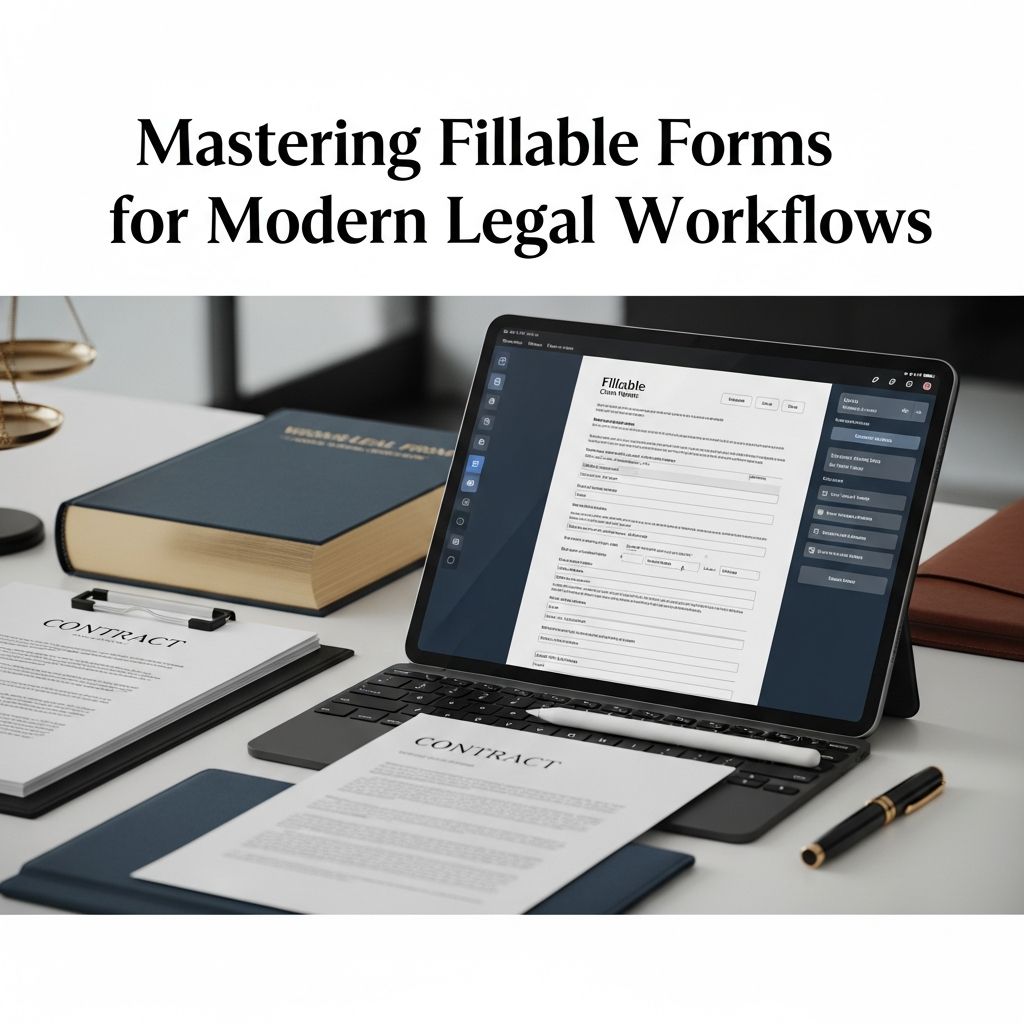
Digital transformation has changed how law firms, courts, and legal departments handle documents. One of the most visible changes is the move from paper and typewriters to fillable electronic forms that can be completed, signed, and filed entirely online. Used correctly, these forms save time, reduce errors, and create cleaner digital records that are easier to store, search, and share.
This guide explains what fillable forms are, why they matter in legal practice, how to create and use them effectively, and what to watch for when submitting them to courts and agencies.
What Is a Fillable Form?
A fillable form is a digital document that contains interactive fields where a user can type text, select options, or sign electronically without changing the underlying document structure. Instead of printing and handwriting information, users input data directly on their computer, tablet, or phone.
Typical elements in a fillable form
- Text fields for names, addresses, case numbers, and narrative responses.
- Checkboxes for yes/no or multi-select questions.
- Radio buttons for choosing a single option from a list.
- Drop-down lists for standardized choices (e.g., case types, jurisdictions).
- Date pickers for clear and consistent date formats.
- Digital signature fields for e-signing documents where allowed by law.
In many courts, these forms are distributed as PDFs. The PDF format preserves layout and typography, while the interactive fields let users complete and submit documents electronically across different devices and operating systems.
Why Fillable Forms Matter in Legal Practice
Legal work is heavily form-driven: pleadings, motions, fee waivers, declarations, client intake, and more. Turning these into structured, fillable forms has several benefits for both legal professionals and the courts they interact with.
Key benefits for law firms and courts
- Improved legibility: Typed entries eliminate issues with unreadable handwriting, which is especially important for judges, clerks, and opposing counsel.
- Consistent formatting: Structured fields ensure that information appears in the same place each time, helping with review, routing, and data extraction.
- Faster completion and filing: Clients and staff can complete forms electronically, reuse stored information, and submit documents directly through eFiling platforms where available.
- Reduced rejections: Required-field validation, standardized responses, and clear formatting help ensure forms are complete and compliant before they reach the clerk.
- Better data reuse: Data entered into fillable forms can often be exported to spreadsheets or case management systems, reducing duplicate data entry and lowering error rates.
| Aspect | Paper or Static PDF | Fillable Digital Form |
|---|---|---|
| Completion method | Handwritten or typed over | Typed in interactive fields |
| Readability | Varies; handwriting may be unclear | Always machine-printed text |
| Validation | Manual checks by staff | Required fields and formats can be enforced |
| Reusability of data | Manual rekeying into systems | Data can be extracted or integrated into databases |
| Device compatibility | Requires printing and scanning | Can be completed on computers and many mobile devices |
Common Legal Uses for Fillable Forms
Almost every area of practice can benefit from interactive forms. Some of the most common legal workflows include:
- Court-provided forms for civil, criminal, family, and probate matters.
- Client intake, including conflict checks, engagement letters, and consent forms.
- Internal law firm templates such as new matter forms, leave requests, and expense reimbursement requests.
- Regulatory filings for agencies that accept or require electronic submissions.
- Transactional documents where only certain fields vary (e.g., party information, dates, amounts).
In many jurisdictions, courts have begun publishing standardized forms in fillable PDF format to support electronic filing and to simplify data collection throughout the justice system.
Understanding Fillable PDF Types
Not all PDFs behave the same way. For legal teams, it helps to know what kind of form you are working with and what level of interaction is supported.
Static vs. interactive PDF forms
- Static PDFs: These display content but do not allow users to type into fields. They may be printed and filled out by hand.
- Interactive (fillable) PDFs: These contain form fields that accept user input, such as text or selections, and may support calculations or validation.
Court websites and government agencies often indicate whether a form is “fillable” or “interactive.” If a document will not allow typing in any field, it is likely a static PDF or a scanned image.
AcroForms and XML-based PDFs
From a technical standpoint, two main technologies power interactive PDFs:
- AcroForms (Adobe’s original form technology), which add fields and simple logic to standard PDF documents and are widely supported by PDF viewers.
- XFA-based forms (XML Forms Architecture), which allow more dynamic layouts but may be less compatible with certain viewers and systems, including some browser-based PDF readers.
Legal professionals rarely need to choose between these technologies directly, but understanding compatibility issues helps explain why some forms behave differently in various viewers and why courts often recommend specific software for their forms.
How to Work with Court Fillable Forms
When dealing with court or agency forms, minor missteps—like using the wrong software or flattening a form too early—can lead to filing problems. The following practices help avoid those issues.
1. Always download the form before filling
Many browsers include built-in PDF viewers that do not fully support interactive forms. To avoid data loss or formatting problems:
- Download the form to your computer instead of filling it in the browser.
- Open it with a full-featured PDF application recommended by the court or your IT department.
2. Follow court instructions precisely
Court websites often provide specific guidance:
- Which software to use and which to avoid.
- Whether digital signatures are accepted, or a wet signature is required.
- How to name files and whether multi-part filings should be combined.
- Whether forms must remain fillable, or be flattened, before submission.
Always review local rules and any eFiling instructions provided by the jurisdiction before submitting documents.
3. Save versions at key stages
Because legal forms often go through revisions and review, it is wise to:
- Save an editable version with live form fields for later updates.
- Create a separate, final version for filing or service, following court rules (for example, flattened or locked as required).
Designing Your Own Fillable Forms
Beyond court-issued PDFs, many firms and legal departments design their own fillable forms for internal workflows and client communication. Effective design focuses on clarity, consistency, and legal compliance.
Core design principles
- Use plain, precise language: Align form questions with legal requirements while keeping them understandable to nonlawyers.
- Group related fields: Organize information into logical sections, such as party details, case data, and declarations.
- Indicate required fields: Mark mandatory fields clearly and, where possible, configure software to enforce their completion.
- Support accessibility: Add tooltips and labels for screen readers where your software allows, to make forms usable by people with disabilities.
- Standardize formats: Use consistent date, phone, and address formats to simplify review and data export.
Choosing the right software tools
Various tools can create or edit fillable forms, from full-featured desktop applications to web-based platforms. When selecting tools, consider:
- Compatibility with existing court forms and eFiling systems.
- Support for digital signatures and secure encryption, where needed.
- Integration with your document management or case management system.
- Ease of use for staff who will update or generate forms regularly.
Security, Privacy, and Compliance
Legal forms frequently contain sensitive personal or financial information. Protecting that information is both an ethical duty and often a regulatory requirement.
Key security practices for fillable forms
- Use secure transmission methods: Submit forms through secure eFiling portals or encrypted email services, where rules permit.
- Encrypt stored PDFs: Apply strong passwords or certificate-based encryption for documents that will be stored or transmitted electronically.
- Control access: Limit who can open, edit, or print the form, especially for highly confidential matters.
- Comply with sector-specific rules: For example, legal practices dealing with health information may need to align with HIPAA requirements; financial data can implicate banking and consumer protection regulations.
Fillable Forms Beyond the Desktop: Mobile Use
Many legal professionals and clients now expect to complete forms on phones or tablets. Mobile-friendly fillable forms support remote work, field investigations, and clients who do not have easy access to printers or scanners.
Benefits of mobile-capable forms
- Immediate access to forms outside the office, such as during site inspections or client visits.
- Ability to capture photos or notes and attach them to digital records where supported by your workflow tools.
- Faster turnaround when clients can review and complete forms from their devices rather than scheduling in-person visits.
To support mobile use, test forms on common devices and PDF viewers used by your clients. When issues arise, consider providing brief instructions or links to recommended viewers.
Getting More Value from Form Data
Beyond creating neater documents, fillable forms open the door to better data management. When fields are properly structured, information can be exported and reused.
Practical opportunities for law firms
- Data extraction: Export form responses to spreadsheets or databases to analyze metrics such as matter types, timelines, or outcomes.
- Template-driven automation: Use a single set of collected data to generate multiple documents, such as pleadings, letters, and internal routing sheets, lowering repetitive drafting time.
- Quality control: Report on common errors or missing data to improve forms and training over time.
Frequently Asked Questions (FAQs)
Q1: How do I know if a PDF is fillable?
Open the PDF in a trusted viewer and move your cursor across the page. If fields highlight or the cursor changes to a text-entry icon inside boxes, the document is interactive. Many programs also provide a message or toolbar indicating that form fields are present.
Q2: Why does my filled form look blank when printed or uploaded?
This usually happens when the viewer or printer driver does not handle form layers correctly. Use the PDF software recommended by the court or your IT team, and if necessary create a “Print to PDF” or flattened version before filing—provided court rules allow this.
Q3: Can I sign a fillable court form electronically?
Whether you may use a digital signature depends on jurisdiction and document type. Some courts accept electronic signatures that meet defined standards, while others require a handwritten signature and may instruct you to print, sign, and rescan. Always check local rules and any instructions included with the form.
Q4: Are fillable forms secure for confidential client information?
The security of a fillable form depends on how it is created, transmitted, and stored. Using reputable PDF software, encryption, and secure eFiling or file-transfer systems helps protect confidentiality. Your policies should also address access controls, retention, and disposal of sensitive documents.
Q5: What should I do if a court form won’t let me type in some fields?
First, ensure you have downloaded the form and opened it in an approved PDF viewer. If certain fields remain locked or non-editable, they may be intentionally restricted. Review any instructions on the court’s website; if you still cannot complete required sections, contact the clerk or follow the court’s guidance for adding attachments or supplemental pages.
References
- Fillable vs. Non-Fillable PDF Forms: A Comprehensive Guide — PDF Generator API. 2022-11-15. https://pdfgeneratorapi.com/blog/comprehensive-guide-for-fillable-and-non-fillable-pdf-documents
- Fillable PDF Forms: Powering Smarter Business Workflows — LynxPDF. 2023-06-05. https://www.lynxpdf.com/blog/create-fillable-pdf-forms
- 5 Document Workflows for Fillable PDFs — Anvil. 2023-03-21. https://www.useanvil.com/blog/digital-transformation/fillable-pdf-use-cases-examples-of-forms-data-collection/
- Fillable PDFs: How to Create Them with Your Data — Kohezion. 2022-08-30. https://www.kohezion.com/blog/fillable-pdfs
- Fillable Forms on Mobile Devices: How to Use Them — Sitemate. 2021-05-18. https://sitemate.com/resources/articles/software/fillable-forms-on-mobile-devices/
- Understand the Different Types of PDF Forms and Documents — Adobe Experience League. 2020-09-10. https://experienceleague.adobe.com/en/docs/experience-manager-learn/forms/document-services/pdf-forms-and-documents
- Using Fillable PDF Forms as a Data Collection Method — Council of the Inspectors General on Integrity and Efficiency (CIGIE). 2017-07-17. https://www.ignet.gov/sites/default/files/files/29_Using_Fillable_PDF_Forms_as_a_Data_Collection_Method.pdf
- How to Use the Fillable Forms Option — U.S. District Court for the Western District of Missouri. 2019-04-01. https://www.mow.uscourts.gov/district/pro-se/how-use-fillable-forms-option
Similar Articles








Read full bio of medha deb


