
Building Efficient Legal Document Templates in Word
Master the art of creating scalable, error-free legal templates to streamline your practice.
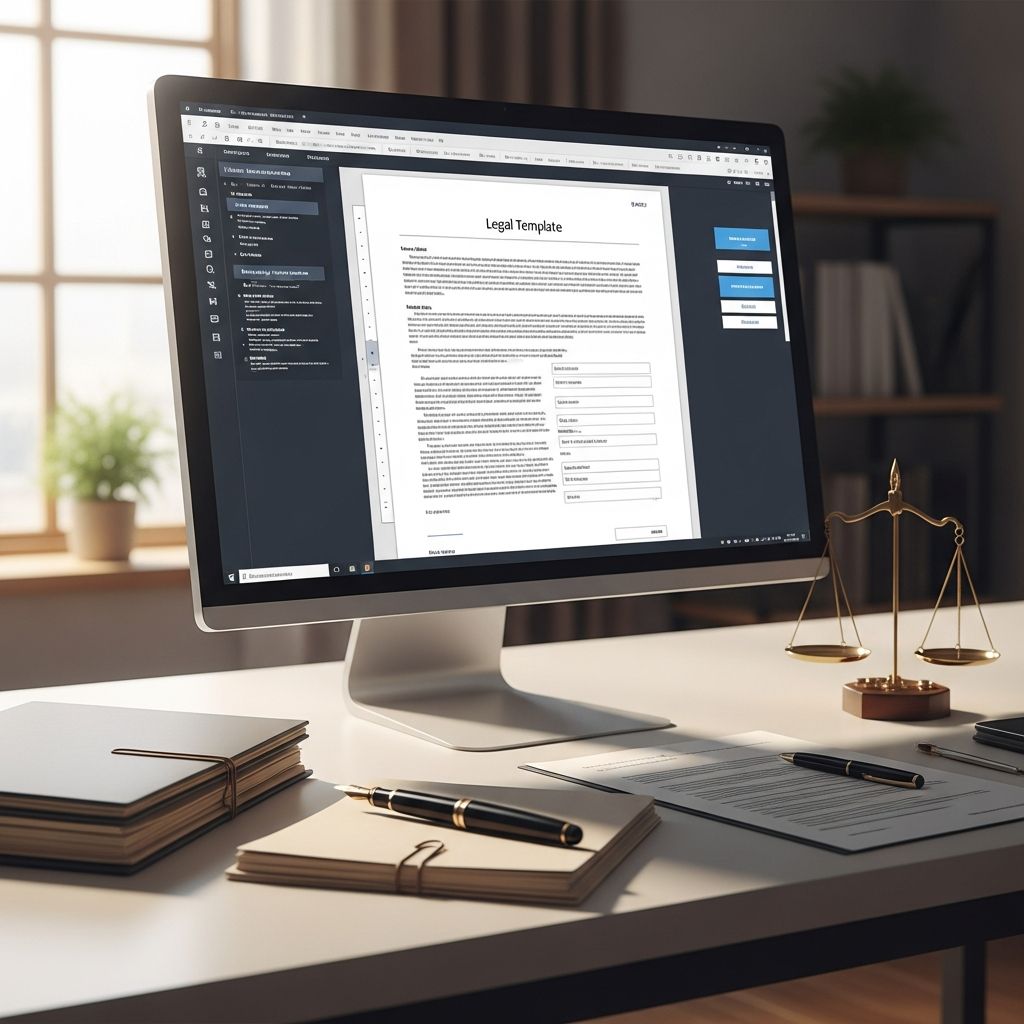
Streamlining Legal Practice Through Strategic Template Development
Legal professionals face constant pressure to deliver high-quality documents while managing demanding workloads. The repetitive nature of document creation—contracts, pleadings, correspondence, and client agreements—consumes significant time that could be directed toward client service and case strategy. Microsoft Word templates offer a powerful solution to this challenge, enabling attorneys and legal teams to establish a standardized framework that ensures consistency, reduces the risk of costly errors, and accelerates the drafting process. By investing time upfront to create well-designed templates, legal practitioners can transform their workflow, allowing them to focus on substantive legal work rather than formatting and structural decisions.
Understanding the Foundation: What Makes Templates Effective for Legal Work
At their core, legal document templates serve multiple critical functions that extend far beyond simple convenience. Templates establish a baseline of professional formatting that reflects positively on a firm’s reputation and credibility with clients and opposing counsel. When every document carries consistent branding, font choices, spacing, and structural organization, it communicates competence and attention to detail—qualities clients expect from their legal representatives.
Beyond aesthetics, templates function as quality assurance mechanisms. By building in required sections, mandatory disclosures, and standardized language, templates reduce the likelihood of omissions that could compromise legal validity or client protection. This is particularly important in transactional work, where the absence of a single clause or improper formatting could create unforeseen liabilities. Additionally, templates accommodate customization without requiring complete reconstruction, allowing attorneys to tailor documents to specific matters while maintaining structural integrity.
Designing Templates with Precision: Structural Considerations
Creating an effective legal template begins with establishing a solid structural foundation. Before adding any content-specific elements, legal teams should determine the overall architecture of their documents. This includes decisions about page margins, header and footer placement, page numbering schemes, and how different document sections will be visually distinguished from one another.
Heading hierarchy plays a particularly important role in legal document organization. Implementing a consistent system of primary headings, secondary headings, and tertiary headings helps readers navigate complex documents and supports the automatic generation of tables of contents. In Word, this is accomplished through the Styles feature, which allows users to define formatting for each heading level once, then apply it consistently throughout the document.
Paragraph formatting deserves equal attention. Legal documents often require specific line spacing—typically double-spaced for pleadings and single-spaced for contracts—and these requirements should be built into the template rather than applied manually to each document. Similarly, decisions about indentation, alignment, and spacing between sections should be standardized within the template to ensure uniformity across all documents created from it.
Working with Placeholders and Variable Content
One of the most powerful features of a well-constructed template is its ability to accommodate variable information—client names, case numbers, dates, and other matter-specific details—without requiring users to manually update every instance throughout the document. This is achieved through the strategic use of placeholders and content controls.
A straightforward approach involves using consistent marker syntax for placeholders. For example, adopting a convention such as “[Client Full Name]” throughout the template allows drafting attorneys to use Word’s Find and Replace function to quickly populate client-specific information. This method is reliable, visible, and easy for any team member to understand and implement.
For more sophisticated automation, Word’s content control features enable the creation of fillable fields that guide users through the template completion process. When properly configured, entering information once in a content control can trigger automatic updates in multiple locations throughout the document. This reduces manual data entry, minimizes transcription errors, and ensures consistency when the same information appears in various sections of a legal document.
Managing Optional Provisions and Conditional Language
Legal documents frequently contain provisions that apply in some circumstances but not others. A template for a residential lease, for example, might include optional clauses covering pet policies, security deposits, or late fees—elements that should be included or excluded depending on the landlord’s requirements and local regulations. Clearly marking and organizing these optional sections within the template prevents confusion and ensures that nothing is inadvertently omitted or included in error.
The most effective approach involves marking the beginning and end of optional sections with clearly visible notations that explain when the provision should be included. Highlighting these markers in a consistent color further aids in visual identification. For instance, a notation might read: “[INCLUDE IF LANDLORD REQUIRES PET BOND]” at the beginning of a clause and “[END PET BOND CLAUSE]” at the conclusion. This approach ensures that even team members unfamiliar with a particular template can navigate it successfully.
File Management and Template Organization
As a legal team builds its template library, organizational systems become increasingly important. Storing templates haphazardly across hard drives, shared folders, and email attachments creates confusion, increases the likelihood of using outdated versions, and makes it difficult to implement firm-wide updates.
A dedicated template repository—whether stored locally or in cloud-based platforms like OneDrive—serves as the single source of truth for template availability and versioning. Templates should be organized by document type: contracts, pleadings, correspondence, discovery requests, and other categories relevant to the practice. Within each category, templates might be further subdivided by jurisdiction, practice area, or client type.
Naming conventions significantly impact template discoverability. Rather than generic names like “Contract 1” or “Letter Template,” adopting descriptive naming schemes such as “Commercial Lease Agreement – Standard 2025” or “Motion to Dismiss – Federal Court” enables team members to quickly identify and select the appropriate template without opening multiple files. Including creation or last-updated dates helps practitioners understand when a template was last reviewed and whether revisions to law or firm procedures might necessitate updates.
Advanced Features: Leveraging Word’s Automation Capabilities
Beyond basic formatting and placeholders, Microsoft Word offers several advanced features that can elevate template functionality. Fields and Quick Parts—Word features that allow dynamic content insertion—enable templates to pull information from document properties and automatically update it throughout the document. When properly implemented, these features create what might be called a “living document” that adapts to each new matter while maintaining structural consistency.
Content controls represent another layer of sophistication. These interactive elements can be configured to restrict data entry, enforce formatting, or trigger cascading updates. A template using content controls might restrict a “Court Name” field to a dropdown list of specific courts, preventing typos and ensuring consistency. Similarly, linking multiple content controls to the same data source ensures that changing an entry in one location automatically updates all instances throughout the document.
Document property fields offer additional automation possibilities. By utilizing built-in or custom properties—such as author, company, or case number—templates can automatically populate fields based on information stored in the file’s metadata. This approach proves particularly valuable in large organizations where document properties might be automatically populated through document management systems.
Protecting Template Integrity
One of the most common pitfalls in template management occurs when users accidentally save client-specific changes back to the master template, corrupting it for future use. This problem is easily prevented by saving templates in Word’s native template format (.dotx) rather than as standard documents (.docx).
When a template is saved with the .dotx extension, double-clicking on it or selecting it from Word’s template options automatically opens a new document based on the template, leaving the original template file unchanged. This protective mechanism ensures that template integrity is maintained even if users unintentionally attempt to save over the master file. Should editing of the underlying template become necessary, users can right-click the template file in File Explorer and select “Open,” or access it through Word’s File menu, triggering the editing interface rather than document creation mode.
Best Practices for Template Implementation Across Teams
For templates to deliver their full benefit, they must be adopted consistently across a legal organization. This requires clear communication about which templates should be used for specific document types, training for team members unfamiliar with advanced Word features, and periodic audits to ensure compliance.
Establishing template governance—designating individuals responsible for creating, updating, and maintaining templates—prevents the proliferation of duplicate or outdated versions. These template stewards should periodically review templates for accuracy, ensure they comply with current law and firm procedures, and incorporate feedback from users about improvements or additions.
Security and confidentiality considerations are particularly important when managing templates. Ensuring that templates don’t contain residual client information from previous matters and that access to sensitive templates is appropriately restricted protects client confidentiality and firm reputation. Cloud storage solutions with appropriate access controls provide secure, scalable template management options.
Common Document Types and Template Strategies
Different document types benefit from different template approaches. Contracts and agreements typically require extensive customization but benefit enormously from standardized introductory provisions, signature blocks, and boilerplate language. Creating contract templates that consolidate common provisions while allowing flexible customization of terms and conditions streamlines the contract drafting process while maintaining legal rigor.
Pleadings and motion templates should incorporate jurisdictional formatting requirements, caption formatting, and standard caption language. Many courts specify precise formatting for line numbering, margins, and spacing, making court-specific templates invaluable for compliance and efficiency.
Correspondence templates for client letters, opposing counsel communications, and internal memoranda benefit from consistent formatting and tone. These templates can include placeholder sections for different message types while maintaining professional branding and presentation.
Measuring Template Effectiveness
After implementing a template system, legal teams should periodically assess whether templates are delivering anticipated benefits. Metrics might include time saved in document creation, reduction in revision cycles, consistency in document formatting, and user satisfaction. Tracking these metrics helps justify continued investment in template development and identifies areas where templates could be improved or expanded.
Frequently Asked Questions
Q: What is the difference between saving a template as .docx versus .dotx?
A: Saving as .dotx creates a template file that opens new documents without modifying the master template. Saving as .docx creates a standard document file that, if modified and saved, overwrites the original.
Q: How can I ensure that placeholders are consistently formatted throughout my template?
A: Use consistent marker syntax (such as brackets around placeholder names) and employ Find and Replace functionality to verify that all instances match your chosen convention before finalizing the template.
Q: Can templates be shared across a firm if team members work remotely?
A: Yes, storing templates in cloud-based solutions like OneDrive provides access from any device and enables seamless collaboration while maintaining version control.
Q: What should I do if I need to update a template that’s already in use?
A: Update the master template file and communicate the changes to team members. For documents already created from the old template, decide whether existing documents require updates based on the nature of changes.
Q: How many templates does a law firm typically need?
A: Create one template per document instrument type (e.g., one residential lease template, one commercial lease template) rather than variations for different client scenarios, making updates more manageable.
References
- Using Microsoft Word Templates That Save Law Firms Tons of Time — Attorney at Work. https://www.attorneyatwork.com/improve-document-drafting-accuracy-with-microsoft-word-templates/
- 10 Best Practices for Lawyers Using Microsoft Word — Infoware. https://infowaregroup.com/10-best-practices-for-lawyers-using-microsoft-word/
- Creating Word Templates for Legal Firms: Best Practices — Word Experts. https://www.wordexperts.com.au/blog/word-templates-for-legal-firms
- Research & Writing: MS Word for Lawyers: Document Templates — University of Hawaii Law Library. https://law-hawaii.libguides.com/TLC_Research_Writing/WordTemplates
- Formatting a Legal Document in Microsoft Word — Georgetown Law. https://www.law.georgetown.edu/wp-content/uploads/2024/02/Formatting-a-Legal-Document-in-Microscoft-Word-2024.pdf
- How to Format a Legal Document in Word — LawRank. https://lawrank.com/how-to-format-legal-document/
Similar Articles








Read full bio of Sneha Tete


