
Fixing OCR Text in Adobe Acrobat: A Practical Guide
Learn how to review, repair, and optimize OCR text in Adobe Acrobat so your scanned PDFs are accurate, searchable, and court-ready.
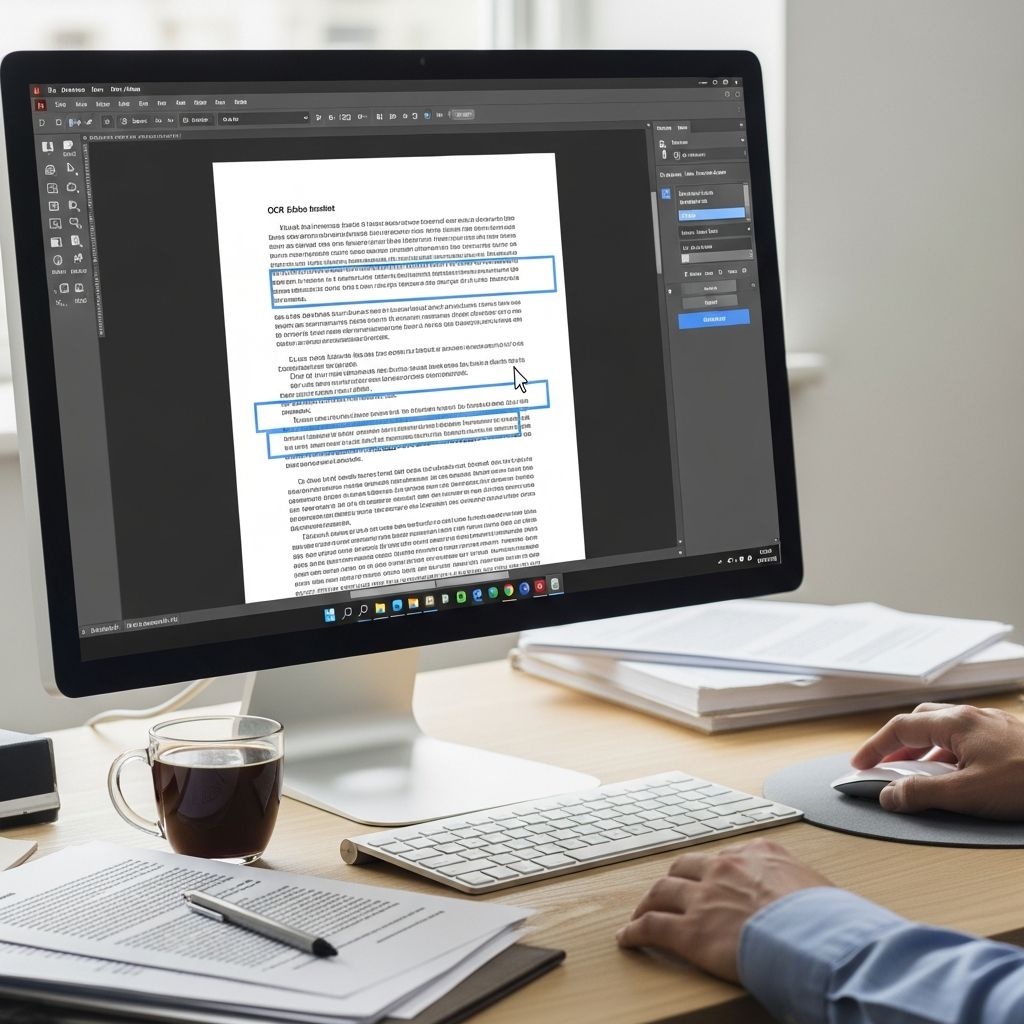
Optical character recognition (OCR) turns scanned pages into searchable text, but even strong OCR engines still make mistakes. For legal professionals, researchers, and anyone who relies on precise wording, those errors can create real risk. This guide explains how to correct OCR text in Adobe Acrobat, structure an efficient review workflow, and produce clean, reliable PDFs.
Why OCR Accuracy Matters for Legal and Business Documents
OCR makes it possible to search, copy, and analyze documents that started as scans or faxes. However, even low error rates can have a big impact when contracts, court filings, or financial records are involved.
Common consequences of uncorrected OCR errors include:
- Misinterpreted clauses in contracts or pleadings when words are split, merged, or misspelled.
- Missed search results when key terms are not recognized correctly.
- Data extraction problems when tools cannot reliably identify dates, amounts, or party names.
- Accessibility issues for screen reader users who rely on accurate text layers.
Courts and public agencies increasingly expect electronically filed documents to be searchable and properly text-recognized, especially in jurisdictions that publish e-filing and PDF preparation guidelines. High-quality OCR is not only a convenience; it is quickly becoming a compliance issue in many workflows.
Understanding What Acrobat’s OCR Actually Does
Before correcting errors, it helps to understand how Acrobat handles OCR internally.
| Feature | What It Does | Why It Matters |
|---|---|---|
| Text recognition engine | Analyzes page images and guesses characters and words. | Determines how many errors you will need to correct. |
| Hidden text layer | Stores recognized text behind the scanned image. | Controls what can be selected, copied, and searched. |
| Language and dictionaries | Use language-specific rules and word lists during OCR. | Improves accuracy for legal, technical, or multilingual documents. |
| Post-OCR editing tools | Allow manual corrections and reflowing of recognized text. | Let you fix critical errors without re-scanning pages. |
Research in post-OCR correction shows that even modest manual review yields large improvements in accuracy and usability, especially when combined with language-aware tools and dictionaries.
Preparing a PDF for Accurate OCR in Acrobat
Good input images reduce the time you will spend correcting text. Before you run OCR in Acrobat, consider these preparation steps:
- Scan at sufficient resolution – 300 dpi is a common minimum for text; small print or poor originals may require higher resolution.
- Use black-and-white or grayscale for text-heavy pages to improve contrast.
- Flatten skewed pages by scanning straight and using any built-in deskew options.
- Avoid heavy compression at the scanner stage, which can blur characters.
- Remove covers and separator pages that contain no useful text to save processing time.
Once the scan is saved as PDF, open it in Acrobat and run text recognition using the appropriate language and resolution settings for the document. Selecting the correct language reduces common substitution errors and improves overall word-level accuracy.
Systematic Workflow for Correcting OCR Errors in Acrobat
Instead of correcting mistakes ad hoc, approach OCR text repair as a structured process. A typical workflow in Acrobat can be broken down into four passes.
Pass 1: Global Checks and Spot-Testing
Start by assessing overall quality before you dive into line-by-line edits.
- Run a few test searches for distinctive names, case numbers, or legal terms to see how often they are recognized correctly.
- Try selecting a paragraph and pasting into a text editor to quickly scan for garbled sequences.
- Verify that page order is correct and that all pages have been OCR’d.
If you see severe corruption or many missing words across pages, it may be faster to re-run OCR with improved settings or rescan the document rather than editing page by page.
Pass 2: Fix Critical Content First
Focus on text that matters most for meaning and future searches:
- Captions and titles (case captions, party names, document titles).
- Headings and section labels used for navigation (e.g., “ARGUMENT,” “STATEMENT OF FACTS”).
- Key terms such as statutes, regulations, contract clauses, or defined terms.
- Numbers and dates in tables, schedules, and exhibits.
Correcting these elements first ensures that search, citation, and automated analysis tools will work reliably even if some minor body text imperfections remain.
Pass 3: Line-by-Line Editing with Acrobat’s Text Tools
After high-priority elements are accurate, move to detailed correction.
Typical editing steps in Acrobat include:
- Use the text edit tool to click into misrecognized words and type the correct spelling.
- Carefully correct hyphenation issues, where lines break in the middle of words.
- Adjust spacing where characters have been merged or split.
- Repair punctuation such as quotation marks, dashes, and section symbols.
Modern post-OCR systems show that small local corrections can significantly reduce both character error rate (CER) and word error rate (WER), especially when focusing on high-density error regions.
Pass 4: Final Quality Control and Sampling
Before you rely on the document for filing or analysis, perform a final quality check:
- Run a spell check (if available) and prioritize unknown words that are not names or legal terms.
- Randomly sample a few pages from the beginning, middle, and end to confirm consistency.
- Search for a small, common word (such as “the” or “and”) to ensure the hidden text layer spans the document.
- Confirm that bookmarks or page labels, if used, match corrected headings.
Sampling is a practical way to balance time and quality; empirical work on OCR post-correction highlights that full manual review of every character is rarely necessary if sampling confirms stable accuracy.
Common OCR Error Patterns and How to Fix Them
Most OCR mistakes fall into a few predictable categories. Recognizing these patterns helps you correct faster and more consistently.
Character Substitutions
Character substitution happens when one symbol is confused for another (e.g., “l” for “1”). These are often caused by font, noise, or low resolution.
- Letters that commonly swap: O/0, l/1, S/5, rn/m.
- Legal citations may show distorted section (§) and paragraph (¶) symbols.
A practical approach is to identify frequent substitution patterns and search for them across the document. Research has shown that rule-based or statistical methods targeting these patterns can significantly reduce error rates.
Missing or Extra Spaces
OCR can accidentally join two words or split one word into several fragments. In legal documents, this often affects:
- Party names (e.g., “JohnsonSmith” instead of “Johnson Smith”).
- Case numbers where hyphens and spaces are critical.
- Statutory citations with section numbers and subsections.
Correct by inserting or removing spaces using the text tool and, where practical, using find/replace on repeated patterns.
Line Breaks and Hyphenation
Printed material often hyphenates words at line ends. OCR may treat these hyphens as part of the word even where they should disappear in continuous text.
When you see many line-end hyphens:
- Decide whether you intend to preserve original line breaks or create continuous paragraphs.
- For export to word processors, remove soft hyphens and merge lines where appropriate.
Post-OCR correction research underscores the importance of handling hyphenation consistently, as it directly affects tokenization and downstream search or NLP tools.
Tables, Columns, and Complex Layouts
Multi-column formats and tables are among the hardest structures for OCR systems to interpret. Acrobat may misread:
- Column order, merging text from left and right columns into one line.
- Table
Similar Articles








Read full bio of medha deb


