Reclaiming Your Inbox: Strategies for Post-Vacation Email Management
Master email overload after vacation with proven techniques for rapid inbox recovery.
Returning from Vacation: Taking Control of Email Chaos
The moment most professionals dread arrives the moment they return from vacation: opening their email client to discover hundreds or even thousands of unread messages waiting in their inbox. This digital avalanche can instantly transform the rejuvenating effects of a vacation into stress and anxiety. However, with the right approach and mindset, managing this email backlog doesn’t have to derail your productivity or extend your post-vacation adjustment period. The key lies in implementing a systematic strategy that prioritizes messages effectively while preventing important communications from slipping through the cracks.
Rather than viewing your overflowing inbox as an insurmountable problem, consider it an opportunity to reset your email habits and implement better organizational systems. The following strategies provide a comprehensive framework for addressing post-vacation email accumulation in a way that minimizes stress and maximizes efficiency.
Preparing Your Workspace for Focused Email Processing
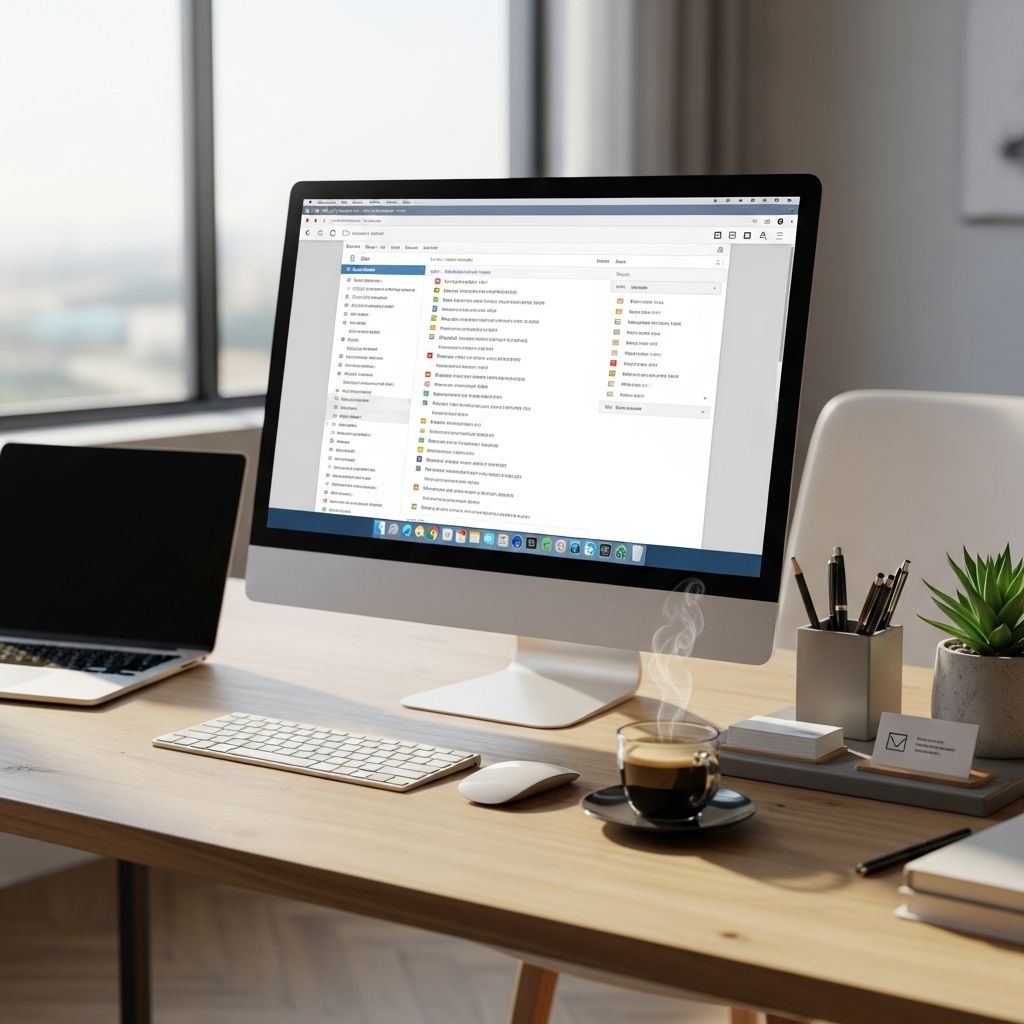
Before diving into the email deluge, invest time in creating an optimal work environment. Physical and mental preparation significantly impacts your ability to process messages systematically. Begin by tidying your workspace, eliminating distractions that could derail your concentration. Select a beverage of choice—coffee, tea, or water—to maintain hydration and energy levels during extended focus sessions. If ambient sound helps your concentration, curate a playlist of instrumental music or nature sounds; alternatively, seek out a quiet location where you can work without interruption.
Block out dedicated time on your calendar for this email management session. Ideally, allocate a minimum of one to two hours of uninterrupted work, depending on the volume of messages you’ve received. Communicate this blocking to colleagues to prevent unnecessary interruptions. During this period, close other applications, silence notifications unrelated to email, and commit to completing your email processing goals without yielding to distractions. This concentrated effort approach proves far more efficient than fragmented attempts to handle email throughout your day.
Categorizing and Eliminating Non-Essential Messages
The first substantive step involves dramatically reducing your inbox size by identifying and removing messages that don’t require your attention or action. Begin by scanning your email list for obvious candidates for deletion: promotional content, marketing newsletters, automated notifications, and system-generated alerts that provided no actionable information during your absence.
Most email platforms offer powerful filtering capabilities. In Gmail, utilize the search feature to identify messages by sender, subject line, or specific keywords. Create temporary filters to batch similar low-value messages together, making bulk deletion more efficient. For promotional emails and newsletters you’ve accumulated, consider unsubscribing from sources that no longer serve your professional needs. If certain newsletters interest you but contributed to your inbox overload, create a dedicated folder for these messages and schedule specific times—perhaps weekly—to review them rather than allowing them to clutter your primary inbox.
This elimination process typically reduces your total message count by thirty to fifty percent, creating an immediate psychological boost and a more manageable workload for subsequent processing steps.
Organizing Messages Through Strategic Sorting
With non-essential messages cleared, turn your attention to organizing remaining emails into logical categories. Sort your inbox by subject line to group related conversations together. This approach differs from typical conversation view by listing individual emails rather than nesting entire threads, allowing you to quickly identify topics requiring your attention.
Create temporary working folders or labels corresponding to message categories: items requiring immediate action, messages needing responses from you, communications awaiting information from others, and informational-only messages you should retain for reference. Many email platforms support rule creation that automates this sorting, reducing manual organization work.
Consider utilizing project management tools or task management systems for complex action items. Applications like Asana, Monday.com, or even native email task features (such as Google Tasks) help you track responsibilities without letting them pile up in your inbox. Move complex projects requiring substantial work into these dedicated systems, leaving your email inbox focused on communications rather than acting as a makeshift project management tool.
Processing Messages Chronologically for Context
Begin addressing your organized emails by starting with the oldest messages first, then progressively work toward the most recent ones. This chronological approach, though counterintuitive, provides several advantages. First, it ensures you don’t overlook older communications that might have lost urgency simply due to their position in your inbox. Second, reading older messages first provides essential context for understanding more recent developments—circumstances may have evolved, decisions may have been made, or situations may have resolved themselves during your absence.
Starting with the oldest messages also creates a psychological sense of progress. You can visibly see yourself moving through your email stack, providing motivation to continue. Should you become distracted or need to pause your processing session, you’ll know exactly where you left off and can resume without wondering if you missed something important.
This approach also reveals an important insight: some older messages will have been superseded by newer communications. By reading the complete email history, you avoid making decisions based on incomplete information or taking actions that someone else has already addressed.
The One-Touch Method for Rapid Resolution
For messages that can be addressed quickly—generally those requiring fifteen minutes or less of your attention—implement the one-touch approach. Rather than reading all emails first and planning to return to them later, immediately handle these items when you encounter them. This might involve sending a brief response, forwarding the message to the appropriate colleague, or completing a small task the sender requested.
The one-touch method prevents emails from lingering in your inbox and eliminates the need to revisit them multiple times. However, be realistic about time estimates. If you find yourself consistently underestimating how long tasks require, expand your time-touch threshold to twenty or thirty minutes, or block additional time for your email processing session to accommodate more thorough work without creating stress.
For emails requiring more substantial effort, note the time commitment and move them to your “Pending” or “Action Items” folder rather than spending extended time on them during your initial processing session. This ensures you’re making progress through your entire inbox rather than becoming bogged down in complex items early in your processing.
Responding Appropriately to All Communications
Professional courtesy dictates responding to every email that was directly addressed to you, even if your response is brief. This courtesy extends to senders who anticipated you’d address their messages upon your return. Your response doesn’t need to contain a complete answer or resolution; it simply needs to acknowledge receipt and provide appropriate expectation-setting.
For messages where you’re implementing the one-touch method, your response is likely handled as you complete the associated task. For messages you’re deferring to later processing, send a brief message stating you’ve received their communication and will provide fuller attention by a specific date or time. A template response might read: “Thank you for your message. I’ve recently returned from vacation and am working through accumulated correspondence. I’ll provide you with a complete response by [specific date]. I appreciate your patience.”
This proactive communication prevents senders from wondering whether you received their message and demonstrates professionalism during your reintegration period. It also manages expectations, reducing pressure to provide instant comprehensive responses before you’ve fully understood the situation.
Prioritizing Remaining Action Items Strategically
After processing quick-resolution emails and organizing other messages, you’ll have identified a set of items truly requiring your attention and effort. Prioritize these remaining messages using a matrix approach: classify each item as either urgent or non-urgent, and either important or less important.
Urgent and Important items require immediate action—ideally completion before the end of your first day back or first thing the following morning. These typically include client requests with time-sensitive deadlines, critical approvals you must provide, or situations that deteriorated during your absence.
Important but Non-Urgent items deserve scheduled attention but not immediate action. Assign these to specific days within your first week back, blocking calendar time to ensure they receive proper focus. Examples include strategic projects, significant planning items, or comprehensive responses requiring thoughtful consideration.
Non-important items—even if someone labeled them urgent—can be scheduled for later attention or delegated to colleagues better positioned to handle them. Be honest about what genuinely requires your personal involvement versus what others can address.
Leveraging Automated Systems and Tools
Modern email platforms provide sophisticated organizational features that, when properly configured, dramatically reduce manual management. Establish rules that automatically filter certain categories of messages into dedicated folders. Common examples include separating client emails from internal communications, routing notification emails to specific folders, or organizing messages by project code.
Many platforms allow creation of quick-access folders or labels for frequently used categories: items flagged for follow-up, messages awaiting responses from others, reference materials for retention, and completed projects. This structure makes it exponentially easier to locate specific messages and prevents important items from disappearing into general inbox chaos.
Additionally, consider using the automatic out-of-office feature even after you’ve returned, keeping it active for several days with an updated message explaining you’re catching up from vacation and may require additional time to respond fully. This sets realistic expectations with contacts and reduces pressure for immediate responses while you’re still processing your email backlog.
Maintaining Ongoing Email Discipline
Once you’ve successfully processed your post-vacation email accumulation, implement systems preventing future overwhelming buildups. Schedule brief daily email processing sessions—perhaps ten to fifteen minutes each morning and five to ten minutes each afternoon—rather than allowing messages to accumulate. This distributed approach prevents the dramatic backlog that builds when email processing is neglected.
Establish unsubscribe discipline by promptly removing yourself from newsletters, promotional lists, and notification services that no longer serve your needs. Review your email subscriptions quarterly, eliminating sources that consistently provide limited value. This proactive management maintains inbox clarity and reduces noise in future processing sessions.
Implement the one-touch philosophy as standard practice, not just for post-vacation recovery. Immediately address messages you can handle quickly, preventing them from returning to your attention multiple times. For messages requiring substantial time, capture them in your task management system rather than using email as your primary project tracking tool.
FAQ Section
Q: Should I attempt to read every single email before taking action?
A: No. Following the initial sorting and elimination of non-essential messages, focus on action items rather than attempting to comprehensively read and archive everything. Legitimate emails requiring no response or action can be archived in batches once you’ve ensured they contain no hidden action items.
Q: Is it acceptable to delete old emails without reading them?
A: Yes, particularly for promotional content, automated notifications, and low-priority communications. However, for emails from supervisors, important clients, or colleagues, read or skim them before deleting to ensure no critical information was missed.
Q: How should I handle emails I don’t have time to process immediately?
A: Move them to a clearly labeled folder (such as “Review This Week” or “Action Items”), ensuring they don’t remain scattered throughout your inbox. Schedule specific time blocks to address these items before the end of your first week back.
Q: What if some issues were resolved or decisions made while I was away?
A: Reading emails chronologically from oldest to newest helps you discover when and how situations were resolved. This prevents duplicating work or taking action on items already handled by colleagues.
Q: Should I inform colleagues I’m working through email backlog?
A: Yes. A brief message to your team or key contacts explaining you’re catching up from vacation and will provide complete attention to their messages by a specific date demonstrates professionalism and manages expectations appropriately.
References
- Manage Your Email After Vacation: 5 Simple Steps — Friday Afternoons. Accessed April 2026. https://fridayafternoons.co/blogs/friday-afternoons/manage-your-email-after-vacation
- Tackle Post-Vacation Email Overload: Virtual Assistant Tips — Lift Business Resources. Accessed April 2026. https://www.liftbusinessresources.com/insights/tackle-post-vacation-email-overload
- Catching Up On Emails After Vacation: Declutter Your Inbox Safely — Hornetsecurity. Accessed April 2026. https://www.hornetsecurity.com/en/blog/catching-up-on-emails-after-vacation/
- 5 Tips For Managing Your Inbox on Vacation — Daylite. Accessed April 2026. https://www.daylite.app/blog/5-tips-for-managing-your-inbox-on-vacation-out-of-office-email-templates-included/
- 6 Wonderful Tips on How to Catch Up on Emails After a Vacation — Grammarly. Accessed April 2026. https://www.grammarly.com/blog/emailing/how-to-get-caught-up-on-emails/
Similar Articles








Read full bio of medha deb