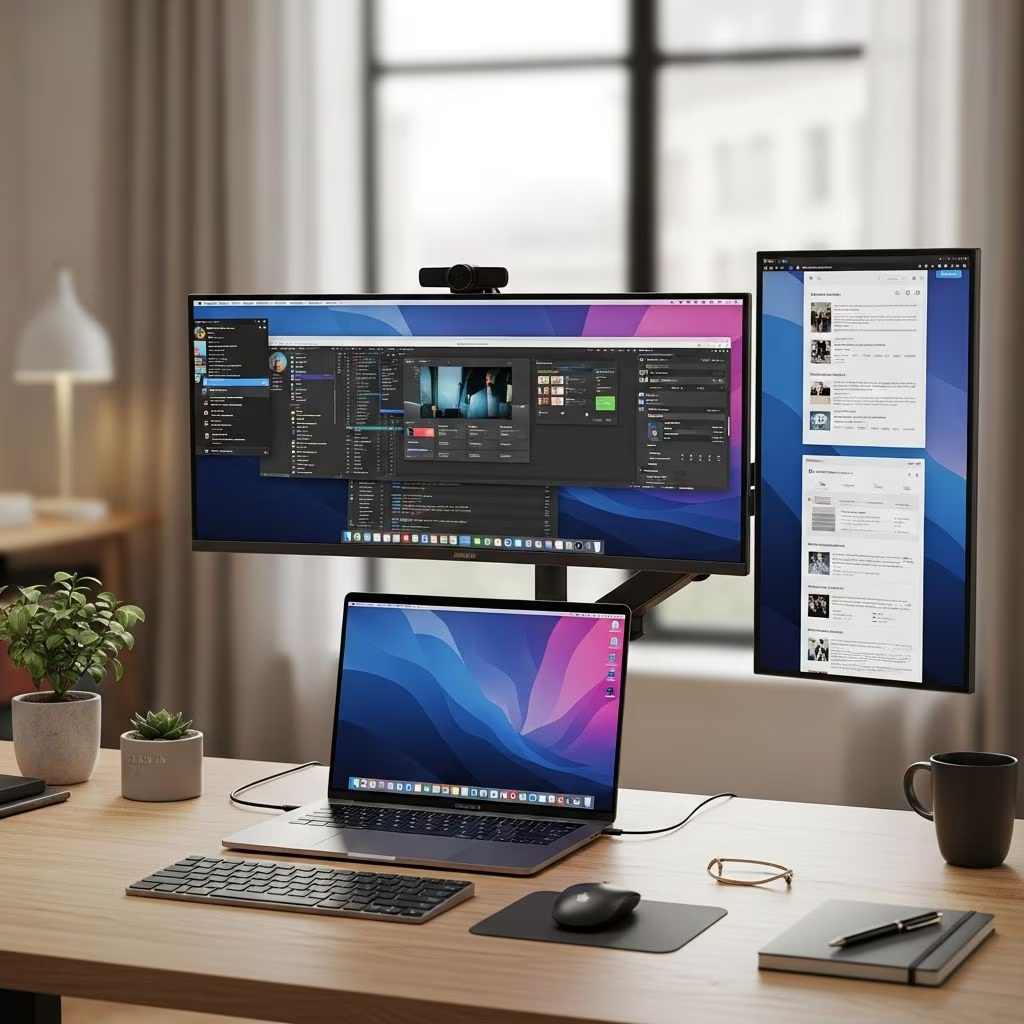
Understanding Your Monitor Selection Requirements
Purchasing an external monitor is a significant investment that directly impacts your daily productivity and comfort. Unlike simply choosing any display device, selecting the right monitor requires careful consideration of multiple factors that align with your specific work environment and professional demands. Whether you’re expanding your desktop workspace, upgrading to support creative endeavors, or establishing a portable setup for remote work, understanding the fundamental criteria will help you make an informed decision that enhances rather than complicates your workflow.
The process of choosing a monitor extends beyond aesthetics or brand recognition. Your selection should be grounded in technical specifications, physical characteristics, and compatibility considerations that directly affect how efficiently you work throughout the day. By thoroughly evaluating each aspect discussed in this guide, you can identify a monitor that serves your current needs while remaining flexible enough to support future requirements.
Resolution and Visual Clarity
Resolution represents one of the most fundamental specifications when evaluating external monitors, as it determines the sharpness and detail of the images displayed on your screen. Resolution is measured in pixels, with common standards ranging from Full HD (1920 × 1080 pixels) to increasingly higher specifications like 4K (3840 × 2160 pixels) and 5K formats.
For professionals engaging in document-based work, email correspondence, and standard web browsing, Full HD resolution typically provides adequate visual clarity. However, your resolution requirements should scale with the complexity and visual demands of your typical tasks. Content creators working with high-resolution images, video editors managing multiple layers and timelines, and professionals analyzing detailed spreadsheets or architectural drawings benefit significantly from higher resolutions that display more screen real estate and finer detail.
The relationship between resolution and screen real estate is particularly important to consider. A higher resolution monitor allows you to display more information simultaneously without compromising readability, reducing the need for constant scrolling or window management. This becomes especially valuable during multitasking scenarios where you need to reference multiple documents, applications, or data sources concurrently.
Display Panel Technology and Image Quality
Modern external monitors utilize different panel technologies, each offering distinct advantages depending on your visual priorities and work environment. Understanding these technologies helps you select a display that matches your specific requirements for color accuracy, contrast, response time, and viewing angles.
IPS (In-Plane Switching) panels have become the standard choice for professionals requiring color accuracy and consistent image quality across wide viewing angles. These panels excel in environments where multiple people view the screen simultaneously or where you frequently shift your viewing position. The wide color gamut and minimal color distortion at oblique angles make IPS panels particularly suitable for graphic design, photography, and video editing work.
VA (Vertical Alignment) panels offer superior contrast ratios and deeper black levels compared to IPS technology. If your work involves media consumption, entertainment, or environments where contrast and image depth are priorities, VA panels deliver a more visually striking experience. However, they typically exhibit narrower viewing angles than IPS alternatives.
TN (Twisted Nematic) panels prioritize response time performance, making them particularly relevant for gaming and fast-paced applications requiring minimal input lag. While these panels offer affordability and speed advantages, they generally sacrifice color accuracy and viewing angle consistency compared to IPS and VA options.
Physical Dimensions and Screen Size Considerations
The physical dimensions of your external monitor influence both the spatial requirements of your workspace and the effectiveness of your multitasking capabilities. Screen sizes typically range from compact portable monitors measuring 13-17 inches to expansive desktop displays exceeding 30 inches.
Smaller monitors between 15 and 17 inches with Full HD resolution serve well for portable workflows, client presentations, and situations requiring mobility between locations. These dimensions provide practical expansion without consuming excessive desk space or introducing transportation challenges.
Standard desktop monitors in the 24-27 inch range represent the sweet spot for most professional environments, offering sufficient screen real estate for document work while remaining manageable in typical office configurations. Monitors of 27 inches or larger facilitate advanced multitasking, enable comfortable simultaneous viewing of multiple application windows, and create more immersive visual experiences for creative work.
Beyond size, aspect ratio significantly influences how information displays on your screen. Standard 16:9 aspect ratios suit most general computing tasks, while ultrawide formats featuring 21:9 ratios provide exceptional horizontal space for productivity applications, financial analysis, and creative work that benefits from expanded lateral viewing area.
Connectivity and Device Compatibility
Your external monitor’s connectivity options determine which devices you can connect and how seamlessly integration occurs. Modern monitors incorporate various connection standards, each offering different capabilities and compatibility considerations.
HDMI connections remain ubiquitous across monitors and computing devices, supporting both video and audio signal transmission. This standard connectivity ensures compatibility with computers, gaming consoles, Blu-ray players, and numerous consumer electronics.
DisplayPort connections provide higher bandwidth than HDMI, enabling support for higher resolutions and refresh rates. These connections particularly benefit content creators and professionals requiring maximum performance for demanding applications.
USB-C represents an increasingly important connectivity standard, especially for laptop integration. USB-C monitors can transmit video signals, provide data connectivity, and deliver power to connected devices through a single cable, effectively simplifying your desk setup and reducing cable clutter.
Thunderbolt connectivity offers premium integration for compatible devices, providing exceptional data transfer speeds and display capabilities in a single connection standard.
Before finalizing your monitor selection, verify that your existing devices support the connection standards available on your chosen display. Incompatible connections may require purchasing additional adapters or limit your ability to integrate future devices into your workspace.
Ergonomic Features and Physical Adjustability
Your external monitor’s physical positioning directly affects your comfort, posture, and risk of repetitive strain injuries during extended work sessions. Ergonomic adjustability transforms a basic display into a customized tool that supports healthy working practices.
Height adjustment capabilities allow you to position the monitor’s vertical center approximately 15-20 degrees below your natural eye level when sitting in your normal working posture. This positioning reduces neck strain and promotes better spinal alignment throughout your workday.
Tilt and swivel adjustments enable fine-tuning of the display angle to minimize screen glare, accommodate different viewing distances, and adapt to changing ambient lighting conditions. These adjustments prove particularly valuable in workspaces with variable natural light or when transitioning between different work positions throughout the day.
Pivot functionality allows you to rotate the display between landscape and portrait orientations. Portrait mode proves especially beneficial for document review, code editing, and spreadsheet analysis where vertical screen space becomes the limiting factor. Many professionals discover significant productivity improvements when portrait orientation becomes an available option.
VESA mounting compatibility provides flexibility for advanced workspace configurations. VESA-compliant monitors support industry-standard mounting patterns, enabling attachment to wall mounts, articulating arms, or multi-monitor stands. Verify that your selected monitor’s weight and mounting pattern align with your intended mounting solution’s specifications before purchase.
Refresh Rate and Response Time Performance
While resolution and panel technology dominate monitor discussions, refresh rate and response time represent critical specifications for specific use cases. Refresh rate, measured in hertz (Hz), indicates how frequently the display updates its image content each second.
Standard 60Hz refresh rates suffice for document work, web browsing, and general productivity tasks. However, gamers and professionals working with fast-moving visual content benefit from higher refresh rates—75Hz, 144Hz, or beyond—that reduce perceived motion blur and create smoother visual experiences during dynamic interactions.
Response time, measured in milliseconds, represents the speed at which individual pixels transition between colors. Response times of 5ms or faster minimize ghosting artifacts during rapid scene changes, making this specification particularly relevant for gaming and video editing workflows.
Adaptive refresh rate technologies like NVIDIA G-SYNC and AMD FreeSync synchronize the monitor’s refresh rate with your graphics card’s output, eliminating screen tearing and stuttering artifacts during demanding applications. These technologies prove particularly valuable for gaming and graphics-intensive professional work.
Weight and Portability Considerations
For professionals requiring mobility between office locations, client sites, or varied work environments, monitor weight significantly influences practical usability. Despite online specifications appearing manageable, carrying a monitor all day between multiple locations creates cumulative physical strain.
Portable monitors weighing less than one kilogram (approximately 2.2 pounds) represent the practical threshold for comfortable daily transportation without excessive fatigue. Models in the 15-17 inch size range typically achieve these weight targets while maintaining sufficient screen real estate for productive work.
Beyond weight, protective carrying cases and slim bezels enhance portability practicality. Cases protect your display during transportation while slim bezels minimize overall device footprint, fitting more conveniently into bags and travel cases alongside your primary computing device.
Touch Functionality and Advanced Features
Some professional workflows benefit from touchscreen capabilities on external monitors, enabling more intuitive interaction with design applications, presentations, and data visualization tools. If considering touch-enabled displays, prioritize models with screen hardness ratings of at least 6H to ensure durability during regular touch interactions.
Additional convenience features include built-in speakers for audio playback, USB hub functionality for peripheral connectivity, and integrated cable management solutions that reduce visible clutter in your workspace. While these features shouldn’t drive your primary selection criteria, they can enhance overall user experience when available on your chosen model.
Matching Monitor Specifications to Workflow Requirements
Your ideal external monitor ultimately depends on how you actually use your workspace. Professionals engaged in different activities prioritize different specifications:
- Document-based professionals benefit from larger screens (27+ inches) with high resolution to display complete pages with readable text, reducing scrolling and enhancing reference capability when comparing multiple documents.
- Creative professionals require accurate color representation through IPS panels, sufficient resolution to display detailed design work, and sufficient screen real estate to accommodate tool palettes alongside primary content areas.
- Financial analysts and data professionals maximize productivity through multiple-monitor configurations or ultrawide formats that display extensive spreadsheets and data visualizations simultaneously.
- Portable professionals prioritize lightweight designs, USB-C connectivity for single-cable integration, and compact dimensions that fit travel workflows without sacrificing practical functionality.
- Gamers and graphics professionals focus on high refresh rates, fast response times, and adaptive refresh rate technologies that eliminate visual artifacts during dynamic content.
Budget Considerations and Value Assessment
Monitor pricing spans an enormous range, from budget-oriented options under $200 to premium professional displays exceeding $1000. Rather than pursuing the lowest available price, evaluate the value proposition by assessing how specific features align with your actual requirements.
Investing in a slightly more expensive monitor with specifications that precisely match your workflow typically delivers superior returns than purchasing a cheaper option requiring workarounds or sacrifices. Consider your monitor as a productivity investment that you’ll interact with for multiple hours daily across several years of professional use.
Compatibility Verification Before Purchase
Before finalizing your monitor selection, systematically verify compatibility between your monitor’s capabilities and your existing computing devices. Review the technical specifications of both your monitor and your computer, ensuring alignment across resolution support, refresh rate capabilities, and available connection ports.
Confirm that at least one compatible connection standard exists between your devices, and verify that your graphics processor supports the resolution and refresh rate your monitor can deliver. This verification process prevents post-purchase disappointment and ensures your investment functions optimally within your current setup.
Frequently Asked Questions About External Monitor Selection
Q: What resolution should I choose for everyday office work?
A: Full HD (1920 × 1080) resolution provides clear, readable visuals for everyday tasks like email, document editing, and web browsing. However, if you frequently work with multiple windows simultaneously or prefer more screen real estate, consider stepping up to 1440p or higher resolutions to reduce the need for constant window management and scrolling.
Q: Is IPS panel technology necessary for my work?
A: IPS panels excel for color-critical work like photography, graphic design, and video editing due to their accurate color representation and wide viewing angles. If your work doesn’t require precise color accuracy and you prioritize contrast or gaming performance, VA or TN panels may offer better value for your specific use case.
Q: How important is the 27-inch size recommendation?
A: Larger monitors (27 inches or more) facilitate multitasking and create more immersive viewing experiences, but they require adequate desk space. If your workspace is limited, a well-positioned 24-inch monitor can still provide excellent productivity. Your actual workspace constraints and how you arrange application windows matter more than hitting a specific size target.
Q: Should I prioritize USB-C connectivity?
A: USB-C connectivity offers significant advantages for laptop users, enabling single-cable integration for video, data, and power delivery. If your primary devices support USB-C, prioritizing this connectivity simplifies your setup and reduces cable clutter. However, if your devices primarily use HDMI or DisplayPort, USB-C becomes less critical.
Q: What adjustment features are truly essential for ergonomics?
A: Height adjustment represents the most critical ergonomic feature, allowing proper positioning to support healthy posture. Tilt adjustment proves valuable for reducing glare in varying lighting conditions. While swivel and pivot adjustments provide additional flexibility, height adjustability should be your minimum requirement for comfortable extended work sessions.
Q: Is a portable monitor worth purchasing?
A: Portable monitors (15-17 inches) prove valuable for professionals who regularly work across multiple locations, attend client meetings, or require flexible workspace configurations. If you work primarily from a fixed desk, investing in a larger, higher-quality fixed monitor typically delivers better value and productivity benefits.
References
- How to Choose the Best External Monitor for 2025 — Lenovo. 2025. https://www.lenovo.com/us/en/knowledgebase/how-to-choose-the-best-external-monitor-for-2025/
- Finding The Right Portable Monitor for Laptop: What You Need to Know — ViewSonic. 2025. https://www.viewsonic.com/library/business/finding-the-right-portable-monitor-for-laptop/
- Monitor Buying Guide — Best Buy. 2026. https://www.bestbuy.com/site/buying-guides/monitors-buying-guide/pcmcat337000050000.c?id=pcmcat337000050000
- Best Portable Monitors 2026: Gaming and Laptop Productivity — Tom’s Hardware. 2026. https://www.tomshardware.com/best-picks/best-portable-monitors