Voice Typing in Google Docs: Is It Worth Your Time?
Discover how Google Docs' latest voice typing enhancements boost productivity for professionals and accessibility for all users.
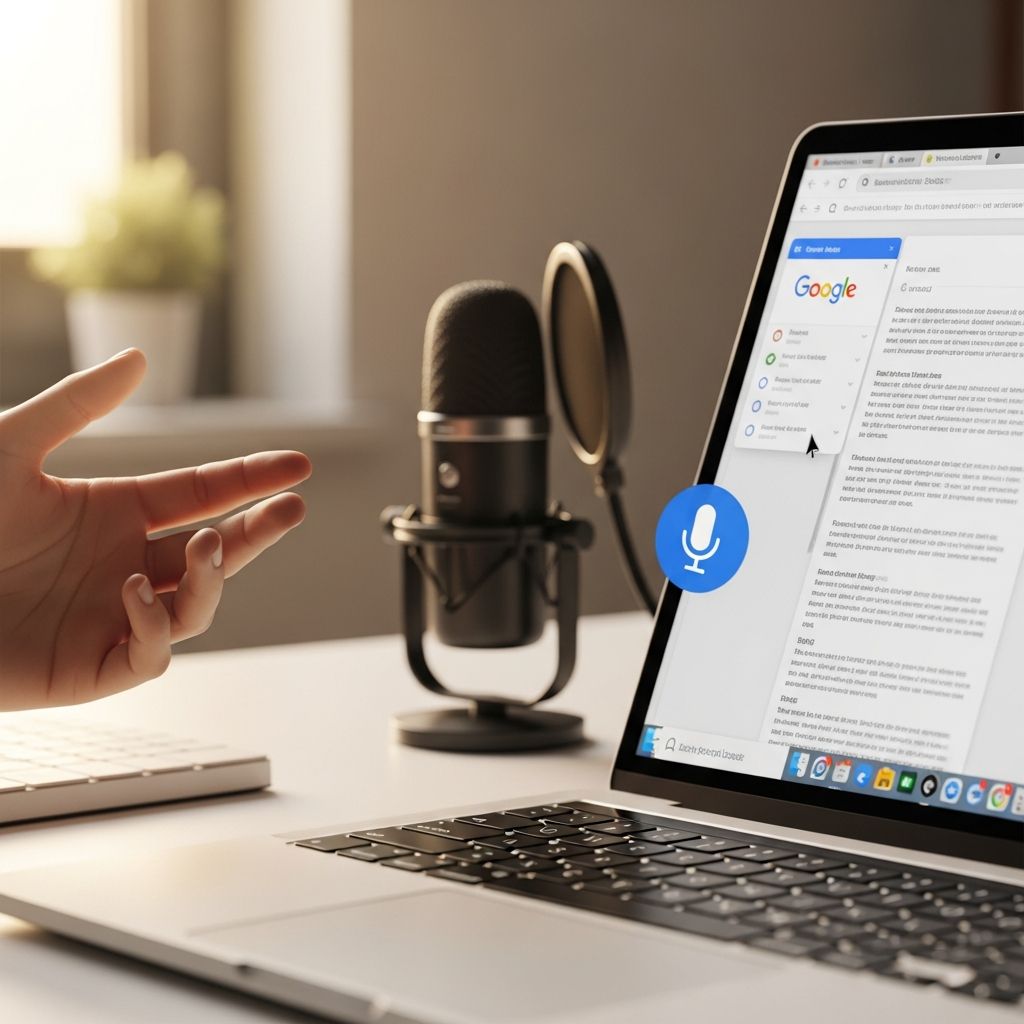
Google Docs has evolved its voice typing feature to support multiple browsers like Edge and Safari, making speech-to-text accessible beyond Chrome. This update enhances productivity for users dictating documents hands-free.
Unlocking the Power of Speech-to-Text in Modern Workflows
Speech-to-text technology, known as voice typing in Google Docs, converts spoken words into editable text instantly. Initially limited to Chrome, it now works seamlessly in Edge and Safari, broadening its reach. This shift means professionals can dictate legal briefs, reports, or notes without browser restrictions, streamlining workflows in diverse environments.
The core appeal lies in its simplicity: open a document, activate the tool, and speak. Your browser handles speech processing, sending clean text to Docs or Slides. For those with repetitive strain injuries or mobility challenges, this feature promotes inclusivity by reducing keyboard dependency.
Step-by-Step Activation and Basic Usage
Getting started is straightforward across supported browsers. In Google Docs, navigate to Tools > Voice typing. A microphone icon appears; click it and begin speaking at a normal pace and volume.
- Open your document in Docs or Slides speaker notes.
- Select Tools > Voice typing (or Dictate speaker notes in Slides).
- Click the microphone when ready.
- Speak clearly; insert punctuation via voice commands like ‘period’ or ‘comma’.
- Click the microphone again to stop.
Keyboard shortcuts accelerate access: Ctrl + Shift + S (Windows/ChromeOS) or Cmd + Shift + S (Mac). This efficiency suits fast-paced settings, such as drafting emails or presentations.
Mastering Voice Commands for Precision Editing
Beyond basic dictation, voice commands enable formatting without touching the keyboard. Say ‘new line’ for breaks, ‘new paragraph’ for spacing, or ‘bold that’ to emphasize text.
| Command | Action |
|---|---|
| Period | Inserts a period (.) |
| Question mark | Inserts a question mark (?) |
| New line | Line break |
| New paragraph | Paragraph break |
| Bold | Bolds selected text |
| Italicize | Italicizes text |
| Scroll up/down | Navigates document |
Correct errors on the fly: move the cursor to a mistake, edit manually, and resume dictating. Say ‘stop listening’ to pause or ‘resume’ to continue. These controls make voice typing dynamic for iterative writing.
Browser Expansion: Reaching Edge and Safari Users
Google’s May 2024 update marked a pivotal expansion, enabling voice typing in Edge and Safari alongside Chrome. Previously Chrome-exclusive, this change accommodates diverse user preferences and corporate policies favoring specific browsers.
In practice, the browser manages speech recognition, ensuring consistent performance. Test in a quiet environment for optimal accuracy; background noise can degrade results. This multi-browser support democratizes access, vital for collaborative teams using varied setups.
Enhancing Accessibility and Productivity Gains
Voice typing shines in accessibility, aiding users with motor impairments or dyslexia by enabling fluid composition. It also boosts productivity: studies show dictation can exceed typing speeds for many, reaching 150 words per minute versus 40 for average typists.
Legal professionals benefit by outlining cases verbally, then refining. Students transcribe lectures swiftly, and executives dictate memos during commutes. Integrate with Slides for real-time captions during presentations, fostering inclusive meetings.
Overcoming Common Challenges and Pro Tips
Accuracy hinges on clear speech and quality microphones. Position your mic close, minimize echoes, and enunciate. Supported languages include English (various accents), French, and more—check Google’s list for compatibility.
- Quiet space: Reduces errors from ambient noise.
- Mid-paced speech: Avoid rushing for better recognition.
- Command practice: Familiarize with phrases like ‘all caps’ or ‘underline’.
- Proofread: Voice typing isn’t flawless; review for nuances.
If issues persist, update your browser and ensure microphone permissions. For mobile, Gboard offers advanced features like auto-punctuation, though Docs’ web version remains primary.
Advanced Integrations and Future Potential
Pair voice typing with AI tools for superior results. Extensions enhance precision, while built-in suggestions appear as gray underlines—right-click for alternatives. In 2026, expect deeper integrations with Gemini for contextual edits.
Compare native vs. third-party: Google’s free tool suffices for most, but specialized apps offer offline modes. For high-stakes work, hybrid approaches—dictate drafts, edit manually—maximize efficiency.
Real-World Applications Across Industries
In law firms, attorneys dictate depositions or motions, saving hours. Educators create lesson plans verbally, freeing time for teaching. Journalists transcribe interviews rapidly, meeting tight deadlines.
Healthcare notes, business reports, and creative writing all gain from hands-free input. A trial user reported doubling output speed after adaptation.
Frequently Asked Questions (FAQs)
What browsers support Google Docs voice typing?
The latest versions of Chrome, Edge, and Safari are supported.
Can I use voice commands for formatting?
Yes, commands like ‘bold that’, ‘new paragraph’, and ‘delete line’ work seamlessly.
Does it work offline?
No, an internet connection is required as processing occurs via browser services.
How accurate is voice typing?
High with clear speech (95%+ in tests); improves with use.
Is it available on mobile?
Web version via mobile browsers; Gboard provides mobile dictation.
Conclusion: Test It Today
Voice typing in Google Docs merits testing for its browser expansion, command richness, and accessibility edge. Integrate it to transform how you create content—productivity awaits.
References
- Expanding voice typing and automatic captions to additional browsers — Google Workspace Updates. 2024-05-XX. https://workspaceupdates.googleblog.com/2024/05/voice-typing-and-automatic-captions-in-additional-browsers.html
- Voice Typing with Google Docs: Editing and Formatting — Perkins School for the Blind. N/A. https://www.perkins.org/resource/voice-typing-google-docs-editing-and-formatting/
- Google Docs Voice Typing 2025 — Fast & Easy Voice-to-Text Tutorial — YouTube (TECH WORLD). 2025. https://www.youtube.com/watch?v=TZsh3yL1aGM
- Type & edit with your voice – Google Docs Editors Help — Google Support. 2026 (updated). https://support.google.com/docs/answer/4492226?hl=en
- Use advanced voice typing features – Gboard Help — Google Support. 2026 (updated). https://support.google.com/gboard/answer/11197787?hl=en
Similar Articles








Read full bio of Sneha Tete