
Regaining Control After Your Email or Social Account Is Hacked
Practical, step‑by‑step actions to reclaim a hacked email or social media account, protect your data, and prevent future attacks.
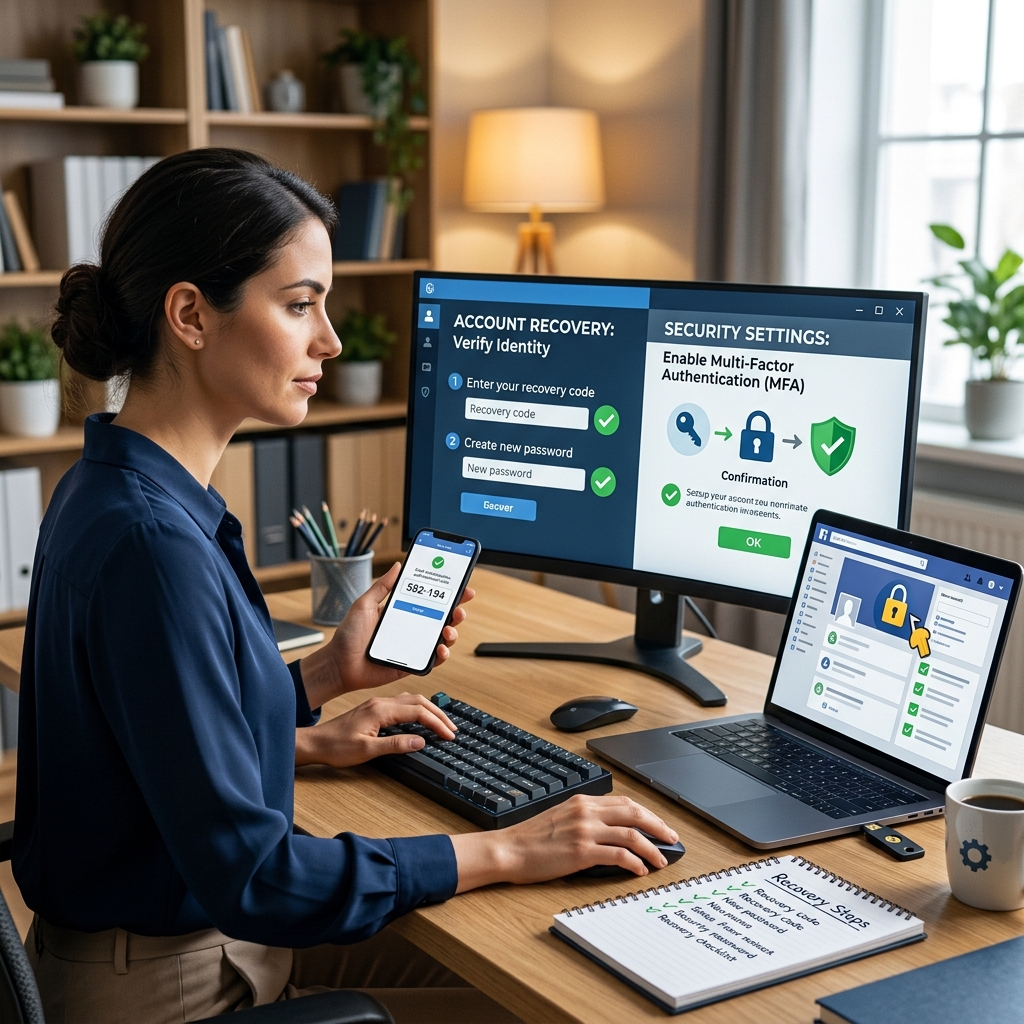
If your email or social media account has been taken over, you need to act quickly but calmly. This guide walks you through how to regain access, clean up the damage, and build stronger protection so it is much harder for attackers to get in again.
Understanding What a “Hacked” Account Really Means
When an account is hacked, someone has gained access without your permission and can read messages, change settings, or pretend to be you. They might use your account to spread scams, steal personal information, or try to break into other accounts that rely on the same email address or password.
- Email accounts are especially sensitive because they often store password reset messages and security alerts from banks, shopping sites, and social networks.
- Social media accounts can be misused to send fake messages, post malicious links, or ask your friends for money while pretending to be you.
- Attackers may also change recovery phone numbers or email addresses so that you cannot get back in easily.
The steps below apply to most email and social platforms, even though each provider has its own specific recovery process.
Step 1: Secure Your Devices Before You Log Back In
Before you try to recover your account, make sure the device you are using is not infected with malicious software. If malware is still present, attackers could capture your new passwords and break in again.
- Update your operating system and built‑in security tools.
- Install reputable security software if you do not already have it.
- Run a full malware scan on your computer, phone, or tablet.
- Remove anything flagged as suspicious, then restart the device.
National cyber security agencies stress this device check as a first step, because any compromised hardware undermines all later account recovery and password changes.
Step 2: Use Your Provider’s Official Account Recovery Tools
Legitimate email and social media services provide dedicated recovery pages and help centers for hacked accounts. Always use these official channels instead of third‑party sites or tools.
| Recovery Option | How It Helps |
|---|---|
| “Forgot password” or “Trouble logging in” link | Starts the official process to reset your password using trusted contact methods. |
| Recovery email address | Sends a verification link or code to an alternate email you own. |
| Recovery phone number | Delivers a one‑time code by SMS or voice call to confirm you are the owner. |
| Security questions or previous activity checks | Asks about past logins, labels, or other details attackers are unlikely to know. |
If the attacker changed your recovery email or phone number, use options that let you verify with information you still control, such as your original phone number or detailed knowledge of previous account activity.
If You Cannot Log In At All
- Go directly to the provider’s help or support pages and look for phrases like “account compromised” or “my account was hacked”.
- Submit any requested information, such as when you last had access or which devices you normally used.
- Follow platform‑specific instructions for identity verification, which may include codes, questions, or other checks.
Government cyber security guidance notes that each platform has its own process, so you should carefully follow the steps outlined in the help center for that particular service.
Step 3: Lock Down Your Account Once You’re Back In
Recovering access is only the beginning. You must immediately secure the account so the attacker is locked out and cannot return.
Change Your Password and Related Passwords
- Create a new, strong password that you have never used on any other site.
- A strong password is long and unpredictable, using a mix of letters, numbers, and symbols.
- Change passwords on any other accounts that used the same or a similar password.
- Consider using a password manager to generate and store unique credentials for each service.
Sign Out of All Devices and Sessions
Most major email and social platforms let you view active sessions and login devices.
- Use the account settings to sign out of all sessions or devices.
- Review the list of recent devices and locations; if anything looks unfamiliar, sign it out.
- After signing out everywhere, log back in only from secure devices you trust.
Turn On Two‑Factor Authentication (2FA)
Two‑factor authentication adds a second layer of security. Even if someone knows your password, they still need a verification code or other factor to log in.
- Check your account’s security or login settings for 2FA or two‑step verification options.
- Choose a method such as:
- One‑time codes sent by text message or email.
- Codes generated by an authenticator app.
- Hardware security keys, if supported by the platform.
Official cyber security guidance highlights 2FA as one of the most effective ways to reduce account takeovers because it forces attackers to obtain an additional factor, not just your password.
Check and Correct Your Recovery Information
Attackers often change recovery email addresses and phone numbers so they can keep control of your account. You must verify and fix these details as soon as possible.
- Confirm that listed recovery email addresses belong to you and are addresses you currently use.
- Verify that recovery phone numbers are yours and not unfamiliar.
- Remove any recovery contact you did not add.
- Add a trusted alternate email and phone number for future recovery attempts.
Step 4: Review Settings and Activity for Signs of Misuse
Once your account is secure, you need to understand what the attacker did while they had access. This helps you identify exposed information and stop ongoing misuse.
Check Email Rules and Forwarding
For email accounts, forwarding rules or filters can silently send copies of your messages to the attacker even after you change your password.
- Open your email settings and look for filters, rules, or forwarding options.
- Delete any rule that forwards your messages to addresses you do not recognize.
- Make sure new messages stay in your inbox and are not redirected elsewhere.
Examine Sent and Deleted Items
- Check your sent folder for messages the attacker might have sent from your account.
- Look in deleted or trash folders for messages that were opened and removed to hide evidence.
- Review any sensitive communications to see what information may have been exposed.
Inspect Social Media Activity
For social media accounts, attackers might have posted content, changed privacy settings, or contacted your friends.
- Review your timeline, posts, and direct messages for anything you did not create.
- Check your contacts or friends list for new connections you do not recognize.
- Look at privacy and security settings to see if anything has been altered.
- Remove unauthorized posts and reverse unwanted changes after documenting them if needed.
Step 5: Protect Other Accounts Linked to the Compromised One
A hacked email or social profile can be a doorway into many other services, especially if you reuse passwords or rely on that email for password resets.
- Identify accounts that use the compromised email address, such as banking, payment services, utilities, or shopping sites.
- Log in to these services from secure devices and change passwords immediately.
- Update contact email addresses if you decide to abandon the hacked account and move to a new one.
- Look for signs of unauthorized transactions and report any suspicious activity to your bank or card issuer.
If a financial loss has occurred, official advice is to contact your bank without delay and report the incident to appropriate authorities or fraud reporting centers, depending on your country.
Step 6: Warn Your Contacts and Limit the Damage
Because attackers often use hacked accounts to trick your friends and colleagues, you should inform them so they can ignore malicious messages.
- Send a brief, clear message from your restored account or another trusted channel explaining that your account was hacked.
- Tell people not to click on unusual links, open unexpected attachments, or respond to urgent requests for money that appear to come from you.
- Advise contacts to treat recent messages from you with caution and to verify anything that looks suspicious.
This simple step helps prevent the attacker from spreading scams or malware further through your network.
Step 7: Decide Whether You Need a Fresh Start
In some cases, you may not be able to fully recover the compromised account, or you may feel that trust in that account is permanently damaged. Cyber security authorities note that creating a new account is sometimes the only practical option.
- If recovery fails after you have tried official support channels, consider creating a new email or social account.
- Notify key contacts of your new details and clearly state that the old account is no longer in use.
- Update your email address on important services, such as banks, utilities, and shopping sites.
- Apply strong security practices from the start on your new account, including unique passwords and 2FA.
Step 8: Build Long‑Term Protection Against Future Attacks
After you have handled the immediate crisis, it is wise to strengthen your overall security habits. Many account takeovers succeed because of weak passwords, reused credentials, or failure to detect suspicious messages.
- Use unique passwords for every important service, especially email, social media, and banking.
- Enable 2FA wherever it is available to add an extra barrier against attackers.
- Regularly review account activity for unexpected logins, devices, or posts.
- Be cautious with links and attachments in emails, messages, or posts, especially if they urge immediate action or ask for personal information.
- Keep software updated so that known security flaws are patched.
Following these ongoing practices significantly lowers your risk of future account compromises and helps you notice problems earlier if they occur.
Frequently Asked Questions
1. Should I change my password before or after running a malware scan?
Run the malware scan first. If your device is infected, attackers could capture your new password through keyloggers or other tools. Once the scan is complete and threats are removed, then change your password and enable two‑factor authentication.
2. How can I tell if my email forwarding settings were modified?
Check your email account’s settings for filters, rules, and forwarding options. Look for addresses you do not recognize, automatic forwarding to external accounts, or rules that move messages out of your inbox. Delete anything you did not set up yourself.
3. What if my recovery email or phone number was changed by the attacker?
Use the provider’s official help pages to report that your account was compromised and that recovery options were altered. Some platforms let you verify using your original phone number, previous activity information, or security questions, even when recovery contacts were changed.
4. Is two‑factor authentication really necessary if I already have a strong password?
Yes. Two‑factor authentication greatly reduces the chance of account takeover by requiring a second factor beyond your password. Cyber security agencies consistently recommend 2FA as a key defense against common attacks.
5. When should I involve my bank or law enforcement?
If you see unauthorized transactions or believe your financial information was misused, contact your bank immediately and follow local guidance for reporting cybercrime or fraud. National cyber security bodies recommend treating financial losses as a crime and reporting them promptly.
References
- How To Recover Your Hacked Email or Social Media Account — Federal Trade Commission (FTC). 2024-04-03. https://consumer.ftc.gov/articles/how-recover-your-hacked-email-or-social-media-account
- Recovering a hacked account — National Cyber Security Centre (NCSC). 2023-06-07. https://www.ncsc.gov.uk/guidance/recovering-a-hacked-account
- How to Take Back Control of a Social Media Account — National Cybersecurity Alliance (StaySafeOnline). 2022-10-19. https://www.staysafeonline.org/articles/how-to-take-back-control-of-a-social-media-account
- My account was hacked and I need help — Google Account Help Community. 2023-08-15. https://support.google.com/accounts/thread/351631802/my-account-was-hacked-and-i-need-help
Similar Articles








Read full bio of medha deb


