
Optimal Timing for Work Computer Refresh
Discover key signals and strategies for deciding when to replace your professional workstation to boost efficiency and security.
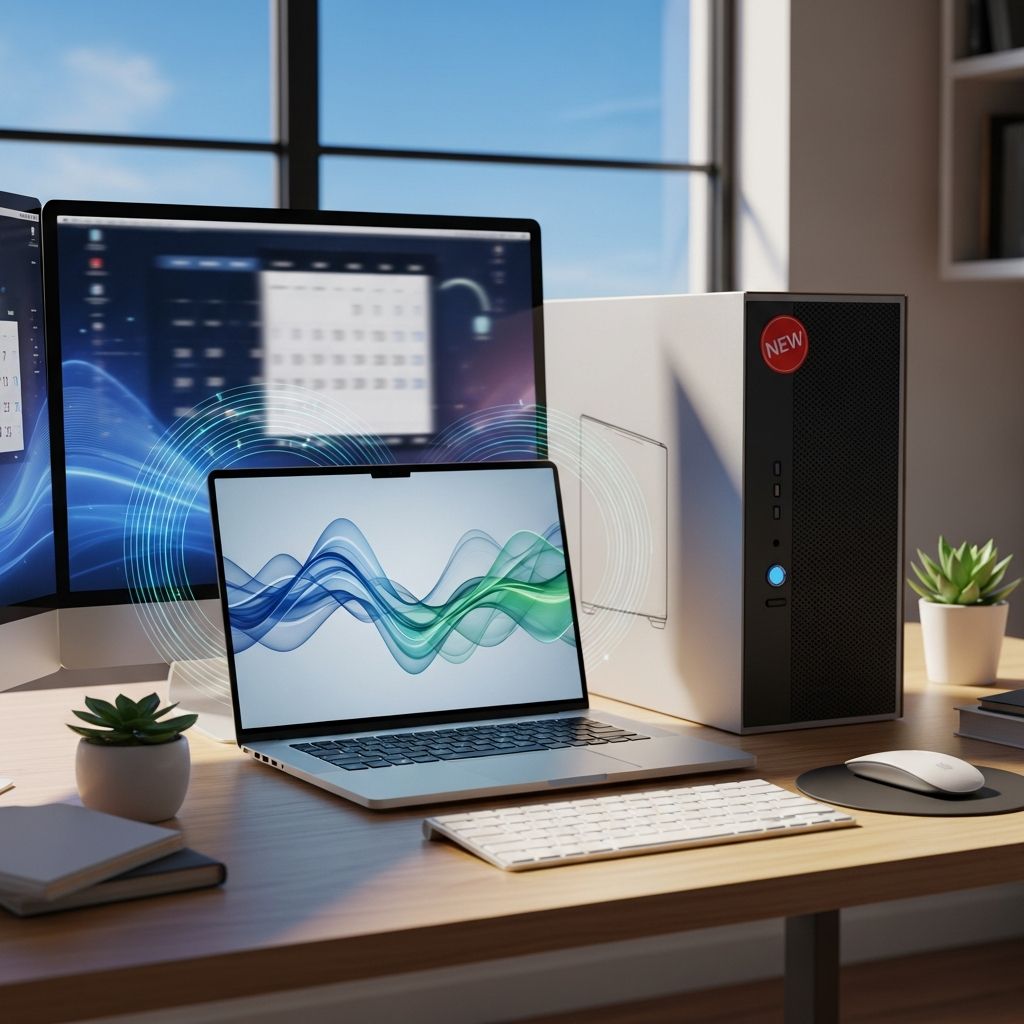
Determining the right moment to replace a work computer involves evaluating multiple factors including speed degradation, compatibility with new software, escalating repair expenses, and looming end-of-support dates for operating systems. With Microsoft terminating Windows 10 support on October 14, 2025, many professionals face urgent decisions to maintain security and functionality.
Performance Degradation as a Primary Indicator
Slow boot times, frequent application freezes, and prolonged task completion are clear signs that hardware is struggling. Modern workloads demand more processing power, RAM, and storage speed than older systems provide. For instance, if your machine takes over two minutes to launch essential tools or lags during multitasking, it’s likely nearing the end of its efficient lifespan.
Businesses often notice these issues first in daily operations like data analysis or video conferencing. Auditing current devices reveals which ones fail to handle contemporary demands, prompting timely interventions.
- Check boot duration: Exceeding 90 seconds signals obsolescence.
- Monitor RAM usage: Consistent 90%+ utilization under normal loads indicates upgrade necessity.
- Test file operations: Slow saves or loads point to outdated hard drives.
Security Vulnerabilities Post-Operating System Support End
After October 14, 2025, Windows 10 devices lose free security patches, exposing them to exploits without mitigations. This vulnerability surge affects businesses reliant on sensitive data, increasing breach risks. Extended Security Updates (ESU) offer a temporary shield for one year at $30 per device, but they represent a stopgap, not a long-term solution.
Professionals handling client information or intellectual property must prioritize systems with ongoing support like Windows 11, which includes advanced defenses such as TPM 2.0 and Secure Boot.
Hardware Compatibility with Emerging Software
New applications and updates frequently require specific specs unmet by aging hardware. Windows 11 mandates 4GB RAM minimum (8GB recommended), 64GB storage, and compatible CPUs from 8th-gen Intel or AMD Ryzen 2000 series onward. Incompatible machines face upgrade blocks, forcing replacements.
| Component | Windows 11 Minimum | Recommended for Work |
|---|---|---|
| Processor | 1 GHz, 2+ cores, compatible 64-bit | Intel Core i5 12th-gen or newer |
| RAM | 4 GB | 16 GB+ |
| Storage | 64 GB | 512 GB SSD |
| Graphics | DirectX 12 compatible | Integrated UHD or discrete GPU |
Institutions like the University of Pennsylvania recommend Windows 11 24H2 for new purchases, projecting support through 2029.
Escalating Maintenance and Repair Costs
Repair bills for components like batteries, screens, or drives often exceed half the original price after 4-5 years. Extended warranties help, but manufacturers like Dell and Apple suggest 3-5 year cycles for desktops to align with OS lifecycles. When fixes cost more than 50% of a new system’s price, refresh becomes economical.
Energy Efficiency and Environmental Impact
Older computers consume more power due to inefficient processors and drives, raising operational costs. Newer models with advanced fabrication reduce energy use by up to 50%, benefiting both budgets and sustainability goals. Refreshing fleets minimizes e-waste by extending usable life through strategic upgrades.
Strategic Planning for Business Upgrades
Organizations should conduct full inventories to classify devices: upgrade eligible ones in-place, enhance borderline hardware with RAM/SSD swaps, and replace non-compliant units. A hybrid model spreads costs: prioritize executives and critical roles first, phasing others over 12 months.
- Inventory Audit: List all devices, specs, and ages.
- Compatibility Scan: Use Microsoft’s PC Health Check tool.
- Software Validation: Test key apps on Windows 11 VMs.
- Budget Allocation: Factor new PCs at $1,200-$1,500 each.
- Phased Rollout: Batch by department to limit disruptions.
- Training Sessions: Familiarize staff with new interfaces.
For small businesses, managed IT services can handle assessments and migrations, ensuring minimal downtime.
Upgrade vs. Replacement: Decision Framework
Not all machines warrant identical treatment. Recent 2-3 year-old PCs often qualify for seamless OS upgrades. Mid-life units (4 years) may benefit from minor tweaks like SSD installation for renewed vigor. Legacy systems (6+ years or incompatible) demand full replacement to guarantee 5+ years of service.
- New-ish (0-3 years): Upgrade OS directly.
- Mid-tier (4 years): Add RAM/SSD if compatible.
- Outdated (5+ years): Procure new hardware.
Leverage trade-in programs from vendors for cost offsets. Stagger purchases to capitalize on sales cycles.
Preparation Steps for Seamless Transitions
Before any change, back up data via OneDrive or external drives. Update Windows 10 fully, disable interfering antivirus, and disconnect peripherals. Post-upgrade, apply firmware/BIOS updates for stability.
If issues arise, Microsoft’s Installation Assistant or Update Troubleshooter resolves most hiccups.
Future-Proofing Your Next Workstation
Select systems with expandability: ample RAM slots, NVMe SSD bays, and upgradeable GPUs. Opt for Pro editions over Home for enterprise features like BitLocker. Aim for configurations supporting AI workloads and hybrid work, including webcams and robust batteries for laptops.
Estimated mainstream pricing: $1,350 for Windows desktops, $1,450 for macOS equivalents, with 4-year support horizons.
Frequently Asked Questions (FAQs)
What happens if I ignore the Windows 10 end-of-support date?
Your PC remains functional but vulnerable to unpatched security threats, risking data breaches and compliance issues.
Can I upgrade an incompatible PC to Windows 11?
No, strict hardware checks prevent installation; replacements or ESU are alternatives.
How much does Windows 10 ESU cost?
$30 per device for one year of security updates post-October 2025.
Should small businesses buy all new computers at once?
No, a phased hybrid approach—upgrading compatible units and replacing others gradually—manages costs effectively.
What specs define a future-proof work computer?
16GB+ RAM, 512GB SSD, modern CPU, and Windows 11 Pro for longevity through 2029.
Long-Term IT Lifecycle Management
Establish a 3-5 year refresh policy aligned with OS support. Annual audits prevent surprises, while employee feedback highlights pain points early. Integrating cloud services reduces local hardware dependency, but robust endpoints remain essential for productivity.
For hybrid environments, prioritize portable devices with long battery life and collaboration tools. Monitor metrics like uptime and user satisfaction to refine strategies.
References
- Windows 10 End-of-Life: Upgrade Guide for Atlanta SMBs — TrueITPros. 2025. https://trueitpros.com/windows-10-end-of-life-upgrade-guide-for-atlanta-smbs/
- Windows 10 End of Life: A Small Business Guide to Upgrading to Windows 11 — Uprise Partners. 2025. https://www.uprisepartners.com/post/windows-10-end-of-life-a-small-business-guide-to-upgrading-to-windows-11
- The Windows 10 Deadline Is Coming: What Businesses Must Do Now — Act-Tek. 2025. https://act-tek.com/windows-10-end-of-life-business-upgrade/
- Desktop Computing Recommendations for Penn: 2025-2026 — Information Systems & Computing, University of Pennsylvania. 2025-06-01. https://isc.upenn.edu/resources/desktop-computing-recommendations-penn-2025-2026
- Making the transition to a new era of computing — Microsoft Support. 2025. https://support.microsoft.com/en-us/windows/making-the-transition-to-a-new-era-of-computing-235e9399-a563-40f8-be4f-fbe109be74c8
Similar Articles








Read full bio of medha deb


