
Staying Safe Online: Practical Steps for Everyday Users
Learn clear, practical strategies to protect your privacy, money, and devices whenever you go online—from social media to shopping and public Wi‑Fi.
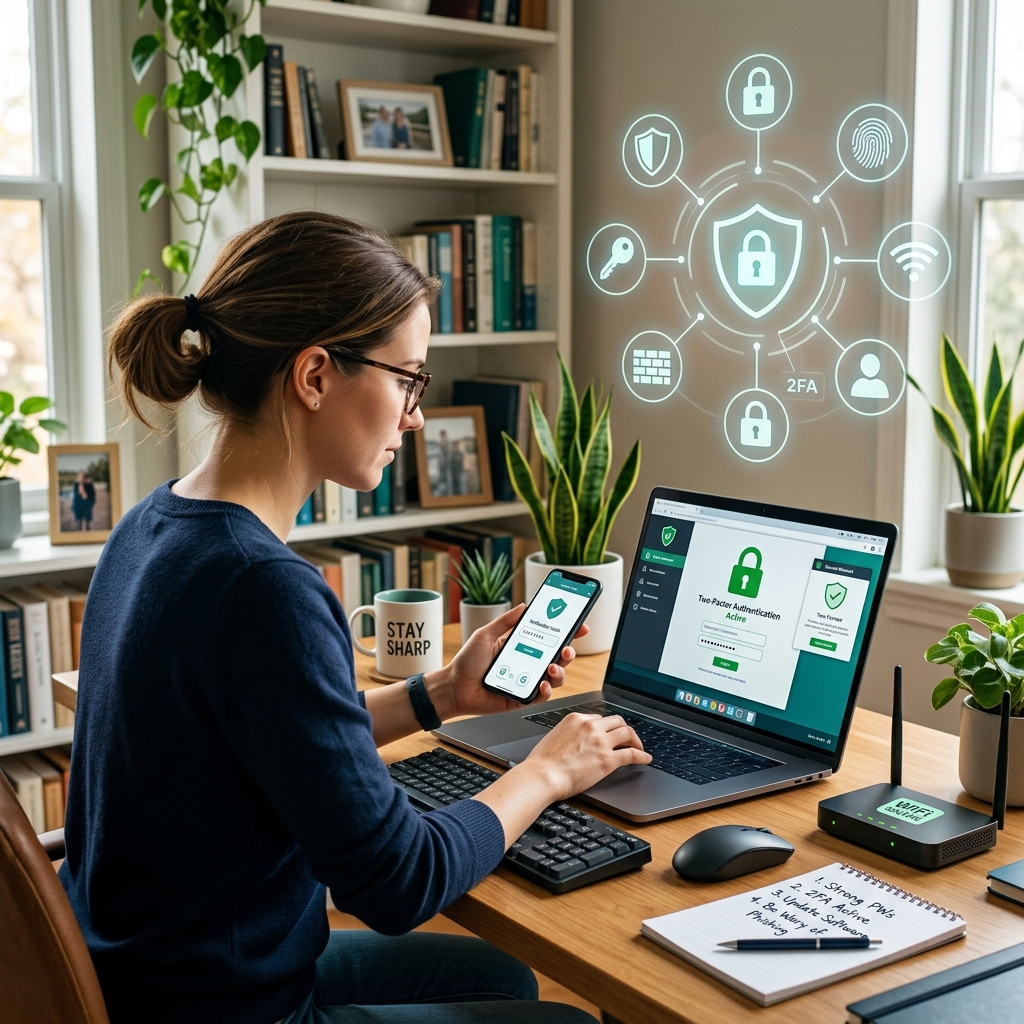
The internet is essential for work, banking, shopping, and staying in touch, but it also creates opportunities for scammers, hackers, and other criminals. This guide explains how to protect yourself, your devices, and your personal information in clear, practical steps you can start using today.
Why Online Safety Matters for Everyone
Every time you connect to the internet, you share pieces of your identity—names, addresses, financial details, photos, and opinions. Criminals can use this information to steal money, impersonate you, or even threaten your physical safety if you are careless about in‑person meetings with people you meet online.
Understanding basic online safety is no longer optional. It is part of everyday life, just like locking your front door or keeping your wallet safe.
Core Principles of Safe Internet Use
Most online safety tips can be grouped into a few core principles. Keeping these in mind will help you make better decisions in any online situation.
- Limit what you share: Only give websites and apps the minimum information they need.
- Verify before you trust: Confirm identities, website security, and messages that ask for money or personal data.
- Keep devices updated and protected: Use up‑to‑date software, antivirus tools, and built‑in security features.
- Use strong, unique passwords: Never reuse the same password across important accounts.
- Be cautious on shared and public networks: Treat public Wi‑Fi and public computers as high‑risk environments.
Protecting Your Devices from Malware and Intrusions
Attackers often start by compromising your computer, phone, or tablet. Once a device is infected with malware, it can capture passwords, redirect you to fake websites, or lock your files until you pay a ransom.
Essential Software Protections
- Install reputable antivirus software: Antivirus tools detect and block malicious programs that try to infiltrate your system.
- Enable a firewall: Firewalls help block harmful traffic before it reaches your device.
- Keep software updated: Regularly apply updates to your operating system, browser, and applications to close known security holes.
Many operating systems include built‑in antivirus and firewalls. Make sure these features are switched on if you do not use third‑party tools.
Safe Habits to Avoid Infection
- Use caution with links and attachments: Do not open unexpected attachments or click unusual links, even if they appear to come from someone you know.
- Disable automatic running of external media: Turn off features that automatically open files from USB drives or other external media.
- Block pop‑up advertisements: Pop‑ups can hide malicious code; use a browser pop‑up blocker to reduce risk.
Combining technical protections with cautious behavior greatly reduces your chance of infection, especially when visiting unfamiliar websites or receiving unexpected messages.
Building Strong Passwords and Account Security
Passwords are often the only barrier between criminals and your accounts. Weak or reused passwords make it easy for attackers to gain access, especially if one website is breached and the same password works elsewhere.
Characteristics of a Strong Password
Government guidance recommends using long, complex passwords and treating them like valuable secrets.
- Length: Aim for at least 15 characters for important accounts where possible.
- Complexity: Use a mix of uppercase and lowercase letters, numbers, and symbols.
- Unpredictability: Avoid personal information such as names, birthdays, or simple patterns.
Smart Password Practices
- Use different passwords for different accounts: If one password is stolen, attackers cannot automatically access all your other accounts.
- Protect your password hints: Treat security questions like passwords and use long, random answers that others cannot guess.
- Never share your passwords: Keep them private and do not store them in visible places near your computer.
- Avoid automatic sign‑in on shared or public devices: Do not use “Remember my password” or auto‑login features on computers others might access.
For sensitive accounts, consider changing passwords periodically, especially if you suspect any unusual activity.
Multi‑Factor Authentication (MFA)
Even strong passwords can be stolen. Multi‑factor authentication adds another layer by requiring a second proof of identity, such as a text message code or an authentication app.
- Enable MFA on key accounts: Turn it on for email, banking, social media, and cloud storage whenever offered.
- Prefer apps over text messages when possible: Authentication apps are often more secure than SMS codes.
Safe Online Shopping and Banking
Online shopping and digital banking are convenient, but they involve sharing sensitive financial data. Criminals look for weak points, such as insecure checkout pages or fake websites that imitate real businesses.
Recognizing Secure Websites
Before entering payment details, verify that the website protects your connection.
- Look for HTTPS and a lock icon: A valid lock symbol and URL beginning with https indicate that the site uses encryption to secure data in transit.
- Check the address bar carefully: Watch for misspellings or unusual domains that might signal a fake site.
Best Practices for Online Transactions
- Avoid shopping on public computers: Public machines may store your credentials or have hidden malware.
- Do not save card details on shared devices: Always opt out of storing payment information when others use the same device.
- Use dedicated apps for banking when possible: Many institutions provide secure, vetted applications for financial transactions.
Monitor your bank and credit accounts regularly. If you see unauthorized transactions, contact your provider immediately and follow their fraud procedures.
Staying Safe on Social Media and When Meeting People
Social networks make it easy to connect with others, but they also allow strangers to learn details about your life and location. In some cases, online contacts may try to arrange in‑person meetings, which introduces physical safety concerns.
Protecting Your Privacy on Social Platforms
- Limit what you share publicly: Avoid posting your home address, exact travel plans, or financial information.
- Review privacy settings: Restrict who can see your posts and personal details, and periodically revisit these settings as platforms change.
- Be cautious with friend requests: Do not accept requests from people you do not recognize, especially if they pressure you for personal data or money.
Meeting People You Have Only Met Online
If you choose to meet someone you first encountered online, treat the situation as potentially risky.
- Do your research: Consider checking public records and seeking references before agreeing to meet.
- Never go alone: Tell someone you trust where you are going and bring a friend if possible.
- Meet in a public place: Choose a location with other people around, such as a café or busy public spot.
- Keep your phone available: Have a charged phone with you and be prepared to leave if you feel uncomfortable.
Using Public Wi‑Fi and Shared Computers Safely
Public Wi‑Fi networks in cafes, airports, and libraries are convenient but often insecure. Attackers can intercept unencrypted traffic or set up fake hotspots to capture your information.
Risks of Public Networks
- Data interception: On unsecured networks, attackers may capture login credentials or other sensitive information.
- Fake access points: Criminals sometimes create Wi‑Fi networks with familiar‑sounding names to lure users.
Safer Practices on Public Wi‑Fi
- Avoid sensitive activities: Do not perform online banking or enter credit card details over public Wi‑Fi if you can avoid it.
- Use a VPN for work or private data: A virtual private network encrypts your connection, helping protect your information on shared networks.
- Prefer your own hotspot: If possible, use your mobile device’s hotspot for important tasks instead of public Wi‑Fi.
Guidelines for Public and Shared Computers
- Do not type sensitive information: Avoid entering passwords, banking credentials, or other private data on public computers.
- Always log out: When you must sign in, log out completely from all accounts and close the browser when finished.
- Disable password saving: Decline prompts to remember passwords or store payment details.
Backing Up Data and Monitoring Your Accounts
Even with careful security practices, problems can still occur. Regular backups and monitoring help you recover faster and reduce damage when incidents happen.
Backing Up Important Information
- Regular backups: Save copies of important documents, photos, and emails to an external drive or secure cloud service.
- Disconnect external drives after backup: Removing the drive helps protect your backups from malware that might infect your main device.
Watching for Unauthorized Activity
- Monitor financial accounts: Look regularly for strange or unauthorized transactions and report them immediately.
- Review login alerts: Many services can notify you when your account is accessed from new devices or locations—enable these alerts when available.
- Seek help if you suspect identity misuse: Official resources can guide you through reporting abuse and recovering from identity theft.
Quick Comparison: Safer vs. Risky Online Behaviors
| Situation | Safer Behavior | Risky Behavior |
|---|---|---|
| Creating a new account | Use a long, unique password and enable multi‑factor authentication. | Reuse the same short password you use everywhere. |
| Shopping online | Check for HTTPS and a lock icon before entering payment information. | Enter card details on any site that looks professional. |
| Using public Wi‑Fi | Avoid banking; use a VPN or mobile hotspot for sensitive tasks. | Log into all accounts and access confidential documents. |
| Meeting someone from a website | Research them, meet in a public place, and tell friends your plans. | Go alone to a private location without telling anyone. |
Frequently Asked Questions (FAQs)
1. Do I really need different passwords for every site?
It is especially important to use unique passwords for email, banking, and other sensitive accounts. If a password from one site is stolen and reused elsewhere, attackers can quickly access multiple accounts. Using a password manager can help you create and store strong, unique passwords without having to remember them all.
2. How can I tell if an email is a phishing attempt?
Phishing emails often try to create urgency and ask you to click a link or open an attachment to fix a supposed problem. Signs include spelling errors, generic greetings, unexpected requests for personal information, and sender addresses that do not match official domains. Instead of clicking, contact the organization using contact information from its official website or your account statements.
3. Is public Wi‑Fi always unsafe?
Public Wi‑Fi is not always dangerous, but it is less controlled and often less secure than private networks. Treat it as a higher‑risk environment: avoid sensitive activities, and use tools like VPNs when you must access work email or confidential information on these networks.
4. What should I do if I think my personal information was stolen?
If you suspect misuse of your personal information, act quickly. Monitor your bank and credit accounts for unauthorized charges, change passwords on affected services, and use official recovery resources for identity theft guidance and reporting.
5. Are social media privacy settings enough to keep me safe?
Privacy settings are helpful, but they do not fully protect you if you share too much information or accept unknown contacts. Combine strict privacy controls with cautious sharing and skepticism about requests from people you do not know in real life.
References
- Protecting Yourself While Using The Internet — U.S. Department of Justice, U.S. Attorney’s Office Northern District of Georgia. 2015-03-31. https://www.justice.gov/usao-ndga/protecting-yourself-while-using-internet
- Protect Your Personal Information From Hackers and Scammers — Federal Trade Commission. 2023-10-05. https://consumer.ftc.gov/articles/protect-your-personal-information-hackers-and-scammers
- Protecting Yourself Online — Brooklyn College, Office of Information Technology. 2022-04-14. https://students.brooklyn.edu/knowledge-base/protecting-yourself-online/
- How to Protect Your Privacy When Working or Studying Remotely — Global Cyber Alliance. 2020-04-03. https://globalcyberalliance.org/how-to-protect-your-privacy-when-working-or-studying-remotely/
- 6 Ways to Protect Your Personal Information Online — Chubb Insurance. 2021-08-16. https://www.chubb.com/us-en/individuals-families/resources/6-ways-to-protect-your-personal-information-online.html
Similar Articles








Read full bio of Sneha Tete


