Securely Erase Personal Data Before Disposing of a Computer
Learn how to back up, securely wipe, and safely dispose of an old computer without exposing your sensitive personal information.
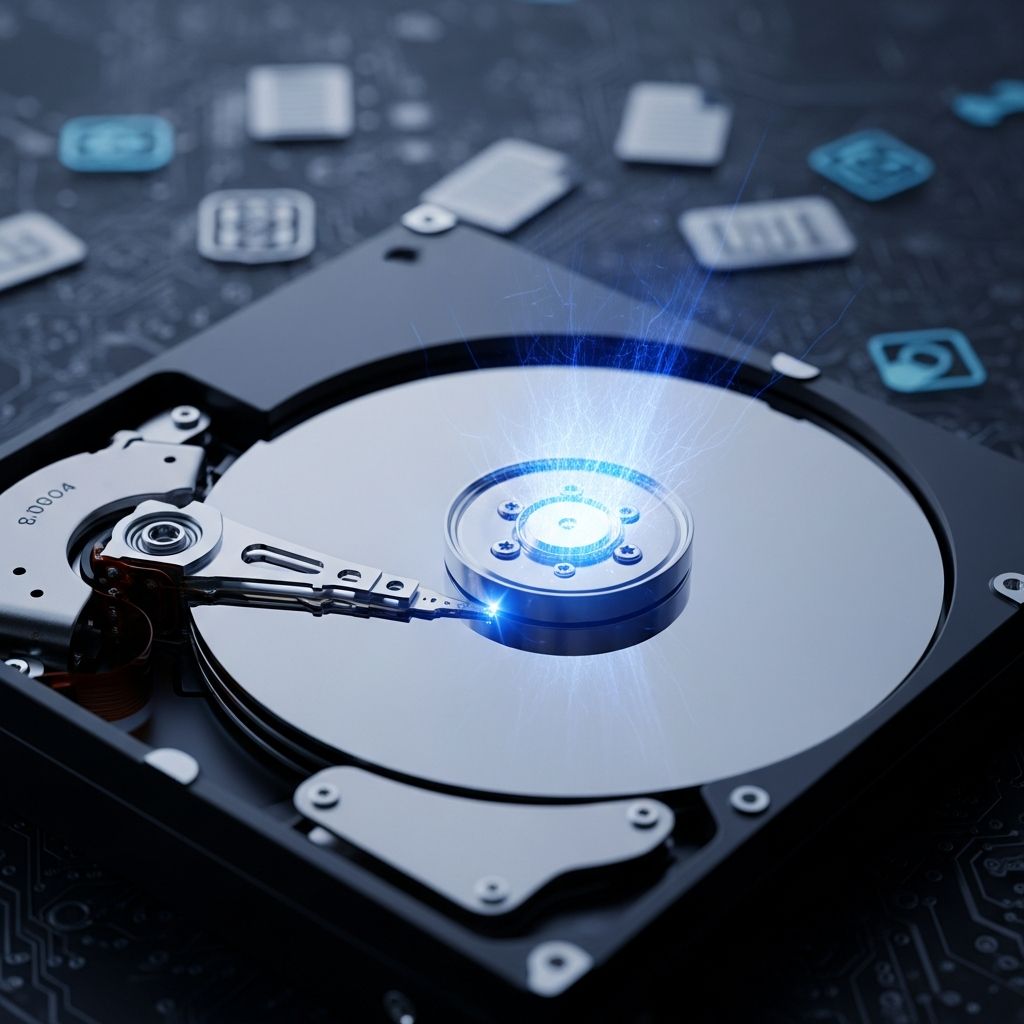
Old computers can hold a detailed history of your life: financial records, tax returns, photos, passwords, and work documents. Before you sell, donate, recycle, or discard a device, you must remove that information in a way that prevents others from recovering it.
This guide explains how to back up what you need, securely wipe your data, and choose a safe disposal method so your personal information stays private.
Why You Must Wipe Data Before Disposing of a Computer
Simply dragging files to the recycle bin or trash does not permanently delete them. Most operating systems only remove the file references, not the actual data blocks, so recovery tools can often bring them back. Attackers, identity thieves, or even innocent future owners could access documents, saved passwords, and browsing history if you do not wipe the device properly.
- Financial risk: tax records, bank statements, and credit card details can be misused for fraud or identity theft.
- Privacy risk: emails, photos, and messages may reveal your relationships, location history, or health information.
- Business risk: confidential company data or client information could trigger legal or contractual issues.
A careful disposal process protects you, minimizes legal exposure, and reduces the chance that your data resurfaces later.
Step 1: Decide What You Need to Keep
Before wiping the device, identify the data and programs you may want later. Once you securely erase a drive, recovering data is extremely difficult or impossible, so planning ahead is crucial.
- Personal photos and videos
- Documents (tax records, contracts, school and work files)
- Password vault export (from your password manager)
- Browser bookmarks and important emails you choose to archive
- Software license keys or activation codes
Create a checklist of everything you intend to keep so you can confirm it is safely backed up before you erase anything.
Step 2: Back Up Your Data Safely
Backups serve two goals: ensuring you do not lose important information and keeping that backed-up data secure. You can use one or more of these strategies.
2.1 External Storage Backups
Copy files to a removable device that you will keep in your possession.
- USB flash drives for small numbers of files.
- External hard drives or SSDs for large collections of photos, videos, and documents.
Where possible, encrypt your external drive with built-in tools such as BitLocker for Windows or FileVault for macOS to protect the data if the drive is lost or stolen.
2.2 Cloud Backups
Cloud storage services can synchronize files from your old computer to a new one and provide off-site protection against physical damage or loss.
- Store only what you intend to keep; avoid uploading entire system drives unnecessarily.
- Protect your cloud account with strong, unique passwords and multi-factor authentication.
- Review and remove unneeded data after the migration.
2.3 Application-Specific Data
Some information is stored inside specific apps instead of ordinary folders.
- Email: export mailboxes or confirm that messages are stored on the server (for example, IMAP accounts).
- Password manager: export an encrypted backup if the app supports it, then protect that backup carefully.
- Browsers: export bookmarks and sign out of browser profiles.
Step 3: Sign Out, Deauthorize, and Remove Accounts
Before wiping the drive, disconnect the computer from accounts that track device ownership or license limits.
- Sign out of operating system accounts (Microsoft, Apple ID, Google account on Chromebooks).
- Remove the device from account security pages where supported.
- Deauthorize the computer from subscription services (music, video, office suites, and creative software).
- Unpair Bluetooth accessories you plan to keep.
These steps help avoid confusion later if you need to activate the same software on a new device.
Step 4: Use Built-In Tools to Reset and Wipe the Computer
Most modern operating systems provide a reset function that erases files and reinstalls the system. For many home users, this is the simplest and most reliable way to remove personal data.
| Device Type | Typical Feature Name | What It Does |
|---|---|---|
| Windows PC | Reset this PC / Remove everything | Reinstalls Windows and removes personal files, apps, and settings. |
| macOS | Erase All Content and Settings (or Disk Utility + reinstall) | Deletes user data and restores the system to a clean state. |
| Chromebook | Powerwash | Resets to factory settings and removes local user data. |
4.1 Windows Computers
Recent versions of Windows include a built-in reset feature that can both reinstall the operating system and erase your personal files.
- From Settings, open the recovery options and choose a reset function designed for removing everything.
- When prompted, select the option that removes all files (not the one that keeps personal files).
- Where available, enable the setting that “cleans” the drive rather than quickly deleting files; this overwrites data and makes recovery more difficult.
Microsoft recommends choosing the more thorough cleaning method when you plan to donate, sell, or recycle your PC.
4.2 macOS Computers
On newer Macs, you can erase content and settings from System Settings without manually reformatting disks. On older systems, you may need to start in recovery mode, erase the disk with Disk Utility, and reinstall macOS.
- Sign out of iCloud, iMessage, and other Apple services.
- Use the built-in erase function to remove your user data.
- Allow the system to complete reinstallation if prompted so the next owner sees a setup assistant screen.
4.3 Chromebooks
Chromebooks are designed so that most data is stored in the cloud by default, but a reset is still necessary before disposal.
- Sign out completely, then use the reset shortcut or menus to start a Powerwash procedure.
- Confirm the reset, which removes local user information and returns the device to factory condition.
- Do not sign in again after the reset; the next person to sign in becomes the new primary owner of the Chromebook.
Step 5: Consider Advanced Wiping and Encryption
Built-in reset tools are usually enough for typical home use, but additional measures can increase security in higher-risk situations, such as when devices hold sensitive workplace or health information.
5.1 Full-Disk Encryption
Enabling full-disk encryption while you still use the device ensures that, even if some blocks of data remain on the drive, they cannot be interpreted without the decryption key.
- On many systems, once disk encryption is turned on, securely erasing the key or resetting the system effectively renders the previous data unreadable.
- Combine encryption with a proper reset rather than relying on encryption alone.
5.2 Multiple Overwrites (For Some Older Drives)
For specific types of older hard drives, overwriting data multiple times can make it harder to recover. Some commercial tools implement standardized patterns of overwriting to meet recognized sanitization guidelines.
However, for modern solid-state drives (SSDs), repeated overwriting is not always effective due to the way they manage memory. In such cases, using manufacturer-provided secure erase commands or relying on encryption plus a factory reset is usually more appropriate.
Step 6: Remove or Destroy Drives When Necessary
If a device is broken or cannot be reset, or if it holds highly sensitive information, you might need to remove the storage drive entirely.
- For desktops and many laptops, internal drives can often be physically removed before disposal.
- Once removed, you can keep the drive in secure storage or physically destroy it.
Government and industry guidelines for media sanitization permit physical destruction (such as shredding or degaussing magnetic drives) when reuse is not planned and confidentiality requirements are high.
Step 7: Dispose of or Donate the Computer Responsibly
After your data is gone, you can safely move on to reusing, recycling, or discarding the machine.
- Donation: If the computer still works, donate it to schools, nonprofits, or refurbishing programs after confirming that it starts into a clean setup screen.
- Resale: For resale, leave the system at the initial setup prompt so the new owner can create their own account.
- Recycling: Use certified e-waste recyclers where available. Many manufacturers and local governments operate take-back or recycling programs.
Recycling electronics responsibly reduces environmental impact and may keep devices out of informal waste streams where drives are not properly sanitized.
Extra Privacy Steps Beyond the Computer Itself
Wiping or destroying the device is only part of the privacy picture. Connected accounts and online traces may still hold personal details.
- Revoke app and device access tokens from your major online accounts.
- Change passwords for critical services (email, banking, cloud storage).
- Review cloud backups you no longer need and delete sensitive archives.
- Where available, ask major services to remove outdated copies of highly sensitive information from public search results.
Frequently Asked Questions (FAQs)
Q1: Is emptying the recycle bin or trash enough?
No. Deleting files this way only removes references to the data; specialized tools can often recover those files. You should use operating system reset tools, encryption, or dedicated wiping utilities to ensure personal data is truly removed.
Q2: Do I need special software, or are system tools sufficient?
For most home users, built-in reset options that remove everything and, where offered, include a disk cleaning or “clean data” feature are sufficient. Specialized tools are more relevant if you are managing many devices or handling particularly sensitive information.
Q3: How long does a secure wipe take?
A quick reset can finish in under an hour, but deeper cleaning options that overwrite the drive may take several hours, especially on large or slow disks. Plan to leave the computer powered and plugged in until the process completes.
Q4: What if the computer no longer turns on?
If you cannot boot the system to run a reset, consider removing the hard drive or SSD. You can then either destroy the drive or, if it still works and you have the skills, attach it to another computer and use secure erase tools before recycling the hardware.
Q5: Can a professional still recover my data after a factory reset?
Properly implemented resets that remove everything, combined with disk cleaning options or full-disk encryption, make recovery by typical buyers or opportunistic attackers extremely difficult. For extremely sensitive environments, organizations may still follow additional sanitization or destruction standards, but this exceeds what most home users require.
References
- How To Remove Your Personal Information Before You Get Rid of Your Computer — Federal Trade Commission. 2024-01-09. https://consumer.ftc.gov/articles/how-remove-your-personal-information-you-get-rid-your-computer
- How to Wipe a Computer Clean of Personal Data — Consumer Reports. 2023-08-10. https://www.consumerreports.org/electronics-computers/computers/how-to-wipe-a-computer-clean-of-personal-data-a5849951358/
- Remove Files and Clean the Drive: How to Wipe Windows 10 Laptop PC — Greentec. 2022-03-21. https://www.greentec.com/blog/how-to-remove-all-data-from-pc-and-microsoft-laptops
- How do I remove all personal info from my PC before returning to the store? — Microsoft Learn Q&A. 2021-04-01. https://learn.microsoft.com/en-us/answers/questions/3808536/how-do-i-remove-all-personal-info-from-my-pc-befor
- Remove my private info from Google Search — Google Support. 2024-04-02. https://support.google.com/websearch/answer/9673730
Similar Articles








Read full bio of Sneha Tete