
Scanning Paper Documents for Court eFiling
Practical guidance to turn paper records into compliant, searchable PDFs that courts will accept without delay.
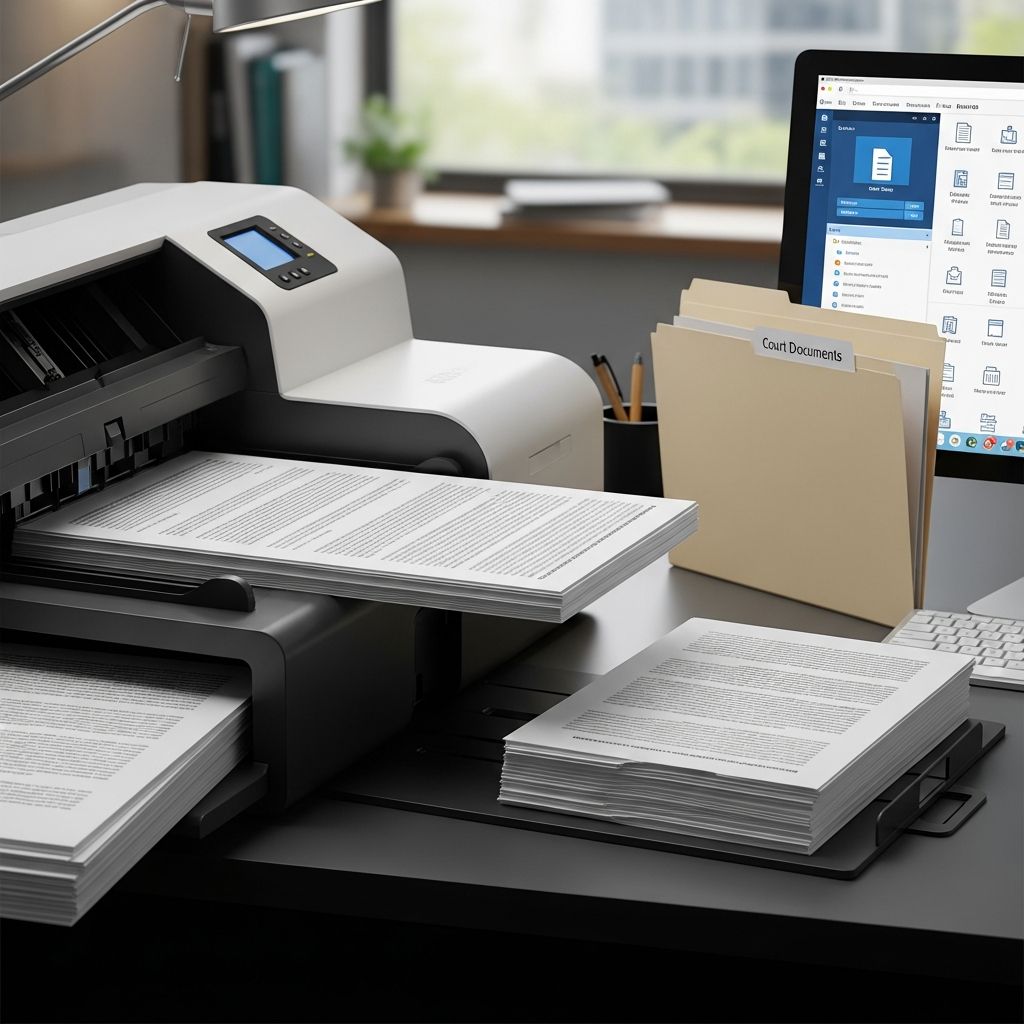
Courts increasingly expect lawyers and legal professionals to submit documents electronically, but many important records still exist only on paper. Turning those paper records into compliant, high-quality PDFs is essential to avoid rejected filings, delays, or readability problems. This guide explains how to scan, convert, and enhance paper documents so they are ready for court eFiling.
Why Scanning Still Matters in an eFiling World
Even as most pleadings originate in word processors, exhibits such as contracts, medical records, letters, or photographs often arrive in physical form. Courts generally allow filers to scan those paper-only documents and convert them to PDF for electronic submission, especially where no native electronic version exists. Courts and agencies also require that scanned documents be clear, complete, and faithful to the paper original so that they are indistinguishable from any paper copy that might be issued.
When done carefully, scanning allows you to:
- Preserve the content of paper-only records in a durable digital format
- Comply with courts that require PDF or searchable PDF submissions
- Reduce the risk of lost or damaged original exhibits
- Integrate paper records into digital case management systems
Before You Scan: Decide Whether Scanning Is Necessary
Scanning is not always the best or required approach. Many courts and electronic filing systems prefer that documents be converted directly to PDF from their native format (for example, from word processing software) rather than printed and scanned. If a document already exists electronically, converting it to PDF produces smaller files and crisper text than scanning.
Scan only when:
- The document exists only in paper form or on an analog medium
- The document includes handwritten annotations, signatures, or stamps that are not accurately captured in a native file
- Rules or a court order specifically require a scanned copy of a physical document
Core Technical Standards for Scanned eFiling PDFs
Courts and government bodies publish detailed technical rules for electronic documents, including scanned PDFs. While requirements vary, several themes appear consistently.
Recommended Scan Resolution
The most widely accepted resolution for legal scanning is 300 dpi (dots per inch). This resolution is high enough to preserve legible text and graphics while keeping file sizes manageable. Many courts and agencies explicitly reference 300 dpi as a minimum quality benchmark because it meets archival and readability standards.
- Use 300 dpi for most text and mixed-content documents
- Increase to 400–600 dpi only when small handwriting or detailed line art becomes illegible at 300 dpi
- Avoid scanning below 300 dpi for court documents, as text may become fuzzy or difficult to read when printed
Black and White vs. Grayscale vs. Color
Many courts expect scanned filings to be black and white unless color is legally significant. Color increases file size and may conflict with local rules in some jurisdictions.
| Mode | When to Use | Pros | Cons |
|---|---|---|---|
| Black & white | Standard text exhibits, letters, forms | Small file size, widely accepted | Can lose subtle shading or faint text |
| Grayscale | Documents with stamps, seals, or faint type | Better for low-contrast originals | Larger files than black & white |
| Color | Evidence where color itself is material (photos, diagrams) | Preserves visual detail and color cues | Largest file size; may be disallowed for some filings |
Searchable vs. Non-Searchable PDFs
Courts increasingly require that PDF filings be text-searchable, meaning a user can search for and select words in the document. When you scan a page, the scanner initially creates an image-only PDF; applying optical character recognition (OCR) adds a hidden text layer so that search is possible.
- For typed documents, apply OCR whenever technically feasible so the file becomes searchable.
- For handwritten documents, complex diagrams, or purely graphical exhibits, OCR may not be practical, and non-searchable PDFs are generally permitted.
Step-by-Step Workflow for Scanning Court-Ready PDFs
The workflow below is designed for law offices, solo practitioners, and legal support staff who routinely scan exhibits and other paper documents for eFiling.
1. Prepare the Paper Documents
- Remove staples, clips, and sticky notes that cover text
- Flatten creased pages and repair torn edges that obscure content
- Arrange pages in the correct order and check for missing pages
- Tab or flag sections that may need to be rescanned individually (for example, photographs or oversized exhibits)
2. Configure the Scanner
Before scanning, set up the device to match court expectations.
- Resolution: 300 dpi
- Color mode: Black & white for most documents; grayscale or color only when justified
- File format: PDF (not JPEG or TIFF) for court-ready output
- Page size: Match the original (typically letter or legal size)
- Duplex scanning: Enable if there is content on both sides of any page
3. Scan to PDF
Use the scanner’s automatic document feeder for large batches and the flatbed glass for fragile or irregular items. For exhibits containing both text and images, scan the entire set at consistent settings to avoid obvious quality shifts between pages.
Once the initial scan is complete, quickly review the output for:
- Missing pages or upside-down images
- Cut-off margins or page edges
- Illegible sections, especially small type or handwriting
4. Apply Optical Character Recognition (OCR)
After scanning, run OCR using your PDF software so that text becomes searchable and selectable. Many courts, such as those in California, explicitly state that OCR should be used when possible.
To confirm that OCR worked:
- Open the PDF in a viewer
- Use the search function (for example,
Ctrl+ForCmd+F) to find a distinctive word - Ensure the search highlights text on the page rather than finding nothing
Managing File Size and Court Limits
Many electronic filing systems limit the maximum size of each uploaded document. Federal and state eFiling systems commonly impose size limits to ensure performance and avoid transmission failures. Large scanned PDFs are particularly susceptible to hitting these limits.
Strategies to Reduce PDF Size
- Avoid unnecessary color: Color pages can be several times larger than black-and-white pages.
- Use PDF optimization tools: Most PDF editors include features to reduce resolution of images, remove embedded thumbnails, and compress content.
- Remove blank pages: Delete unintentionally scanned blank or separator pages that add to size but not meaning.
- Split large documents: If permitted, divide a massive exhibit into labeled volumes (for example, Exhibit A Vol. 1, Vol. 2) to stay below the per-file limit.
When Re-Scanning Is Better than Compressing
Excessive compression can render text fuzzy and difficult to read when printed. If optimization noticeably degrades quality, re-scan with:
- 300 dpi instead of higher, unnecessary resolutions
- Black & white instead of grayscale if shading is not critical
- Cleaner originals (for example, by removing smudges and improving alignment)
Ensuring Legibility and Integrity of Scanned Exhibits
Court guidelines for electronic documents emphasize that the scanned version must match the paper original in clarity and content. In practice, that means every character of text and every material element of an image must be visible and readable.
Quality Checks for Text-Heavy Documents
For bills, records, letters, and contracts, perform a quick visual and functional review:
- Zoom in on the smallest text (such as footers or fine print) to ensure it remains legible
- Check that seals, stamps, and signatures are visible and not cropped off
- Verify that hole-punches, folds, or tape do not obscure any text
- Confirm that all pages appear in the correct sequence
Quality Checks for Photographs and Graphics
Photographs, charts, or diagrams may require special handling because important information can be encoded in color or fine detail.
- Use higher resolution when necessary to keep critical details visible
- Scan in color if color differences are part of the evidentiary value (for example, distinguishing markings or damage)
- Print a sample page and confirm that critical features remain clear on paper
File Naming, Security, and eFiling Readiness
Once your scanned PDFs are optimized and checked, you still need to prepare them for upload to the court’s eFiling system. Many courts publish detailed instructions on electronic filing procedures that include expectations for file names, security settings, and compatibility.
File Naming Conventions
- Use descriptive, concise names such as Smith_Motion_Exhibit_A.pdf
- Avoid special characters that may cause errors, such as
&,#, or multiple periods - Do not include confidential information (such as Social Security numbers) in the file name
Security and Compatibility
Electronic filing systems often require that PDFs be accessible for printing and basic interaction.
- Ensure security settings allow printing and, where required, comments or annotations
- Avoid password-protecting PDFs unless the court specifically provides a method for handling sealed or confidential documents
- Use widely compatible PDF versions, as some agencies recommend current versions of common PDF software for maximum compatibility.
Preserving Originals and Digital Records
Scanning for eFiling does not eliminate the need to maintain original paper documents and copies of your electronic filings. Record retention and evidence rules may require that you keep originals available for inspection or trial use.
- Store original exhibits in clearly labeled, secure physical files
- Maintain digital backups of scanned PDFs in redundant, secure storage (for example, firm servers and encrypted cloud backups)
- Follow applicable retention schedules and privacy regulations for client documents
Frequently Asked Questions (FAQs)
Q: What resolution should I use when scanning documents for eFiling?
A: A resolution of 300 dpi is widely recommended and appears in many official guidelines as a minimum standard for readability and preservation. Higher resolutions may be used for difficult-to-read originals, but they increase file size and are usually unnecessary for standard text documents.
Q: Do all courts require searchable PDFs for scanned filings?
A: Requirements vary, but many courts expect electronic filings to be text-searchable whenever possible. In California, for example, rules expressly state that OCR must be used when feasible for scanned documents. Handwritten or purely graphical materials may be filed as non-searchable PDFs where OCR is impractical.
Q: Is it acceptable to scan a Word document instead of converting it to PDF?
A: Converting directly from the original electronic file to PDF is usually preferred because it produces clearer text and smaller file sizes compared with printing and scanning. Scanning should be reserved for documents that exist only in paper form or that require the inclusion of physical features that are not present in the electronic version.
Q: How can I keep my scanned PDF under the court’s file size limit?
A: Use black-and-white scanning for text, apply PDF optimization tools to compress images, remove blank pages, and consider splitting large exhibits into multiple volumes if local rules allow. If compression makes the text hard to read, re-scan at appropriate settings instead of over-compressing.
Q: Do I still need to keep the paper original after eFiling a scanned document?
A: In most jurisdictions you should retain the original paper document for as long as required by evidence rules, professional responsibility standards, and record retention laws. The scanned PDF is used for electronic filing and routine access, but the original may still be needed as evidence or for inspection.
References
- Preparing Your CM/ECF Filing — U.S. District Court, Northern District of California. 2023-01-01. https://cand.uscourts.gov/cases-e-filing/cmecf-information/preparing-your-cmecf-filing
- Rule 8.74. Format of electronic documents — Judicial Council of California. 2023-01-01. https://courts.ca.gov/cms/rules/index/eight/rule8_74
- Handbook on Electronic Filing Procedures — U.S. Department of Commerce. 2022-01-01. https://access.trade.gov/help/Handbook_on_Electronic_Filing_Procedures.pdf
- General Guidelines for Electronic Reports — Tennessee Department of Revenue. 2020-01-01. https://apps.cot.tn.gov/CARS/pdf/ElectronicFilingGuidelines.pdf
- e-Filing — Superior Court of California, County of Santa Clara. 2023-06-01. https://santaclara.courts.ca.gov/forms-filing/e-filing
- How to Set Up an Electronic Filing System for Scanned Documents — SecureScan. 2023-04-01. https://www.securescan.com/articles/document-scanning/how-to-set-up-a-filing-system-for-scanned-documents/
Similar Articles








Read full bio of medha deb


