
Practical iPad Privacy Tips for Safer Tablet Use
Simple privacy habits and device settings that help keep your iPad data, apps, and identity better protected.
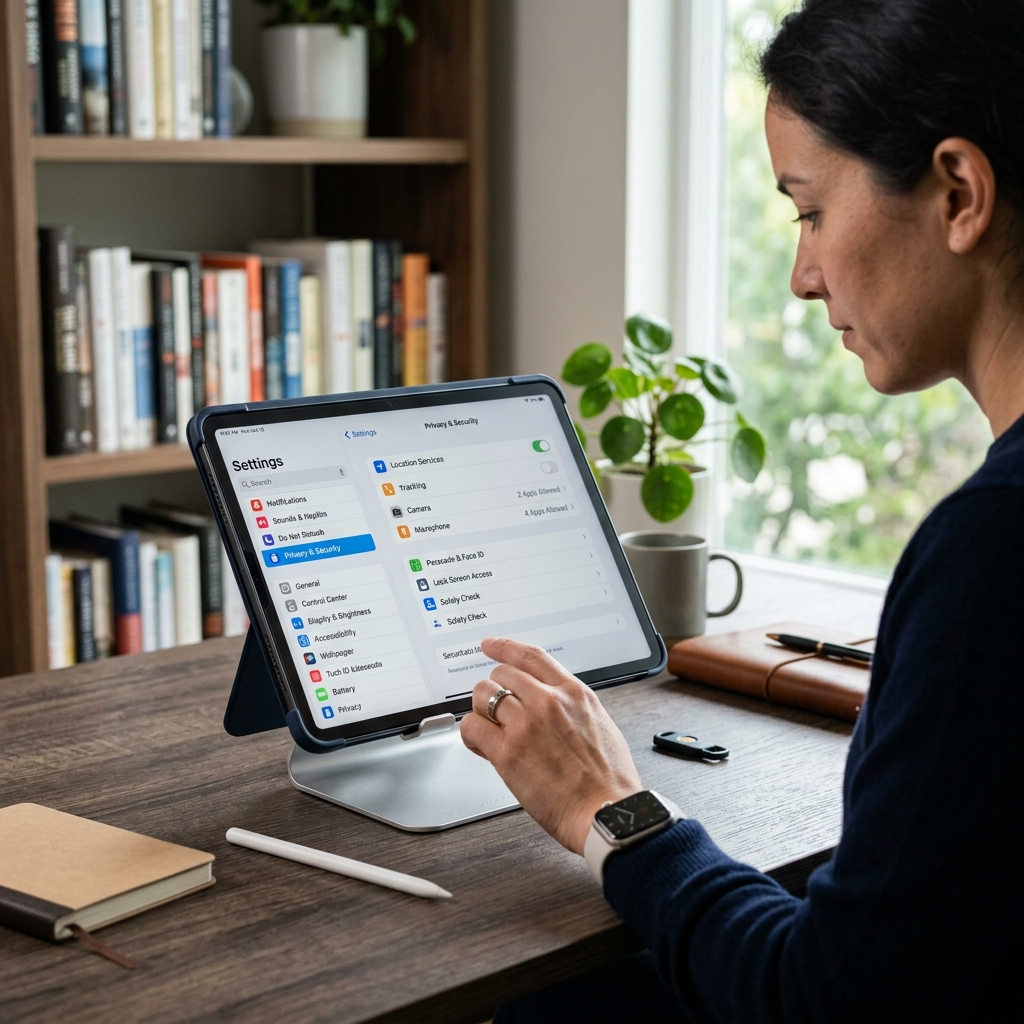
An iPad can store a great deal of personal information, from email and messages to photos, browsing history, and payment details. That convenience makes privacy protection essential, especially when the device is used for banking, shopping, school, work, or family sharing.
The good news is that most privacy improvements do not require advanced technical skills. A few changes in Settings, along with smarter everyday habits, can reduce exposure to tracking, limit access to sensitive data, and make it harder for strangers or apps to misuse your information.
Why iPad privacy matters
Tablets often feel less personal than phones, which can create a false sense of safety. In reality, an iPad may contain the same or even more sensitive information because it is often shared among family members or used on public Wi-Fi networks. If someone gains physical access to the device, or if an app collects more data than it needs, your identity and personal routines can be exposed.
Privacy protection on iPad is not only about avoiding theft. It also involves reducing background data collection, limiting what apps can see, and preventing accidental disclosure through notifications, browser behavior, and cloud syncing. The best approach is layered: secure the device itself, then restrict what individual apps and services can access.
Start with a stronger lock screen
The first line of defense is the lock screen. If the device is easy to unlock, every other privacy setting becomes less effective. A strong passcode makes it more difficult for someone to view messages, open accounts, or change security settings without permission.
Apple supports passcodes, fingerprint authentication on supported models, and Face ID on newer devices. For many users, the most practical privacy upgrade is simply moving away from weak or repetitive number patterns. A longer passcode is much harder to guess than a basic four-digit code.
What to do
- Use a passcode that is not based on birthdays, anniversaries, or repeated numbers.
- Choose a longer alphanumeric passcode if your device and comfort level allow it.
- Enable biometric unlocking where available to reduce the need to type your passcode in public.
- Set the device to lock quickly after inactivity so a lost tablet is not left open for long.
A stronger lock screen protects against casual snooping and also slows down anyone trying to change account settings, disable tracking protections, or access stored credentials. It is one of the simplest privacy improvements with the highest payoff.
Reduce what appears on the lock screen
Even when your iPad is locked, notifications can reveal a surprising amount of information. Message previews, calendar reminders, one-time codes, and app alerts may be visible without unlocking the device. That can be useful for convenience, but it also creates unnecessary privacy risks in public settings.
If your iPad is used in shared spaces, consider limiting what notifications can show when the screen is locked. This is especially important for email, messaging, banking, delivery updates, and two-factor authentication codes.
Useful adjustments
| Setting area | Privacy benefit |
|---|---|
| Notification previews | Prevents message content from appearing before the device is unlocked |
| Lock screen access | Limits access to features such as widgets, replies, or Control Center functions |
| App-specific alerts | Lets you silence or reduce sensitive notifications from selected apps |
These changes do not make the iPad less useful. They simply move private details behind authentication, where they belong.
Review app permissions with a skeptical eye
Many privacy problems start when apps receive access to information they do not truly need. A note-taking app may request microphone access, a game may want location data, or a photo editor may ask to scan your contacts. Some requests are legitimate, but many are broader than necessary.
A good rule is to ask whether the permission is essential to the app’s main function. If the answer is no, deny it or limit it. You can always return later and adjust the permission if a feature stops working.
Permissions worth checking carefully
- Location for apps that do not need to know where you are.
- Camera and microphone for apps that rarely use recording features.
- Photos for apps that only need a single image instead of full library access.
- Contacts for apps that do not need your address book.
- Bluetooth and local network access for apps that do not connect to nearby devices.
It also helps to review older apps you no longer use. Privacy often erodes over time because permissions remain active long after the app’s purpose has changed. Removing abandoned apps, or at least stripping away their access, reduces the number of places your personal data can leak.
Limit tracking in Safari and other browsers
Web tracking is one of the most common ways personal data is collected across devices. Websites may place cookies, use embedded trackers, or analyze browsing behavior to build advertising profiles. On an iPad, browser privacy settings can make a major difference in how much information follows you online.
Safari includes protections designed to reduce cross-site tracking and limit the data shared with third parties. Those protections are most effective when users keep them enabled and avoid unnecessary data sharing through browser prompts or social login features.
Browser privacy habits that help
- Enable anti-tracking features in Safari or your preferred browser.
- Clear site data periodically if you want to reduce persistent identifiers.
- Avoid signing into sites with social media accounts unless necessary.
- Use private browsing for short sessions on shared or public devices.
- Be cautious before allowing websites to use your location, camera, or microphone.
Browser privacy is not just about ads. It also affects how easily companies can map your shopping habits, reading habits, and search behavior across time. Limiting that data trail helps protect both privacy and security.
Be selective with cloud syncing
Cloud services are helpful because they keep photos, contacts, notes, documents, and backups available across devices. At the same time, every item synced to the cloud becomes another copy of your personal information stored elsewhere. If those services are configured too broadly, they may collect more than you intended.
It is worth reviewing which categories are actually necessary for your daily use. Some people want full synchronization across all devices; others only need contacts and calendars. The less sensitive data you store in cloud services, the fewer opportunities exist for unwanted exposure.
Questions to ask yourself
- Do I need this information available on every device I own?
- Would I be comfortable if this data were visible in a backup or account recovery process?
- Is there a less sensitive way to store this item locally?
- Have I reviewed what my cloud provider can access, collect, or share?
In practice, this may mean turning off syncing for certain app categories, keeping especially sensitive notes separate, or storing only the minimum amount of information in connected services.
Use privacy-focused settings inside the operating system
Modern iPad software includes several controls that can limit advertising, analytics, and background data sharing. These options are often overlooked because they are spread across different menus. Spending a few minutes in Settings can substantially improve privacy without changing the way the device feels in daily use.
Some of the most useful protections are designed to reduce device-wide data collection. Others make it harder for apps to monitor behavior or to combine information from multiple sources. The key is to review the available settings regularly, since new options may appear after software updates.
Helpful system-level controls
| Control | What it helps with |
|---|---|
| App tracking permissions | Reduces cross-app profiling and advertising linkage |
| Advertising preferences | Limits personalized ad targeting |
| Analytics sharing | Restricts diagnostic and usage data sent to companies |
| Privacy reports | Helps you see which apps and sites access sensitive resources |
These settings are particularly important for people who use their iPad for work, school, or health-related tasks. The more sensitive the data, the more valuable these protections become.
Keep the device updated
Software updates are often treated as a feature upgrade, but they are also a security tool. Updates can patch vulnerabilities that attackers might use to access information, bypass permissions, or exploit browser flaws. Delaying updates may leave the device exposed to known weaknesses.
It is wise to install updates after confirming that your essential apps and backups are current. That way, if something goes wrong during the update process, you can restore the device without losing important files.
Practical update routine
- Check for updates regularly rather than waiting for problems to appear.
- Back up important data before installing major system updates.
- Restart the device after updates so protection changes fully take effect.
- Update apps as well as the operating system, since old app versions can contain security holes.
Think carefully before using public Wi-Fi
Public wireless networks are convenient, but they can increase exposure to tracking and interception risks. Even when the connection is legitimate, the network operator may be able to see some browsing activity or collect device information. Other users on the same network may also create additional security concerns if the Wi-Fi setup is weak.
If you must use public Wi-Fi, avoid logging into highly sensitive accounts unless the site uses strong encryption and you are comfortable with the risks. For banking, shopping, or password recovery, a cellular hotspot or trusted home network is usually safer.
Better habits on shared networks
- Prefer trusted networks for account logins and sensitive transactions.
- Forget unused networks so the iPad does not reconnect automatically later.
- Turn off sharing features you do not need while connected in public places.
- Use a reputable VPN if you want an extra layer of privacy on unfamiliar networks.
Create a personal privacy routine
Privacy is easiest to maintain when it becomes a habit instead of a one-time setup. A short monthly review can prevent small issues from turning into long-term exposure. This is especially useful for families, students, and professionals who install new apps frequently or use the same tablet for both work and personal tasks.
A good routine does not need to be complicated. The goal is to spot changes before they pile up. New app permissions, unused accounts, outdated software, and overly broad syncing choices are all easier to manage when checked regularly.
Monthly privacy checklist
- Review installed apps and delete anything you no longer use.
- Check app permissions and remove unnecessary access.
- Verify that the passcode and biometric settings are still active.
- Look at notification settings for sensitive apps.
- Confirm that software updates and backups are current.
FAQs
Is a strong passcode more important than biometric unlock?
Yes. Biometrics are convenient, but the passcode is still the foundational security control. A strong passcode provides the backup protection if fingerprint or face recognition is unavailable.
Should I allow every app permission request?
No. Grant only the access that is needed for the app to function properly. If a request feels unrelated to the app’s purpose, deny it and reassess later if needed.
Does turning off ad tracking stop all tracking?
No. It reduces certain forms of cross-app advertising tracking, but websites, apps, and services may still collect some data. It is one useful layer, not a complete solution.
What is the easiest privacy improvement for most users?
Lock-screen protection is often the easiest and most effective first step. A stronger passcode, hidden previews, and limited lock-screen access can significantly reduce casual exposure.
How often should I review privacy settings?
A monthly check is a practical starting point, with an extra review after major iPad updates, new app installations, or changes to account settings.
References
- Privacy – Control — Apple. 2024-05-14. https://www.apple.com/privacy/control/
- Privacy – Features — Apple. 2024-05-14. https://www.apple.com/privacy/features/
- iOS Overview — Privacy Guides. 2025-01-08. https://www.privacyguides.org/en/os/ios-overview/
- Apple iPad | Privacy & security guide — Mozilla Foundation. 2025-03-20. https://www.mozillafoundation.org/en/privacynotincluded/apple-ipad/
- Top 7 iPad Security Tips — Kaspersky. 2024-02-12. https://www.kaspersky.com/resource-center/preemptive-safety/top-7-ipad-security-tips
Similar Articles








Read full bio of medha deb


