
Practical Guide to Blocking, Finding, and Removing Malware
Learn how malware works, how to spot the warning signs, and how to clean and secure your devices before small problems become disasters.
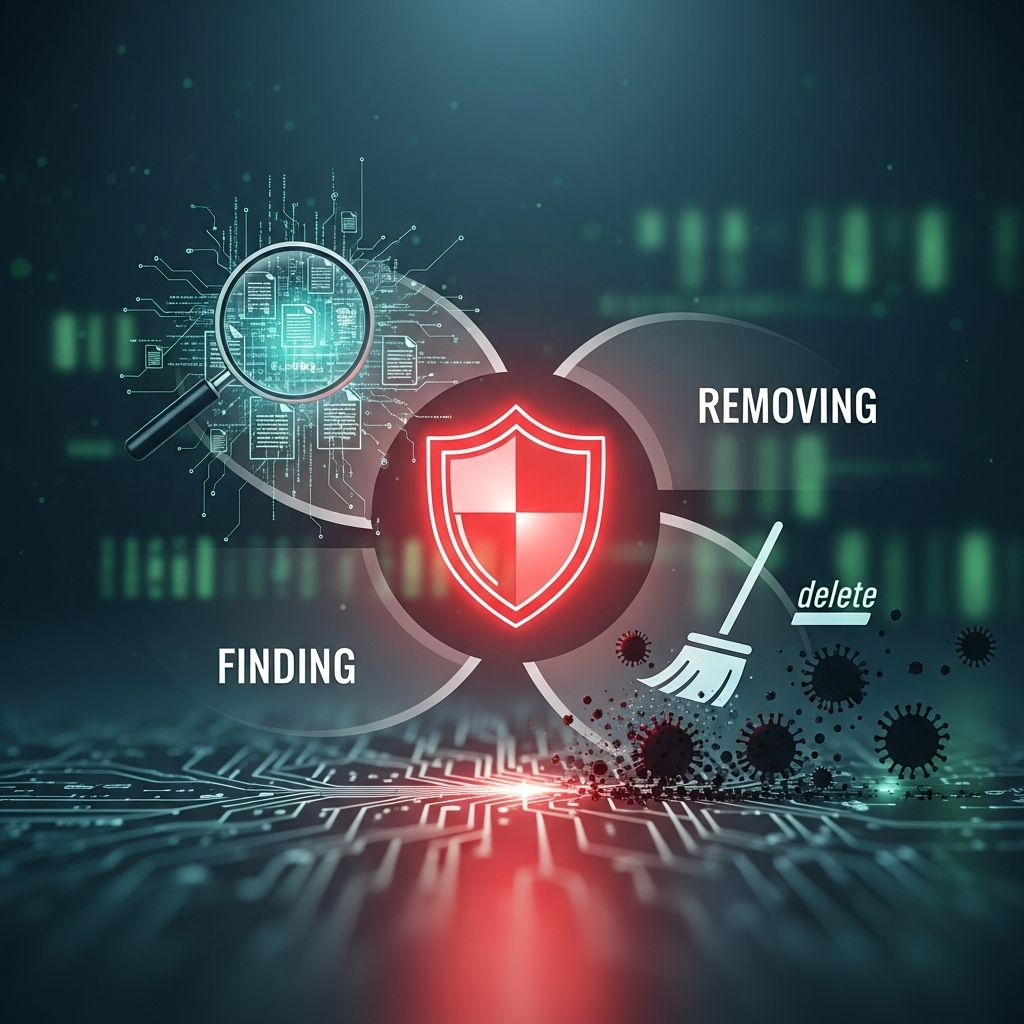
Malware is any software designed to harm your device, steal information, or give someone else control over your system. It can arrive through emails, downloads, fake updates, and even hacked websites, and it targets phones, tablets, and computers alike.
This guide explains, in clear and practical terms, how to reduce your risk, recognize possible infections, and remove malware safely so you can get back to using your devices with confidence.
Understanding Malware and Why It Matters
“Malware” is a broad term that includes viruses, worms, ransomware, spyware, and other malicious programs built to disrupt systems, steal data, or make money for criminals.
Common Types of Malware
- Viruses – Attach to legitimate files and spread when those files are shared or opened.
- Worms – Self-replicating programs that spread across networks without user interaction.
- Ransomware – Encrypts files or locks your device and demands payment to restore access.
- Spyware – Secretly monitors your activity, capturing keystrokes, browsing, or login details.
- Adware – Displays intrusive ads, sometimes redirecting you to risky sites.
- Trojan horses – Malicious programs disguised as useful apps or files.
How Malware Usually Spreads
Modern malware often relies on tricking people rather than breaking technology. Many attacks start with social engineering and phishing.
- Attachments or links in phishing emails or text messages.
- Fake downloads claiming to be software, movies, or cracked tools.
- Drive-by downloads from compromised or malicious websites.
- Infected USB drives or external storage.
- Exploiting outdated software and unpatched security flaws.
Core Defense: Building Everyday Malware Protection Habits
You cannot eliminate risk entirely, but you can make your devices much harder to infect. Security agencies emphasize layered defenses that combine software, safe behavior, and regular updates.
1. Use and Maintain Security Software
Security software (antivirus or antimalware) is your first automated defense against many threats.
- Install reputable antivirus/antimalware software on computers and mobile devices.
- Turn on real-time protection so files and websites are checked automatically.
- Enable automatic updates for the security program and its threat definitions.
- Schedule regular full scans (for example, weekly) in addition to quick scans.
2. Keep Operating Systems and Apps Up to Date
Updates fix security flaws that attackers routinely exploit.
- Enable automatic system updates on Windows, macOS, Android, and iOS.
- Update web browsers, plugins, and office suites promptly.
- Remove software you no longer use to shrink your attack surface.
3. Download Only from Trusted Sources
Many infections start with unsafe downloads.
- On phones, use official app stores and avoid third-party stores when possible.
- On computers, download software only from the vendor’s official website.
- Avoid pirated software, key generators, and cracks — they frequently carry malware.
- Verify the website address carefully before downloading.
4. Strengthen Your Browsing and Email Habits
- Be suspicious of unexpected attachments or links, even if they appear to come from someone you know.
- Hover over links to inspect the real destination before you click.
- Close browser pop-ups offering free scans or urgent security warnings.
- Use a modern browser with built-in safe browsing and phishing protection features.
5. Backup Important Data Regularly
Ransomware and other destructive malware are much less devastating if you have recent backups.
- Maintain at least one offline or cloud backup that malware cannot easily reach.
- Test your backups occasionally to ensure you can restore files.
- Keep sensitive or irreplaceable data backed up more frequently.
Warning Signs: How to Spot a Possible Infection
Many forms of malware try to remain hidden, but certain changes can signal a problem. None of these signs prove infection by themselves, but together they justify a closer look.
| Possible Symptom | What You Might Notice | Why It Can Indicate Malware |
|---|---|---|
| Slow performance | Programs take longer to open, system freezes, fan runs constantly. | Malware may be using CPU, memory, or network in the background. |
| Unexpected pop-ups | New ads or alerts show up even when not browsing. | Adware or malicious browser extensions often cause intrusive ads. |
| Browser changes | Home page or search engine changes without your consent. | Potential hijacker or unwanted software modifying settings. |
| New programs or toolbars | Icons or toolbars you do not recognize appear. | Bundled or stealthy installs can add unwanted components. |
| Security tools disabled | Antivirus turns off, cannot update, or won’t open. | Some malware tries to neutralize protections first. |
| Unusual network activity | Data usage spikes or the network light blinks constantly. | Malware may be sending data out or contacting control servers. |
Step-by-Step: What to Do If You Suspect Malware
If you think your device is infected, act methodically. Rushing or improvising can make things worse, especially if sensitive information is involved.
1. Disconnect and Limit Further Damage
- Disconnect from the internet (Wi-Fi and wired) to stop potential data theft or spread to other devices.
- Avoid logging into banking or other sensitive accounts from the suspected device.
- If the device is on a work network, notify your IT or security team immediately.
2. Preserve Important Information
If possible, make a copy of essential documents and files to external storage before cleaning, but avoid copying executable files (.exe, .msi, etc.) that might carry malware.
3. Run Security Scans
- Update your antivirus/antimalware software.
- Run a full system scan, not just a quick scan.
- Follow the tool’s recommended actions: quarantine, delete, or repair infected files.
- Consider running a second opinion scanner from another trusted vendor.
4. Use Safe or Recovery Modes When Necessary
- On many systems, you can reboot into a safe mode that loads minimal drivers.
- In safe mode, run your security scans again for more effective cleanup.
- If your original antivirus is damaged, use a bootable or cloud-based scanner from a trusted vendor.
5. Remove Suspicious Programs and Extensions
- Uninstall programs you do not recognize, especially ones recently installed around when problems started.
- Review browser extensions and remove anything unfamiliar or unnecessary.
- Reset browser settings (home page, default search engine) if they were altered.
6. Consider a Clean Reinstall for Severe Infections
If the system remains unstable or sensitive information has been compromised, the most reliable solution is often wiping the device and reinstalling the operating system from a trusted source.
- Backup your personal documents first, scanning them before restoring.
- Reinstall the operating system and applications from original or verified media.
- Immediately apply all updates and reinstall security software.
After Cleanup: Securing Accounts and Monitoring for Misuse
Removing malware is only part of the job. If your device was compromised, treat your accounts and identity as potentially exposed.
Reset Passwords and Enable Strong Authentication
- Change passwords for email, banks, social media, and other important accounts.
- Turn on multi-factor authentication (MFA) when available for extra protection.
- Avoid reusing the same password across multiple accounts.
Watch for Signs of Account or Identity Abuse
- Review bank and credit card statements for unauthorized charges.
- Check email sent folders and social media for messages you did not send.
- Consider placing alerts or monitoring on your credit reports, depending on what data may have been exposed.
Extra Protection Tips for Phones and Tablets
Mobile devices face many of the same threats as computers, with a few extra concerns.
- Use the official app store for your platform and avoid sideloading apps unless necessary.
- Review app permissions, especially for access to SMS, contacts, microphone, and location.
- Install vendor or carrier updates promptly.
- Enable device encryption and screen lock with PIN, password, or biometrics.
Balancing Convenience and Security
Completely locking down your devices may be unrealistic, but you do not need to become a security expert to avoid most malware. Combining security tools with a few cautious habits can dramatically reduce your risk.
- Keep your software and security tools up to date.
- Think before you click, especially on links and attachments.
- Maintain reliable backups of important data.
- Act quickly if something seems wrong with your device.
Frequently Asked Questions (FAQs)
Q1: Do I really need antivirus if I’m careful online?
Yes. Even cautious users can encounter compromised websites, malicious ads, or software vulnerabilities. Reputable security software adds an important automated layer of protection.
Q2: Is one security product enough, or should I install several?
Running multiple real-time antivirus tools at once can cause conflicts and reduce protection. Use one primary, up-to-date security suite, and if needed, add occasional on-demand scans from other trusted tools.
Q3: How often should I scan my devices for malware?
Keep real-time protection on at all times and schedule a full system scan at least once a week, or more often if you frequently install new software or plug in external drives.
Q4: If I pay a ransomware demand, will I definitely get my files back?
There is no guarantee that criminals will restore access, and paying can encourage more attacks. Law enforcement and security agencies generally advise against paying and instead recommend restoring from backups when possible.
Q5: What is the safest way to check if a suspicious file is malicious?
First, do not open the file. Scan it with your installed security software, and if still unsure, consider uploading it to a trusted online scanning service from a reputable security vendor or using a sandbox feature built into some antivirus tools.
References
- Malware: How To Protect Against, Detect, and Remove It — Federal Trade Commission. 2024-04-10. https://consumer.ftc.gov/articles/malware-how-protect-against-detect-remove-it
- The 2025 Malware Protection Guide — Superfast IT (based on UK NCSC Cyber Essentials). 2025-01-15. https://www.superfast-it.com/articles/the-2025-malware-protection-guide
- A 2025 Guide to Antivirus Protection and Internet Security — Security.org. 2025-02-05. https://www.security.org/antivirus/
- 2025 State of Malware — ThreatDown (Malwarebytes). 2025-01-30. https://www.threatdown.com/wp-content/uploads/2025/01/2025-State-of-Malware-2.pdf
- What is Antimalware? A 2025 Guide to Modern Malware Defense — Xcitium. 2025-03-12. https://www.xcitium.com/blog/malware/what-is-antimalware/
Similar Articles








Read full bio of Sneha Tete


