
Mobile Document Scanning: Converting Physical Papers to Digital PDFs
Transform physical documents into digital PDFs using your smartphone's built-in capabilities and apps.
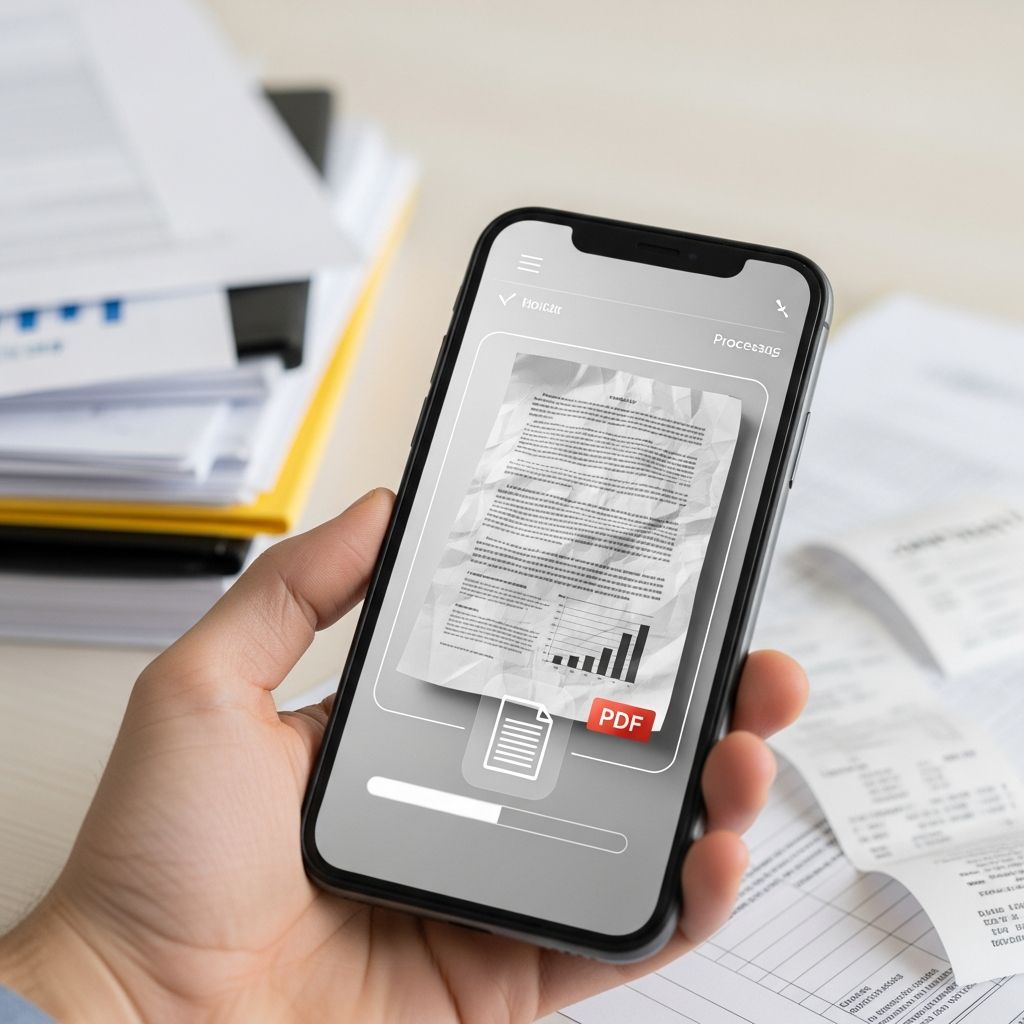
Transforming Paper Documents Into Digital Files Through Your Mobile Device
The shift toward remote work and digital-first workflows has created a significant challenge for many professionals: what do you do when you need to digitize printed documents but lack access to a traditional office scanner? The solution is simpler than you might think. Modern smartphones are equipped with powerful cameras and built-in features that transform them into effective document scanning tools. Whether you’re working from home, traveling, or simply prefer digital organization, your mobile device can convert physical papers into professional-quality PDF files within seconds.
The ability to scan documents directly from your phone eliminates the need for expensive scanning equipment and complex workflows. Instead of driving to an office, waiting for a scanner to be available, or paying for scanning services, you can accomplish this task immediately with a device you already carry with you. This guide explores the various methods available to convert printed documents into PDFs, covering both native device features and specialized applications that enhance the scanning experience.
Native Scanning Capabilities Built Into Your Device
Both Apple and Android devices include built-in scanning features that require no additional downloads or subscriptions. These native solutions leverage the smartphone camera to capture document images and automatically convert them into PDF format with minimal user intervention.
Apple’s Integrated Document Scanning
iPhone and iPad users can access document scanning directly through the Notes application, a pre-installed app on every Apple device. This approach integrates seamlessly with the iOS ecosystem and provides automatic image processing that enhances document clarity. To use this feature, open the Notes app, create a new note or select an existing one, and tap the camera icon. Choose the “Scan Documents” option from the menu that appears. Position your device’s camera over the printed document, ensuring adequate lighting and that the entire document fits within the frame. The app automatically captures the image once it detects the document boundaries.
After capturing the image, you can review it and make adjustments to the scan boundaries if needed. iOS automatically applies image enhancement, straightening the document and adjusting colors for optimal readability. For multi-page documents, simply continue scanning additional pages. Once you’ve captured all necessary pages, save them to your note. The scanned content is stored directly within your Notes application, creating a searchable PDF that you can view, edit, or share with others. To export this as a standalone PDF file, access the note, tap the share icon, and select the option to save as a PDF to your device or cloud storage service.
Google Drive’s Android Document Scanner
Android users have a comparable native solution through Google Drive, which includes a document scanning feature directly within the application. Unlike the iPhone’s Notes integration, Google Drive’s scanner focuses specifically on document capture and organization. Open the Google Drive app on your Android device and tap the plus icon located in the lower-right corner of the screen. From the menu that appears, select the “Scan” option. This activates your device’s camera with special processing designed to recognize and capture documents.
Position your smartphone over the printed material, ensuring it’s well-lit and clearly visible within the camera frame. The Google Drive scanner automatically detects document edges and captures the image. If your document spans multiple pages, simply continue scanning each page sequentially. The app maintains automatic alignment and applies image processing to enhance contrast and readability. Once you’ve scanned all pages, confirm the operation and the scanner generates a PDF file directly in your Google Drive. You can immediately rename the file, move it to specific folders, and share it with collaborators. This integration with Google Drive means your scanned documents are automatically backed up to the cloud and accessible from any device with an internet connection.
Professional Scanning Applications for Enhanced Functionality
While native device features provide solid scanning capabilities, specialized applications offer advanced features that appeal to professionals who regularly digitize documents. These dedicated apps provide enhanced image processing, optical character recognition (OCR), cloud integration, and organizational tools.
Adobe Scan: Professional-Grade Document Digitization
Adobe Scan represents the market-leading dedicated scanning application, available on both iOS and Android platforms through their respective app stores. This application combines camera-based document capture with Adobe’s industry-leading image processing technology. Download and install Adobe Scan from your device’s app store, then launch the application and sign in with an Adobe ID, or create one if you’re a new user.
The scanning process begins by positioning your device’s camera over the document. Adobe Scan’s interface displays a live preview with document edge detection that automatically identifies and frames the document within the viewfinder. The application handles auto-capture, automatically triggering the image capture when optimal focus and lighting are detected. For documents with multiple pages, the app maintains a running list of captured pages, allowing you to view thumbnails and easily add additional pages. After capturing all necessary pages, the application automatically generates a multi-page PDF with enhanced image processing applied to each page.
Adobe Scan’s standout feature is its integrated optical character recognition technology, which converts scanned text into selectable, searchable digital text. This functionality enables you to search through your scanned documents by keyword and copy text directly from the PDF. Adobe Document Cloud integration allows automatic upload and storage of your scanned documents in the cloud, synchronizing them across devices. The application also provides organizational features, allowing you to create folders, add tags, and manage your digital document library efficiently.
Microsoft Lens: Integration With Office Ecosystem
Users deeply integrated into the Microsoft Office ecosystem benefit from Microsoft Lens, available on both iOS and Android. This application specializes in converting photographs of documents, whiteboards, and business cards into editable Office documents and searchable PDFs. After installing Microsoft Lens, open the application and point your camera at the document you wish to scan. The app displays document boundaries in real-time and applies perspective correction to ensure straight, readable captures.
Microsoft Lens excels at converting document photographs into formats beyond PDF. You can save scanned documents as Word documents, PowerPoint presentations, Excel spreadsheets, or PDF files. This flexibility proves valuable when you need to edit scanned content or integrate it into existing Office documents. The application includes OCR capabilities that extract text from images, and OneDrive integration automatically uploads your scans to cloud storage where you can access them from any device. This seamless integration with Microsoft 365 makes Microsoft Lens particularly valuable for organizations using Office applications extensively.
Mobile Device Printing to PDF: An Alternative Approach
Beyond document scanning, smartphones also include the ability to print documents to PDF format. This method differs from camera-based scanning but serves complementary purposes. When you have a digital file that you need to convert to PDF or when you want to save specific content as a PDF, the print-to-PDF functionality provides a straightforward solution.
Android Print-to-PDF Workflow
Android devices include a built-in print service that allows saving any printable content as a PDF file. Open the document, file, or content you wish to convert. Access the menu—typically represented by three vertical dots—and select “Print” from the available options. In the print dialog that appears, look for a printer selection dropdown menu. Instead of selecting a physical printer, choose “Save as PDF.” Customize any print settings such as paper size, page range, or orientation as needed. Once your preferences are configured, tap the print button to generate and save the PDF file to your device’s storage. You’ll be prompted to select the destination folder and provide a filename for the resulting PDF.
iOS Print-to-PDF Functionality
iPhone and iPad users access print-to-PDF functionality through a similar workflow. Open the content you want to save as a PDF and access the share menu. Select “Print” from the available sharing options. In the print dialog, instead of selecting a physical printer, perform a multi-touch gesture on the preview—pinch outward with two fingers on the preview image—to expand it. This reveals a share menu where you can select “Save to Files,” “Save to iCloud Drive,” or other cloud storage services. Choose your desired location and provide a filename for the PDF. This method proves particularly useful for saving web pages, emails, or documents without dedicated PDF export functionality.
Transferring Scanned Documents to Your Computer
After creating PDFs on your mobile device, you’ll typically need to access these files from your computer for further processing, printing, or submission. Multiple approaches facilitate this transfer, each with distinct advantages depending on your workflow and security requirements.
Cloud Storage Solutions for Seamless Synchronization
The most efficient method involves saving scanned PDFs directly to cloud storage services during the scanning process. Applications like Adobe Scan, Google Drive’s scanner, and Microsoft Lens all include automatic cloud storage integration. Configure your preferred cloud service within the application settings, and your scanned documents automatically upload upon creation. Services like Google Drive, iCloud, OneDrive, and Dropbox provide browser-based access from any computer with an internet connection. Log into your cloud account from your computer and access the scanned files immediately. This approach eliminates manual file transfers and ensures your documents are accessible across multiple devices. Additionally, cloud storage provides automatic backup and version history features, protecting your documents against accidental loss.
Email and Direct File Transfer Methods
For single documents or occasional transfers, email provides a straightforward solution. Most scanning applications include a share feature that allows emailing the PDF directly from the app. Alternatively, access your file manager, locate the scanned PDF, and use the share menu to send it via email to yourself or colleagues. This method works reliably for most document sizes and requires no configuration beyond your existing email account. For larger batches of documents, file transfer services like Bluetooth (for nearby computers), USB file transfer using a cable connection, or dedicated file sharing services provide alternatives when cloud storage isn’t available or preferred.
Optimizing Your Mobile Scanning Process
Effective document scanning requires attention to several technical factors that impact the quality and usability of your resulting PDFs. Proper technique and environmental awareness ensure your scanned documents meet professional standards and remain useful for years to come.
Lighting and Environmental Considerations
Adequate lighting represents the most critical factor for successful document scanning. Position your document near a window or under bright artificial lighting to eliminate shadows and ensure even illumination across the entire page. Avoid backlighting, which causes the document to appear dark and difficult to read. For documents with glossy surfaces, adjust your angle slightly to minimize reflective glare. The phone’s camera performs optimally when the document is evenly lit without excessive contrast between different areas. When scanning during evening or in poor lighting conditions, activate your device’s flashlight or ring light (if available) to supplement ambient light.
Document Positioning and Camera Angle
Hold your device approximately six to eight inches above the document, maintaining a perpendicular angle rather than a diagonal approach. Most modern scanning applications include edge-detection overlays that guide proper positioning. Ensure the entire document fits within the camera frame without significant white space or cutoff edges. For rectangular documents like letters or invoices, position the document so its edges align parallel with the device’s edges. This proper alignment allows automatic image correction algorithms to straighten and perspective-correct the captured image. For documents larger than your device’s frame, capture multiple overlapping sections that can be stitched together manually or through dedicated applications.
Multi-Page Document Organization
When scanning documents with multiple pages, establish a consistent workflow to maintain proper page order and prevent missing sections. Scan pages sequentially from beginning to end, reviewing the thumbnail preview after capturing each page to confirm clarity and proper capture. Most applications allow inserting, deleting, or reordering pages before finalizing the PDF, providing an opportunity to correct mistakes. Label multi-page documents clearly with descriptive names that reflect the document’s content and date, facilitating future retrieval and organization.
Frequently Asked Questions About Mobile Document Scanning
Q: Which method produces the highest-quality scans?
A: Dedicated applications like Adobe Scan typically produce superior results compared to native device scanners because they employ advanced image processing algorithms specifically designed for document enhancement. However, native solutions like iOS Notes and Google Drive provide adequate quality for most business purposes with the advantage of requiring no additional downloads.
Q: Can scanning applications recognize and extract text from documents?
A: Yes, many scanning applications including Adobe Scan and Microsoft Lens include optical character recognition (OCR) technology that converts scanned text into selectable digital text. This functionality allows searching within scanned documents and copying text for use in other applications. Some applications require a paid subscription to access advanced OCR features.
Q: How large can PDF files created from scanned documents become?
A: File sizes vary depending on the application, image quality settings, and document complexity. Most scanning applications automatically compress images to create reasonably sized PDFs, typically ranging from several hundred kilobytes to a few megabytes per page. Advanced compression is available in professional applications for situations requiring smaller file sizes.
Q: Is it safe to store sensitive documents in cloud-based scanning applications?
A: Reputable applications from major providers employ encryption and security measures to protect your documents. However, for highly sensitive information, review each application’s privacy policy and security features. Many offer options to store documents locally on your device rather than automatically uploading to the cloud, providing additional control over sensitive content.
Q: Can I edit scanned documents after converting them to PDF?
A: Basic editing like cropping, rotating, or reordering pages is possible through most scanning applications and dedicated PDF editors. However, for significant content modifications, consider converting the PDF to an editable format like Word using specialized conversion tools, then making your changes in the native application before saving as a final PDF.
Q: Do I need an internet connection to scan documents with my phone?
A: No, the actual scanning process doesn’t require internet connectivity. However, you’ll need an internet connection if you want to automatically upload scans to cloud storage or share documents with others. Most applications allow offline scanning with deferred uploads once connectivity is restored.
Conclusion: Embracing Mobile-First Document Management
The transformation of physical documents into digital PDFs through mobile devices represents a practical solution to modern workflow challenges. Whether you choose built-in native features on iOS and Android or invest in professional scanning applications, multiple pathways exist to digitize your printed materials effectively. The choice depends on your specific needs, the frequency of scanning, and the desired feature set. For occasional users, native device scanners provide sufficient functionality without additional cost or installation. For professionals who regularly digitize documents, dedicated applications like Adobe Scan offer enhanced image processing, organizational features, and cloud integration that justify their investment. Regardless of your chosen method, mobile document scanning eliminates barriers to going paperless, improves document accessibility, and streamlines your digital workflow. By understanding these various approaches and implementing the techniques outlined in this guide, you can confidently convert any printed document into a professional-quality PDF whenever the need arises.
References
- Save a PDF of your file on your mobile device — Microsoft Support. 2024. https://support.microsoft.com/en-us/office/save-a-pdf-of-your-file-on-your-mobile-device-05e9cacd-bcb4-4679-a791-fb0331c92906
- Adobe Scan: PDF & OCR Scanner — Apple App Store. 2024. https://apps.apple.com/il/app/adobe-scan-pdf-ocr-scanner/id1199564834
- Adobe Scan AI PDF Scanner, OCR — Google Play Store. 2024. https://play.google.com/store/apps/details?id=com.adobe.scan.android
- Print to PDF on Android — EaseUS. 2025. https://pdf.easeus.com/pdf-knowledge-center/print-to-pdf-android.html
- Free PDF converter – Create and convert PDF files online — Adobe. 2024. https://www.adobe.com/acrobat/online/convert-pdf.html
- How to Print to PDF on Android — YouTube. 2024. https://www.youtube.com/watch?v=ranMFpfM6yc
Similar Articles








Read full bio of medha deb


