Mastering Word: Essential Tips for Legal Pros
Unlock Microsoft Word's hidden powers to streamline legal workflows, boost efficiency, and produce flawless documents effortlessly.
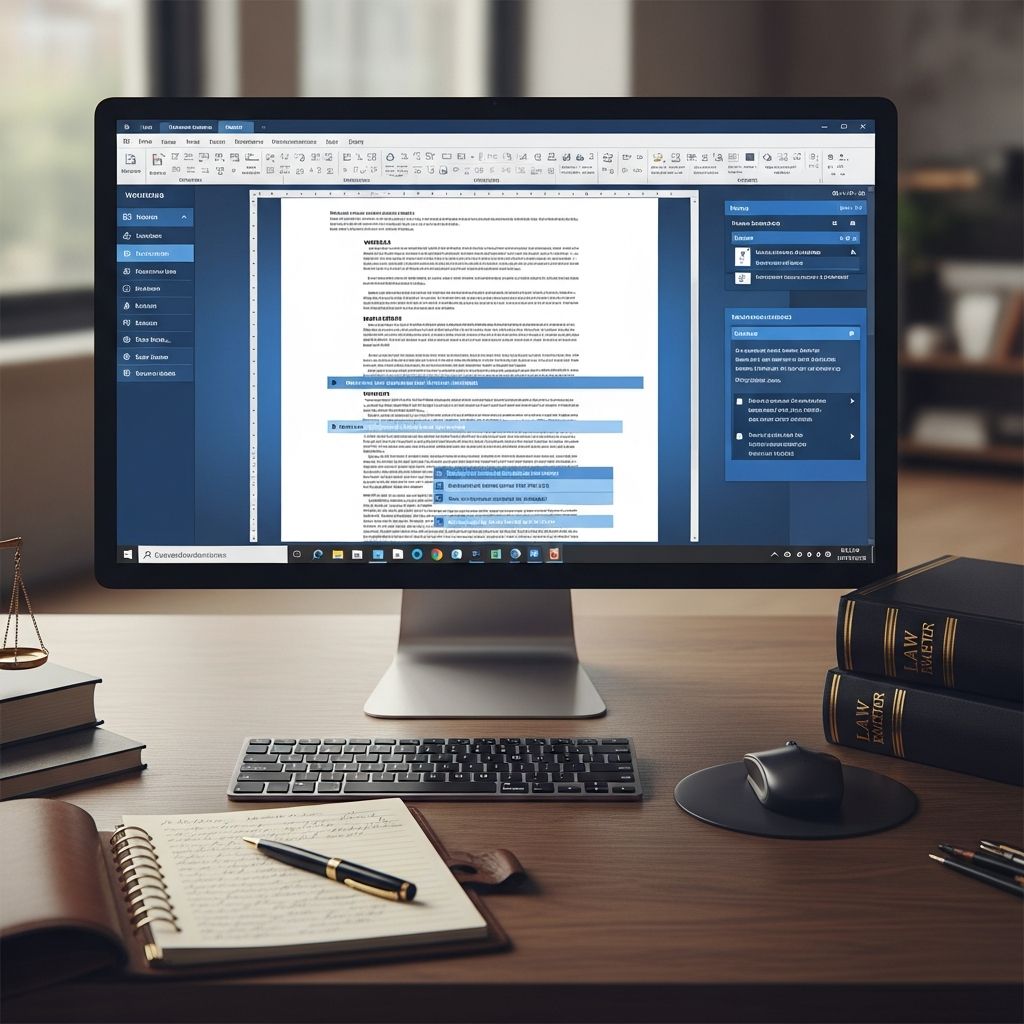
Microsoft Word remains the cornerstone of legal document creation, handling everything from briefs to contracts. Yet many attorneys underutilize its advanced features, leading to wasted time on repetitive tasks. This guide reveals powerful strategies to transform your workflow, ensuring precision, consistency, and speed in high-stakes legal work.
Accelerate with Keyboard Shortcuts
Time is a lawyer’s most valuable asset. Keyboard shortcuts bypass slow mouse navigation, enabling rapid edits in lengthy pleadings or motions. Master these to cut document preparation by up to 30%.
- Ctrl + X, C, V: Cut, copy, paste—fundamentals that speed up text manipulation.
- Ctrl + Z / Ctrl + Y: Undo and redo for quick corrections without menu hunting.
- Ctrl + S: Autosave habit prevents data loss during marathon drafting sessions.
- Ctrl + F / Ctrl + H: Find and replace sweeps through documents to update terms like case names or statutes instantly.
- Legal symbols: Alt + 21 for § (section) and Alt + 20 for ¶ (paragraph) on Windows; Option + 6/7 on Mac.
Practice these during downtime; muscle memory will integrate them seamlessly into your routine, reducing cognitive load in court filings.
Harness Styles for Flawless Consistency
Manual formatting plagues legal docs, risking court rejections for non-compliance. Styles apply uniform fonts, spacing, and alignments across entire documents with one click, ideal for headings in briefs or tables in discovery responses.
Start by modifying the Normal style: Right-click in the Styles pane (Home tab), select Modify, then Format > Font/Paragraph. Set Times New Roman 12pt, double-spaced, left-aligned for most U.S. courts. Apply to body text, headings (e.g., Heading 1 bold 14pt), and lists.
- Update once: All instances refresh automatically, eliminating inconsistencies.
- Court-specific: Save stylesets for federal vs. state rules.
- TOC integration: Styles generate automatic tables of contents, saving hours on appellate briefs.
Georgetown Law recommends setting Normal style first for all legal docs to enforce baseline compliance. This approach ensures professional polish without tedious tweaks.
Build Reusable Templates for Routine Filings
Templates standardize repetitive docs like complaints, wills, or NDAs, minimizing errors from copy-paste pitfalls. Create firm-wide versions embedding your letterhead, clauses, and variables.
- File > New > Blank Document.
- Design layout: Insert header/footer with firm logo, page numbers.
- Add placeholders: Use content controls (Developer tab) for client names, dates.
- Save as .dotx: File > Save As > Word Template.
Benefits include branding consistency and reduced malpractice risks from lingering prior-client data. For teams, store in shared drives; integrate with case management like Clio for auto-population. Advanced users link to databases for dynamic fields.
Streamline Repetition with Quick Parts
Boilerplate phrases—disclaimers, signatures, definitions—reappear endlessly. Quick Parts stores them for instant insertion, slashing drafting time.
Insert > Quick Parts > Save Selection to Quick Part Gallery. Name it (e.g., “Standard Reservation of Rights”), add to gallery. Reuse via gallery dropdown or AutoComplete.
- Organize by category: Contracts, Litigation, Estate Planning.
- Edit centrally: Updates propagate across docs.
- Combine with AutoText for phrases like “Pursuant to Section 123…”.
This feature shines in high-volume practices, reclaiming hours weekly.
Clean Imports and Reset Formatting
Pasting from emails or PDFs mangles formatting. Neutralize it: Ctrl + Shift + V pastes unformatted text, then reapply styles. For bulk cleanup:
- Copy all (Ctrl + A, Ctrl + C).
- Paste into Notepad.
- Copy from Notepad to new Word doc.
- Re-style.
Clear existing: Home > Clear All Formatting icon. Vital for merging research into motions without font chaos.
Advanced Navigation and Organization
Long docs overwhelm. View > Navigation Pane reveals structure via styles-outlined headings. Jump sections, search headings, or rearrange via drag-drop.
Outline View (View > Outline) collapses/expands for editing focus. Generate TOC: References > Table of Contents > Automatic Table 1. Styles ensure accuracy; right-click Update Field for changes.
Secure Documents with Editing Controls
Protect drafts: Review > Restrict Editing sets read-only, comments-only, or tracked changes modes with passwords. Mark as Final signals completion, discouraging edits.
Developer tab (File > Options > Customize Ribbon): Unlock forms, macros for automated checklists.
Metadata Scrub and AutoRecover Safeguards
Court filings expose hidden data—comments, revisions, author names. File > Info > Check for Issues > Inspect Document removes all.
Enable AutoRecover: File > Options > Save > every 5 minutes. Customize ribbon-minimize (double-click tab) for more screen real estate.
Custom AutoCorrect for Legal Precision
Tame autocorrect: File > Options > Proofing > AutoCorrect Options. Add entries like “sec” → §, or firm-specific terms. Prevents misspells in statutes.
| Feature | Benefit | Setup Time |
|---|---|---|
| Styles | Uniform formatting | 10 mins |
| Templates | Error-free repeats | 20 mins/doc |
| Quick Parts | Instant boilerplate | 5 mins/entry |
| Shortcuts | Speed boost | Practice |
This table summarizes ROI: Initial setup yields compounding time savings.
Frequently Asked Questions (FAQs)
What are the best styles for court briefs?
Use Normal: Times New Roman 14pt, 1.5/double space, 1″ margins. Headings bold, larger pt.
How do I create a clickable TOC?
Apply Heading styles, then References > Table of Contents. Update via right-click.
Can templates integrate with case software?
Yes, tools like Smokeball or Clio auto-fill from databases.
How to remove all hidden metadata?
File > Info > Check Issues > Inspect Document > Remove All.
Shortcuts for Mac lawyers?
Cmd replaces Ctrl; § is Option+6.
Implement these today for immediate gains. Word evolves—explore Developer tools for macros next.
References
- Top 13 Microsoft Word Tips for Lawyers — Clio. 2023. https://www.clio.com/blog/microsoft-word-hacks-every-lawyer-should-know/
- Microsoft Word Tips for Lawyers — Smokeball. 2023. https://www.smokeball.com.au/blog/microsoft-word-tips-for-lawyers
- Formatting a Legal Document in Microsoft Word — Georgetown University Law Center. 2024-02. https://www.law.georgetown.edu/wp-content/uploads/2024/02/Formatting-a-Legal-Document-in-Microscoft-Word-2024.pdf
- The HIDDEN Word Feature: 99% of Lawyers Don’t Know This! — YouTube (Video Tutorial). 2023. https://www.youtube.com/watch?v=am4vi3gfxFo
- Microsoft Word: The Features & Tools a Lawyer Should Know & Use — New York State Bar Association. 2023. https://nysba.org/products/microsoft-word-the-features-tools-a-lawyer-should-know-use/
Similar Articles








Read full bio of Sneha Tete