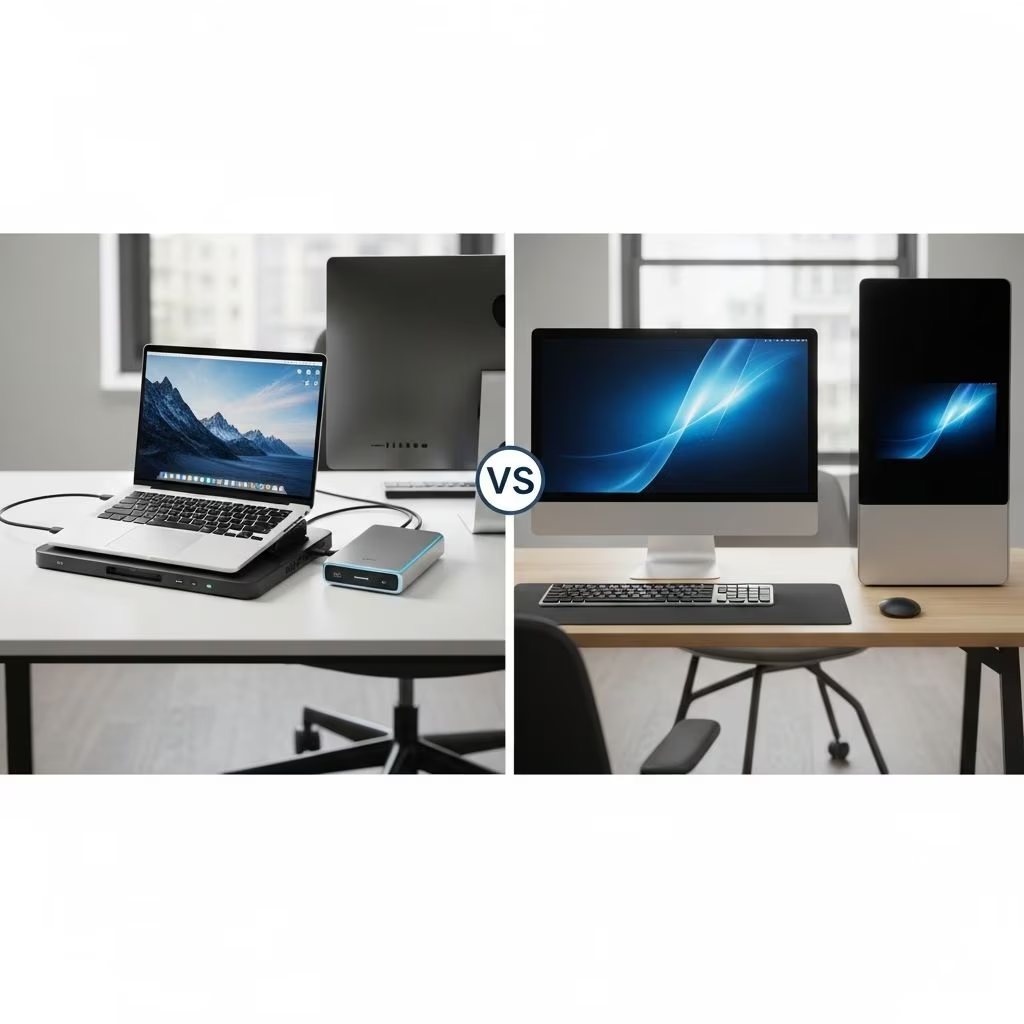
Legal professionals face unique demands requiring both powerful stationary workstations and portable computing solutions. Laptop docking stations emerge as a versatile hybrid, combining desktop-like performance with laptop mobility, often surpassing traditional desktops for attorneys who travel to courts, client meetings, or work remotely.
Understanding the Core Needs of Legal Work Environments
Attorneys juggle document review, research, video conferencing, and case management across multiple locations. A rigid desktop limits flexibility, while standalone laptops may lack expansion for multi-monitor setups essential for efficiency. Docking stations bridge this gap by transforming laptops into full workstations instantly.
Key requirements include:
- High processing power for running legal software like case management systems and e-discovery tools.
- Multiple displays to compare documents side-by-side.
- Reliable connectivity for printers, scanners, and networks.
- Portability for court appearances and depositions.
- Robust security features compliant with client data protection standards.
Advantages of Laptop Docking Stations in Legal Practices
Docking stations provide a single-cable connection delivering power, data, and video, minimizing setup time when returning to the office. This is crucial for lawyers switching between home, office, and travel.
Benefits include:
- Seamless Expansion: Connect external monitors, keyboards, mice, Ethernet, and USB peripherals effortlessly, creating a clutter-free desk.
- Multi-Monitor Support: Extend to dual or triple displays, boosting productivity by 42% according to workspace studies, vital for reviewing pleadings and evidence simultaneously.
- Cable Management: Reduces desk clutter, enhancing focus during long billing hours.
- Hot-Swappable: Undock and go without shutdowns, preserving workflow momentum.
| Feature | Docking Station Benefit | Legal Application |
|---|---|---|
| Ports | USB-A/C, HDMI, DisplayPort, Ethernet | Connect scanners, printers, external drives for e-filings |
| Power Delivery | Up to 100W via USB-C | Charges laptop while powering peripherals |
| Display Output | 4K dual monitors | Side-by-side case files and research |
Strengths and Limitations of Traditional Desktop Setups
Desktops excel in raw power and cost-per-performance, ideal for stationary reception or paralegal roles handling voluminous data processing. They offer upgradeable components like RAM and GPUs for intensive tasks such as video editing of deposition footage.
However, drawbacks for lawyers include:
- Immobility: Cannot be transported to court or client sites, necessitating a secondary device.
- Setup Complexity: Multiple cables lead to disorganization.
- Redundancy: Requires separate laptops for travel, increasing costs and data sync issues.
For solo practitioners or small firms, desktops suit fixed office staff but falter for principals needing versatility.
Comparing Key Specifications for Legal Hardware
Selecting hardware demands balancing power, portability, and compatibility. Business-class laptops with Windows 11 Pro (featuring BitLocker encryption) paired with docks are recommended over consumer models.
| Aspect | Laptop + Dock | Desktop |
|---|---|---|
| Cost (Initial) | $1,500-$2,500 | $800-$1,500 |
| Mobility | High (17″ screen portable) | None |
| Expandability | Via dock (multi-monitor) | Internal upgrades |
| Security | BitLocker, remote wipe | Similar, but fixed location |
| Setup Time | 30 seconds (single cable) | Always on, multi-plug |
Laptops with at least 16GB RAM and 17-inch screens provide optimal viewing for legal documents.
Real-World Applications: Scenarios for Attorneys
Solo Practitioner: A lawyer uses a Dell XPS 17 docked to dual 27-inch monitors, ScanSnap scanner, and Ethernet for stable e-filing. Undocks for court, maintaining identical software environment.
Small Firm Partner: Office desktop for admin tasks; personal laptop dock replicates setup at home or conferences, ensuring continuity.
Litigator: Portable dock setup with ultrawide monitor accelerates trial prep, allowing quick transitions to mobile mode.
Security and Compliance Considerations
Legal tech must adhere to ethics rules on client confidentiality. Windows Pro editions offer superior tools like BitLocker over Home versions, preventing data breaches during travel. Docks support secure Ethernet over Wi-Fi, reducing interception risks in public spaces.
Cost-Benefit Analysis for Law Firms
Initial dock investment ($150-$400) yields ROI through time savings: 10-15 minutes daily from simplified setups compounds annually. Desktops save upfront but incur dual-device maintenance costs.
- Long-term: Docks reduce hardware needs by 50%.
- Scalability: Easy to add peripherals without tower modifications.
Top Recommendations and Setup Tips
Opt for Thunderbolt/USB4 docks compatible with your laptop. Pair with 4K monitors for crisp text rendering of contracts.
- Laptop: Dell XPS/Lenovo ThinkPad (Windows 11 Pro, 32GB RAM).
- Dock: Kensington SD5700T (multi-display, 100W PD).
- Peripherals: Mechanical keyboard, vertical mouse, Fujitsu ScanSnap.
Tip: Position dock centrally; use cable sleeves for tidiness.
Frequently Asked Questions (FAQs)
Are docking stations compatible with MacBooks for lawyers?
Yes, USB-C docks work with M-series Macs, supporting dual displays (with limitations on pre-M1 models). Ideal for Apple-preferring firms.
Can a single laptop replace a desktop entirely?
For most attorneys, yes, with a quality dock providing equivalent performance. Reserve desktops for high-compute paralegal stations.
What screen size is best for legal document review?
17-inch laptops minimum; dock to 27-34 inch externals for multitasking.
Do docking stations slow down laptops?
No, modern docks pass through full performance without bottlenecks.
Is Windows or Mac better for law practice tech?
Both suffice; Macs offer simplicity, Windows better dock compatibility and local software support.
Future-Proofing Your Legal Tech Stack
As hybrid work persists, docks align with trends toward unified devices. Upcoming USB4 standards promise even faster multi-4K support. Invest now for 3-5 years of relevance.
In summary, laptop docking stations offer superior adaptability for attorneys, delivering desktop power without sacrificing mobility. This setup streamlines workflows, enhances security, and cuts costs long-term.
References
- What Technology Do I Need to Set Up a Solo or Small Firm Practice? — Law Practice Tips Blog. 2022-12-01. https://www.lawpracticetipsblog.com/2022/12/what-technology-do-i-need.html
- Five Reasons Why Desktop Docking Stations Amplify Your Work Experience — Kensington. 2023-01-15. https://www.kensington.com/news/docking-connectivity-blog/five-reasons-why-desktop-docking-stations-amplify-your-work-experience/
- Best Laptops & Desktops for Lawyers: A Computer Buying Guide — Lawyerist. 2024-05-10. https://lawyerist.com/news/faq-what-computer-should-i-buy/
- Choosing the Best Laptop for a Small Law Firm — Tax Attorney OC. 2021-02-27. https://taxattorneyoc.com/blog/2021/02/27/best-laptop-for-a-small-law-firm-and-monitors-docks/